Beachwood keeps earlier drafts of your screenplay as versions. Some you save yourself with Save version; others Beachwood saves for you. Version history lists them all, lets you read any of them, and lets you bring one back as your current screenplay. If you change your mind after bringing one back, a single undo takes you back to where you were.

Opening Version history
In the editor's toolbar, click Version history (a clock with an arrow going around it). The panel opens on the right of the editor.
If the window is too narrow for every toolbar button, Version history moves into the More menu at the end of the toolbar. Choose it from there.
Click the panel's ✕ to close it.
What each version shows
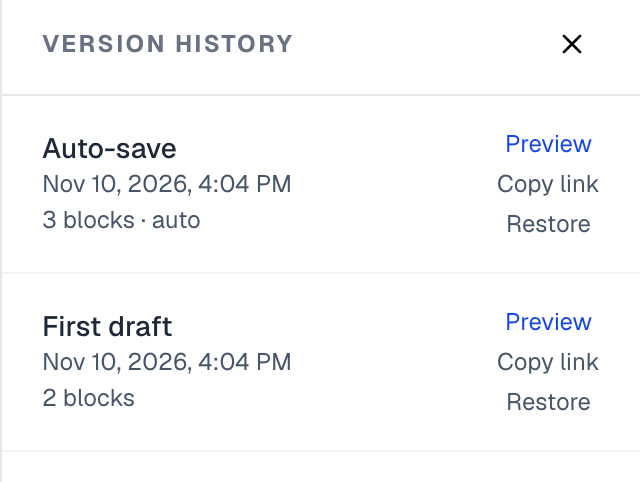
The newest version is at the top. Each row shows:
- Its name. That's the name you typed when you saved it, or the name Beachwood gave it, such as a Final Draft import. A version Beachwood saved by itself with no name reads Auto-save. A version you saved with Save version but didn't name reads Manual save. The version Beachwood saves when you share the screenplay with a reader reads Shared and the day you shared it, such as Shared Nov 18, 2026, with the date written in your own time zone and language.
- The date and time it was saved, written the way your computer writes dates.
- The size of the script, as a count of blocks. A block is one line element of the script: a scene heading, an action paragraph, a character name, a line of dialogue and so on. If the version has comments, the count of comments follows it. A version Beachwood saved by itself ends with auto.
If nothing has been saved yet, the panel says No saved versions yet.
Versions Beachwood saves for you
You don't have to remember to save. Beachwood also saves a version:
- when the screenplay is open and you haven't made an edit for 30 minutes;
- when you import a Final Draft file;
- when you share the screenplay with a reader in Reader Mode, so the reader sees a fixed draft;
- just before you restore a version, so the screenplay you had a moment ago is never lost (see What a restore replaces).
Preview, Copy link and Restore
Each row has three links on its right.
Preview
Preview opens that version on its own page, laid out in pages just like the editor. The top of the page says Preview — and the version's name, such as Preview — Shared Nov 18, 2026 for the version saved when you shared with a reader. For any other version with no name, it shows the date and time instead. The version is read-only there: you can read it but not change it. If the version has comments, they're listed beside the script as they were when it was saved. Click a line's comment marker to jump to its comments. You can't reply to these or change them.
Click ← Back to current version at the top left to return to the editor.
Copy link
Copy link copies the address of that version's preview page, so you can paste it into an email or a message. The link reads Link copied for a moment to show it worked. Only people who can already open the screenplay (its owner, editors and viewers) can open the link; anyone else is sent back to their own screenplays list.
Restore
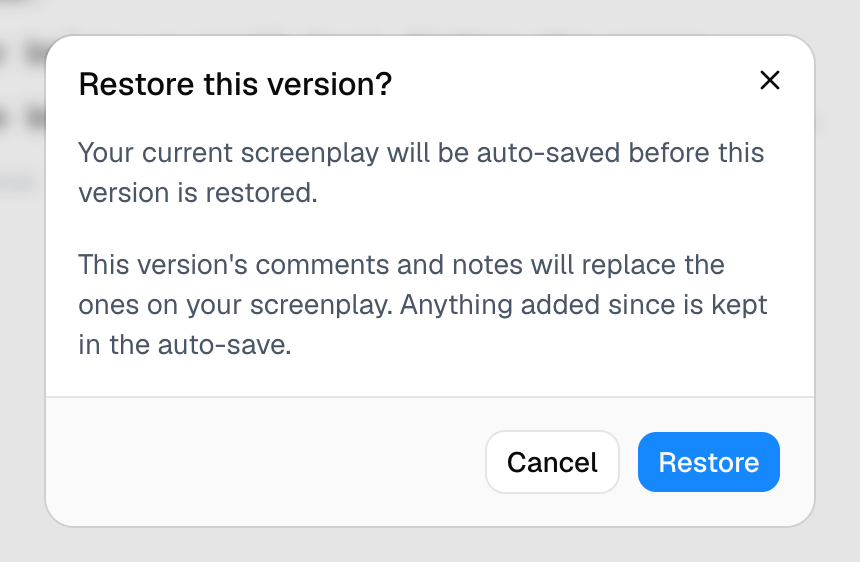
Restore makes that version your current screenplay. It asks first:
Restore this version? Your current screenplay will be auto-saved before this version is restored. This version's comments and notes will replace the ones on your screenplay. Anything added since is kept in the auto-save.
Click Restore to go ahead, or Cancel to leave everything as it is.
Only the screenplay's owner and its editors see Restore. A viewer can open Version history, preview any version and copy a link, but the row has no Restore link.
What a restore replaces
Restoring a version replaces your current screenplay with that version. That includes:
- the script, every line of it;
- the comments, which become the ones saved with that version (comments added since are removed from the screenplay);
- the script notes, the same way as comments;
- whether scene headings are bold, and the screenplay's own list of transitions, when the version remembers them (see the guides on bold scene headings and custom transitions).
Nothing is thrown away. Before Beachwood replaces anything, it saves your current screenplay as a version named Auto-save, with its comments and notes. That is what undo takes you back to, and you can also restore it from Version history like any other version.
If the screenplay belongs to a project with a script breakdown, the breakdown is updated to match the restored script.
On screen, the lines that differ from what you had are highlighted, and lines that aren't in the restored version fade out (see Seeing what changed in your Beachwood script).
If a restore doesn't work
The Restore this version? window stays open and says why:
- You need edit access to this screenplay's project. On a screenplay with a script breakdown, restoring also updates the breakdown, so it needs edit access to the project as well as the screenplay. Nothing was changed.
- The script breakdown could not be updated. The version was restored, but the breakdown wasn't. Click Reload to see the restored screenplay, then restore the same version again to update the breakdown.
- We could not restore that version. Nothing was changed. Try again.
The message after a restore
When the restore finishes, the panel closes and a message appears at the bottom of the window, naming the version you restored:
Version “First draft” restored. Press ⌘Z to undo.
On a Mac, iPhone or iPad it says ⌘Z. On Windows, Linux or a Chromebook it says Ctrl+Z.

The message stays until you close it with the ✕ at its end. It also goes away when you undo the restore, or when another message takes its place (for example, after you save a version).
Undoing a restore
Press ⌘Z on a Mac or iPad, or Ctrl+Z on Windows, Linux or a Chromebook. Your screenplay goes back to exactly what it was just before the restore: the script, comments, notes, bold setting and transitions. The restore message closes, because there's nothing left for it to undo.
Undoing a restore takes a moment, because the whole screenplay is rewritten. A spinner shows while it works. When it's done, a short message at the bottom of the page says Restore undone, then fades away by itself after a few seconds.

Press the shortcut when you're not typing in a line. While your cursor is in a line of the script, ⌘Z / Ctrl+Z undoes your typing in that line instead. Click the grey area beside the page first, then press it.
To redo the restore after undoing it, press ⌘⇧Z on a Mac or iPad, or Ctrl+Shift+Z (or Ctrl+Y) elsewhere. When the restore is back, a message says Restore redone and fades away the same way.
If undoing the restore fails, a message says Couldn't undo the restore. Your screenplay is unchanged — please try again. In that case Restore undone doesn't appear.
Things that may surprise you
An empty screenplay can't undo a restore. If the screenplay had nothing in it when you restored, there was nothing to save first, so there's nothing to undo back to. The message then reads only Version “…” restored, without the hint to press ⌘Z or Ctrl+Z.
You can't undo a restore while you're offline. It needs a connection. Beachwood says You're offline. Undoing a restore needs a connection — reconnect and try again. Once you're back online, press the shortcut again.
A viewer can't restore. Viewers can open Version history, preview and copy links, but the Restore link isn't there for them. Ask the screenplay's owner or an editor to restore it.
Undoing a restore doesn't add a row to the list. Undoing also saves your screenplay first, as a safety net, but that save is kept out of Version history so the list doesn't fill up with copies.