Some actions change several lines of your script at once: an undo, deleting a selection that spans lines, restoring an older version, a collaborator's edit arriving while you write. So you can see what happened, Beachwood marks the lines on screen:
- A line that appears or changes fades in with a light blue highlight. The highlight holds for about a second, then fades away.
- A line that's removed fades out, then leaves the page. The lines below it move up once it's gone.
Nothing is left behind afterwards, and nothing about the script moves: lines keep their place and pages break exactly where they did. The effect is only on your screen. It isn't saved, and it doesn't appear in a PDF or a Final Draft file.
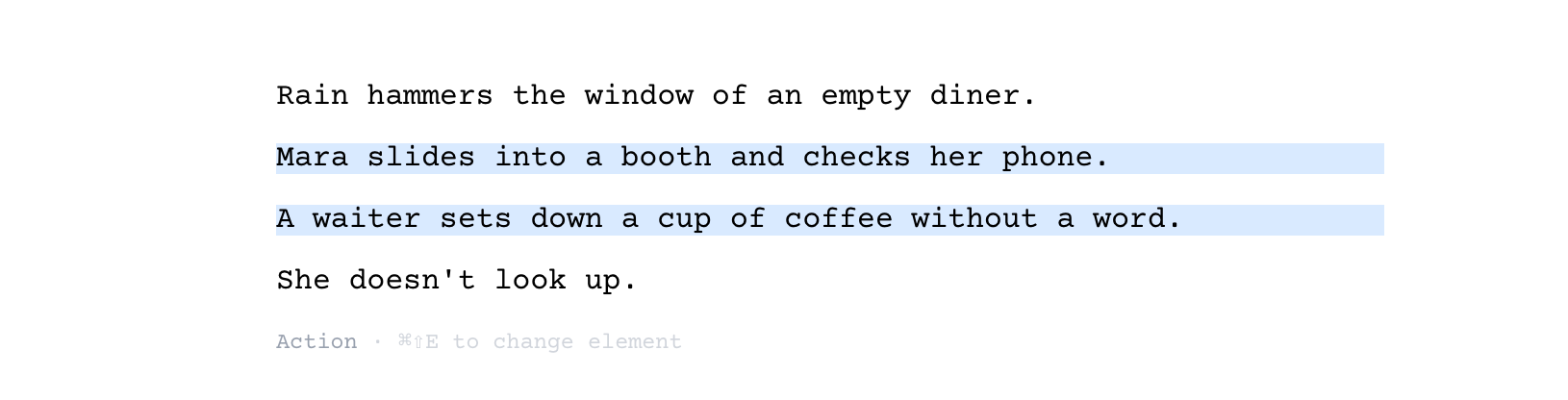
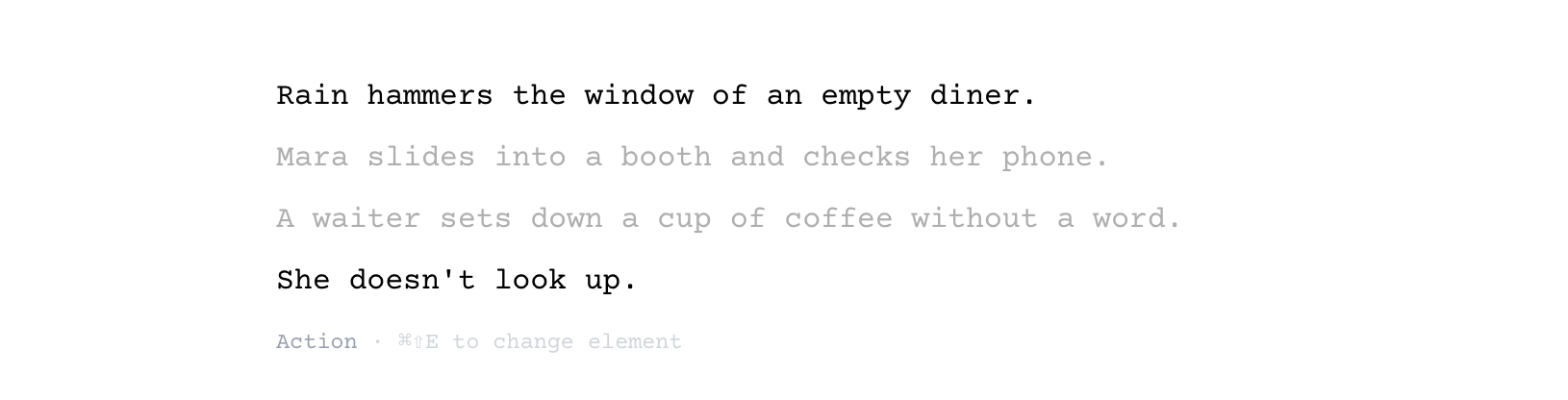
When lines are highlighted or fade out
Undo and redo
Every undo (⌘Z on a Mac, Ctrl+Z on Windows) and redo (⌘⇧Z on a Mac, Ctrl+Shift+Z or Ctrl+Y on Windows) marks what it changed. Undoing a change to a line's text highlights that line. Undoing a delete brings the deleted lines back highlighted, and redoing it fades them out again.
While your cursor is in a line, ⌘Z / Ctrl+Z undoes your typing in that line instead, with no highlight. Click the gray area beside the page first, then press it.
Deleting lines
- A selection that spans several lines. Select from one line into another and press Delete. Lines that were selected completely fade out. A line that was only partly selected stays, with its remaining text highlighted.
- Delete block, the red × at the end of a line, after you click Yes to "Are you sure you wish to delete this content?". The line fades out.
- Delete dual dialogue, after you confirm. Both speeches fade out.
Formatting and dialogue tools
- Dual Dialogue, turning it on or off. The two speeches are highlighted.
- Add alternate and Delete alternate on a line of dialogue. The line is highlighted. Switching which alternate is used isn't a change to the script, so it isn't highlighted.
- Bold, italic or underline across several lines. Each line in the selection is highlighted. Formatting part of one line isn't highlighted, since you can already see the change where you're working.
Restore scene
Restore scene (the icon just after an OMITTED line) brings the scene's heading and text back highlighted. Undoing it fades them out again, back to the OMITTED line.
Coming back from Story Planner, Index Cards or Scene View
When you switch back to the script from Views → Story Planner, Index Cards – Script, Index Cards – Summary or Scene View, every line that changed while you were away is highlighted:
- lines that Send to Script or Send Outline to Script added from the Story Planner;
- a scene added with Insert New Scene, or sent with Send to Script, in Index Cards;
- a scene heading you edited on its card;
- the scenes you dragged to a new place on the cards.
A scene heading you changed and then changed back isn't highlighted, because in the end it didn't change.
A collaborator's edits
When someone else is editing the same screenplay, each line they change or add is highlighted as it arrives on your screen. The line you're typing in is never highlighted or faded, so their edit can't flash in the middle of your own.
After working offline
When Beachwood reconnects and syncs your offline changes, it checks your script against the saved copy. Any line that differs on your screen, from your changes or from someone else's, is highlighted. The same happens if you choose Keep mine for a line that was changed in two places.
Restoring a version
When you Restore a version from Version history, the lines that differ from what you had are highlighted, and lines that aren't in that version fade out. Undoing the restore does the same in reverse. See Version History in Beachwood.
If your computer is set to reduce motion
If you've turned on Reduce motion (macOS System Settings → Accessibility → Display) or turned off Animation effects (Windows Settings → Accessibility → Visual effects), Beachwood leaves out the fades. Changed lines still get the highlight, because it's what tells you what changed, but they appear at once. Removed lines leave at once, with no fade.
Things that may surprise you
- Ordinary typing isn't highlighted. Beachwood marks changes you didn't make with the cursor on the line. What you type, paste or format on one line is already in front of you.
- A collaborator's deleted lines don't fade out. Deletions made by someone else don't reach your screen as they happen, so their removed lines disappear the next time Beachwood reloads the script, without a fade.
- Update from Final Draft and Duplicate Scene aren't highlighted. Both happen while the script isn't open in the editor, so there's nothing on screen to mark.
- This blue isn't a comment or a selection. A line tinted while the Comments panel is open is the line your comment is about. Text selected with the mouse is a darker blue. The change highlight is lighter and always fades away by itself after about two seconds.
- Clicking into a line while it fades out. A removed line takes about a third of a second to fade. If you click into it and type during that moment, the typing goes with the line when it leaves.