When someone invites you to work on their screenplay in Beachwood, you'll see an invite waiting for you at the top of your screenplays list. You choose whether to join: Accept adds the screenplay to your list, and Decline turns the invite down.
To invite someone yourself, open the screenplay, choose Collaboration in the toolbar, then Invite.
Where you'll see an invite
Open the screenplays list (the page icon, Screenplays, in the sidebar). Each invite you haven't answered appears as an amber banner above your screenplays, saying:
You have a pending invite to collaborate on "the screenplay's title".
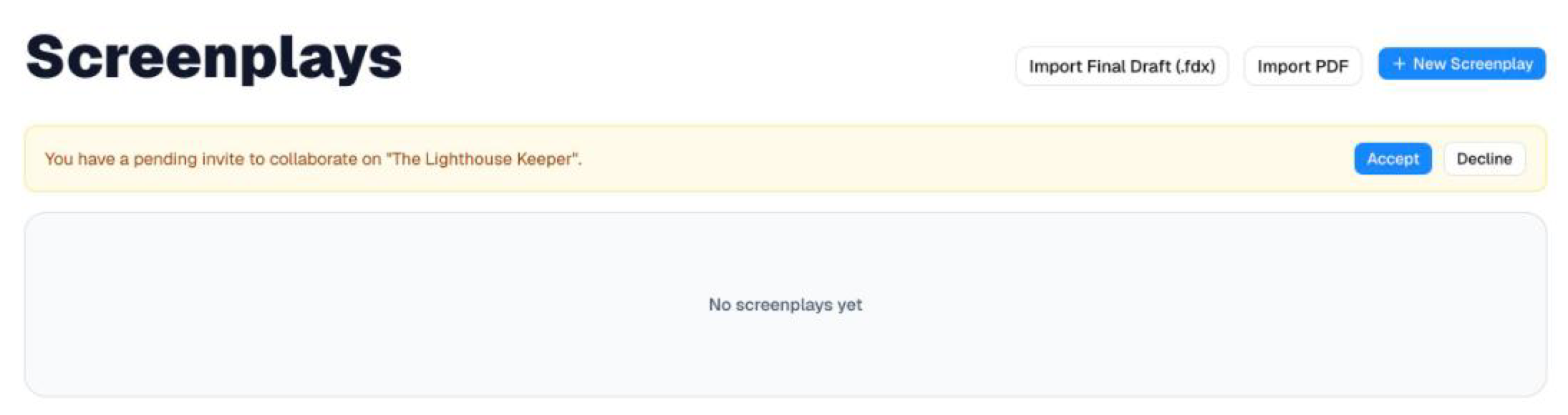
If you've been invited to more than one screenplay, you'll see one banner for each, and you can answer them in any order.
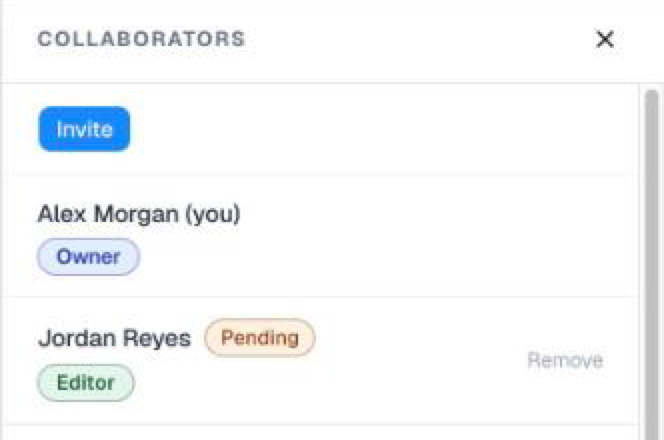
Until you answer, the person who invited you sees you in the screenplay's Collaborators panel with a Pending tag next to your name, along with the role they invited you as.
Accepting an invite
Choose Accept on the banner. A small spinner shows in the button while your answer is sent, then the banner fades away.
- The screenplay appears in your list straight away, with no need to reload the page.
- You join with the role you were invited as: Editor (you can write in the screenplay) or Viewer (you can read it).
- The person who invited you no longer sees Pending next to your name. You're listed as a collaborator with your role.

Declining an invite
Choose Decline on the banner. The banner fades away and the invite is removed.
- It doesn't come back. Reloading the page, or signing in again later, won't bring the banner back.
- The person who invited you no longer sees you as Pending. You disappear from the screenplay's Collaborators panel.
- You can still be invited again. If you change your mind, ask the owner to send you a new invite.
If something goes wrong
If your answer can't be sent, for example because your connection dropped, the banner stays where it is and a red message appears under it:
- "Couldn't accept the invite. Please try again."
- "Couldn't decline the invite. Please try again."
Nothing has changed: the invite is still waiting. Choose Accept or Decline again when you're ready.
While an answer is being sent, both buttons on that banner are unavailable, so a second click can't send it twice.
Things that may surprise you
Your role isn't shown on the screenplays list. The Beachwood screenplays list has no Role column. To see whether you're an Editor or a Viewer on a screenplay, open your Dashboard and look at the Role column of its Screenplays card.

The banner may show a different title. If the owner has given the screenplay a code name, the banner shows the code name until you accept. After that, you see the real title. See Code names.
An invite to read is a different banner. If someone shares a screenplay with you to read rather than to work on, its banner says "You have a pending invite to read…". That kind of invite is explained in Reader Mode.