Beachwood knows the standard screenplay transitions — CUT TO:, DISSOLVE TO:, FADE OUT., FADE IN: and the rest. When you start typing one in a Transition line, a list appears so you can pick it. This is the EZ Complete list, the same kind of list that offers character names, locations and times of day as you type; its heading reads EZ COMPLETE™. If your script uses a transition that isn't on that list, such as FADE UP or FADE TO BLACK, you can add it, and Beachwood treats it like the built-in ones from then on.
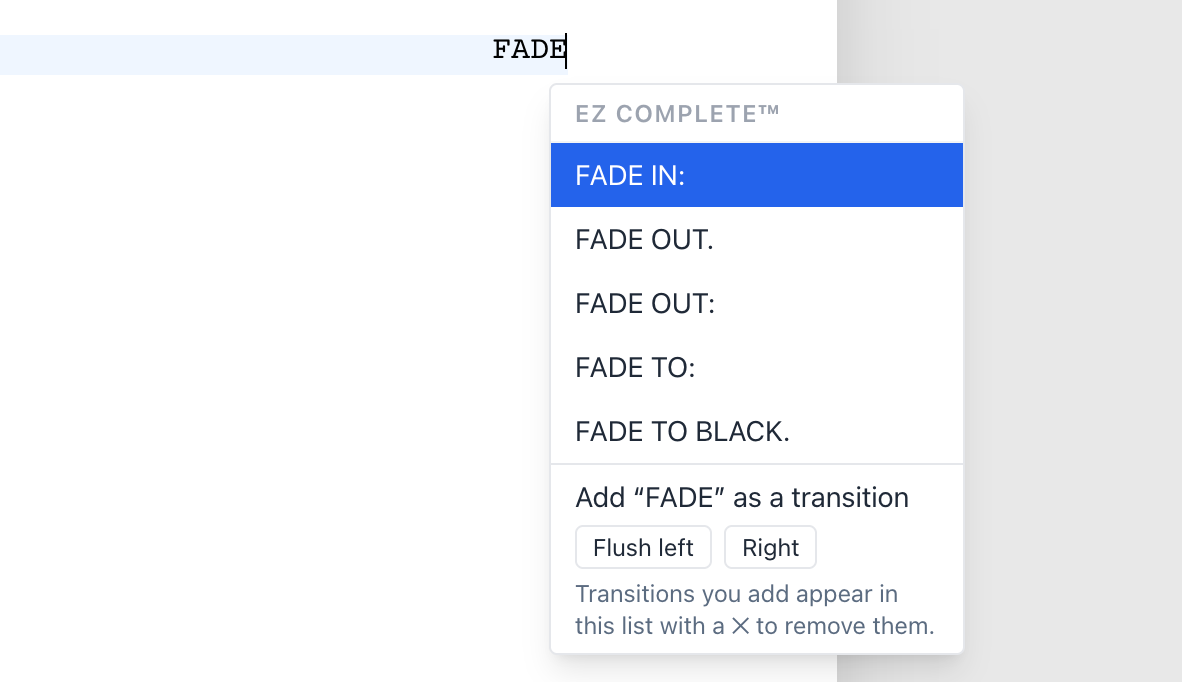
Adding a transition
- In a Transition line, type the transition, for example
FADE UP. - Below the line, the list shows Add "FADE UP" as a transition, with two choices:
- Flush left — placed at the left margin, like FADE IN:.
- Right — placed on the right of the page, like CUT TO:.
- Click the one you want. With the keyboard: press Down to reach the row, Left or Right to choose the position, then Enter.
Under the two choices, a short note reminds you that a transition you add shows in this list with a ✕ to remove it.
The line you typed takes that position straight away, and the transition is saved to this screenplay.
Either way it is a transition on the page: in capitals, with a blank line's worth of space above it, like CUT TO:. (At the very top of a page that space is left out, as it is for everything.) Typing it in lowercase is fine; Beachwood puts it in capitals.
Just pressing Enter does not add it. If you only press Enter (or Tab), the line is kept as an ordinary right-aligned transition and nothing is added to the list. Add it only when you mean to reuse it.
The add row only appears on a Transition line, never on an Action line, so ordinary description is never offered as a transition.
Using a transition you added
From then on, in this screenplay:
- typing the first few letters offers it in the list, with the standard transitions that start with the same word (see Where your transitions appear in the list);
- typing it in full places it in its position automatically, as with CUT TO: or FADE IN:.
Names are stored in capitals, and extra spaces are removed, so fade up and FADE UP are the
same transition. A name can be up to 40 characters long. You can't add a name that is already one
of the standard transitions.
Seeing every transition
An empty Transition line shows the whole list, the transitions you added included. It opens when you clear a Transition line, and when you change an empty line into a Transition (with Tab or ⌘6, for example).
Where your transitions appear in the list
A transition you added sits with the standard transitions that start with the same word, right after the last of them. FADE UP comes after FADE TO BLACK., with the other FADEs; CUT AWAY: comes after CUT TO BLACK. A transition whose first word no standard transition uses, such as WIPE TO:, goes at the end. When several share a place, they are in the order you added them.
The standard transitions keep their usual order, so typing the first letters and pressing Enter picks the same transition it always did.
Nothing in it is selected until you choose something, so the line works as usual:
- Enter still just moves on, and Tab still changes the line to the next element;
- Up still goes to the line above;
- Down steps into the list. Click a transition, or press Enter on it, to use it.
Start typing and the list narrows to the transitions that begin with what you typed.
Switching to another app while you type
You can leave Beachwood in the middle of a line, to check an email or look something up, and come back to it exactly as you left it. Switching to another app or window (⌘Tab on a Mac, for example) keeps:
- the text you've typed so far, even if it isn't finished;
- your cursor, in the same place in the line;
- any list that was open, such as the EZ Complete list.
So if you were adding FADE UP and switched away after typing FADE U, the add row is still there
when you come back. Finish typing, then pick Flush left or Right as usual.
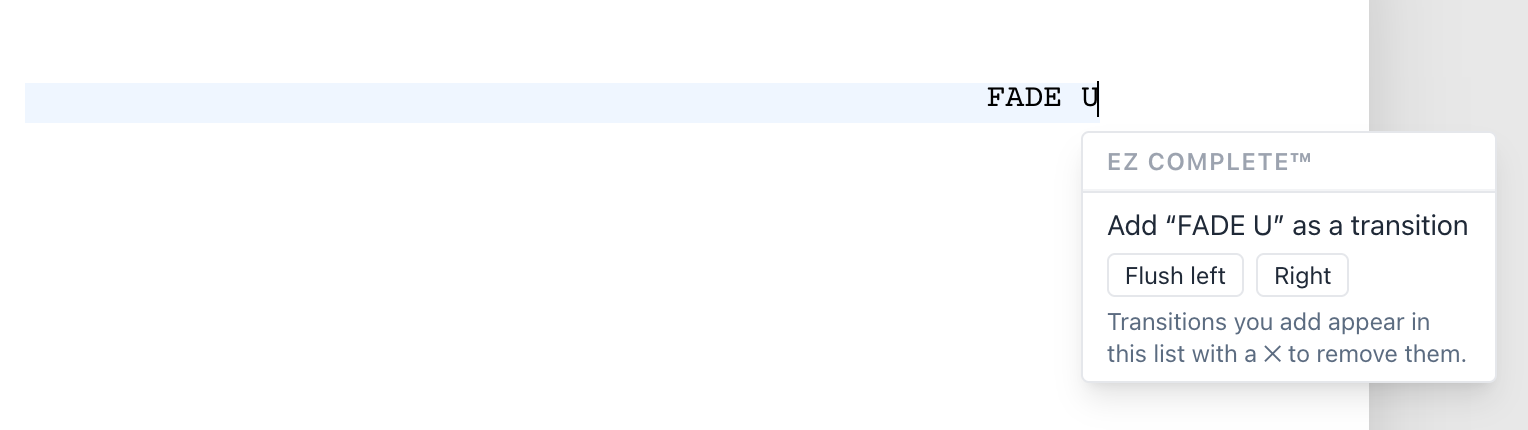
Switching browser tabs works the same way: the line, the cursor and the list are still there when you come back. Beachwood also saves what you've typed as soon as you leave the tab. Minimizing the browser window does the same. Closing or reloading the page saves the line too.
Clicking anywhere else on the page still finishes the line and saves it, as it always has.
Something that may surprise you: if you switch to another app and the browser stays visible on your screen, the line isn't saved while you're away. It's saved when you finish the line, switch to another tab, or close the page.
Removing a transition
In the list, a transition you added has a ✕ beside it. Click it to remove the transition from this screenplay's list. The quickest way to see them all is an empty Transition line (see Seeing every transition).
The built-in transitions (FADE OUT., CUT TO:, and the rest) have no ✕, because they can't be removed. Whenever a row with a ✕ is in the list, a note under the list says so: "Transitions with a ✕ are ones you added to this screenplay. Click ✕ to remove one. Built-in transitions can't be removed." The note goes away when what you've typed hides every ✕ row, and while you're typing a new name the add row's own note takes its place.
Removing it doesn't change your script. Lines that already use it keep their text and their position; Beachwood just stops offering it.
To move a transition to the other side, remove it, then type it again in a Transition line and add it with the other choice. Lines already in the script keep the position they had.
Who can add or remove transitions
The screenplay's owner and its editors. Viewers and Reader Mode don't show the add row or the ✕.
Adding and removing transitions offline
Adding and removing transitions works the same way while you're offline. The list changes on your screen straight away, and Beachwood keeps the change on your computer. When you're back online, your changes are sent along with the lines you typed, in the order you made them. If you add a transition and then remove it before you reconnect, nothing is sent for it.
A screenplay holds up to 100 transitions of its own. If a collaborator fills the list while you're offline, a transition you added can't be saved when you reconnect, and it disappears from your list. Lines in your script that use it keep their text and position. Once you're back online and saving has finished, your list shows the screenplay's list as it's now saved, including any changes your collaborators made.
Each screenplay has its own list
Transitions you add belong to the screenplay you added them in. Another screenplay doesn't see them, and nothing you add changes the standard list.
Versions
A version you save remembers the screenplay's list of transitions at the time. Restoring a version puts that list back with the script, replacing the current one, so a transition added after the version was saved disappears from the list. Undoing the restore puts your previous list back. The message that confirms the restore names the key that undoes it: ⌘Z on a Mac or iPad, Ctrl+Z elsewhere. It stays at the bottom of the window until you close it with its ✕ or undo the restore. For more on versions, see Version History in Beachwood.
Something that may surprise you: versions saved before this existed don't remember the list. Restoring one leaves your current list as it is.
Final Draft files
Exporting (Export to → Final Draft (.fdx)). Your transitions are written into the file's own transition list, so Final Draft offers them as you type, just as Beachwood does. Every transition is a Final Draft Transition element:
- a Right transition sits on the right, like CUT TO:;
- a Flush left transition sits at the left margin, with a line of space above it, the same as in Beachwood. FADE IN: is also at the left margin, but with no space above it, so it sits right under a FADE OUT.
Something that may surprise you in Final Draft: if you pick a flush-left transition from Final Draft's own transition list, Final Draft puts it on the right. Its list holds only the names, not where each one goes. The lines Beachwood exported stay where you put them.
Importing a .fdx. When a Final Draft file lists transitions of its own, Beachwood adds them to the screenplay's list. A transition at the left margin comes back as a flush-left transition. So does an Action or General line whose whole text is one of the file's transitions, which is how older exports, and some writers in Final Draft, store them. This works both for a new import and for Update From Final Draft on an existing screenplay; an update adds to the list and never removes anything from it.
Something that may surprise you: a line is only turned into a transition when the file's own transition list names it. Some scripts type FADE UP as plain General text without ever adding it to Final Draft's list. Those lines stay as they are, because Beachwood can't tell them apart from any other short line. Add the transition yourself, then retype the line in a Transition line.