Account Settings is where you look after your own account: your picture, your name and phone number, the language Hollywood Disruption speaks to you in, your email address, your password, two-factor authentication, and the devices you're signed in on. It also shows how much storage you've used, and lets you choose whether productions can see your profile.
Getting there
Click your profile picture in the top corner of the page, then choose Account Settings.
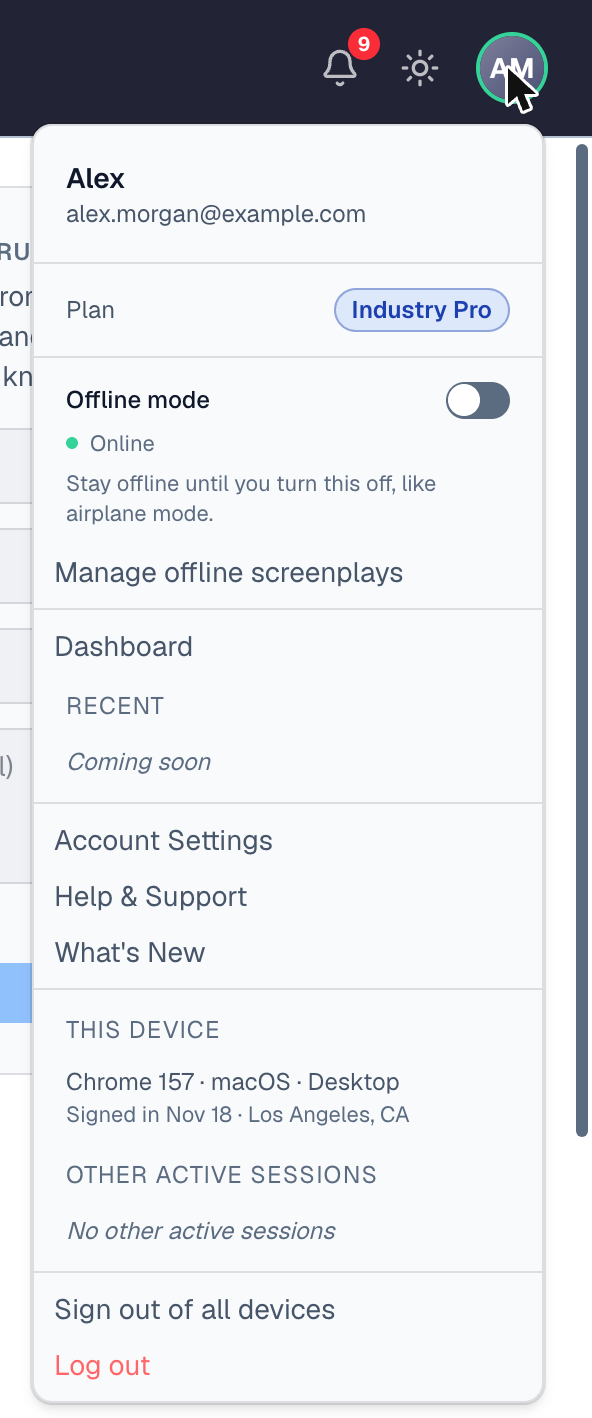
You can also get there two other ways:
- Settings at the bottom of the sidebar.
- In the Beachwood editor, Menu → Help → Manage Account.
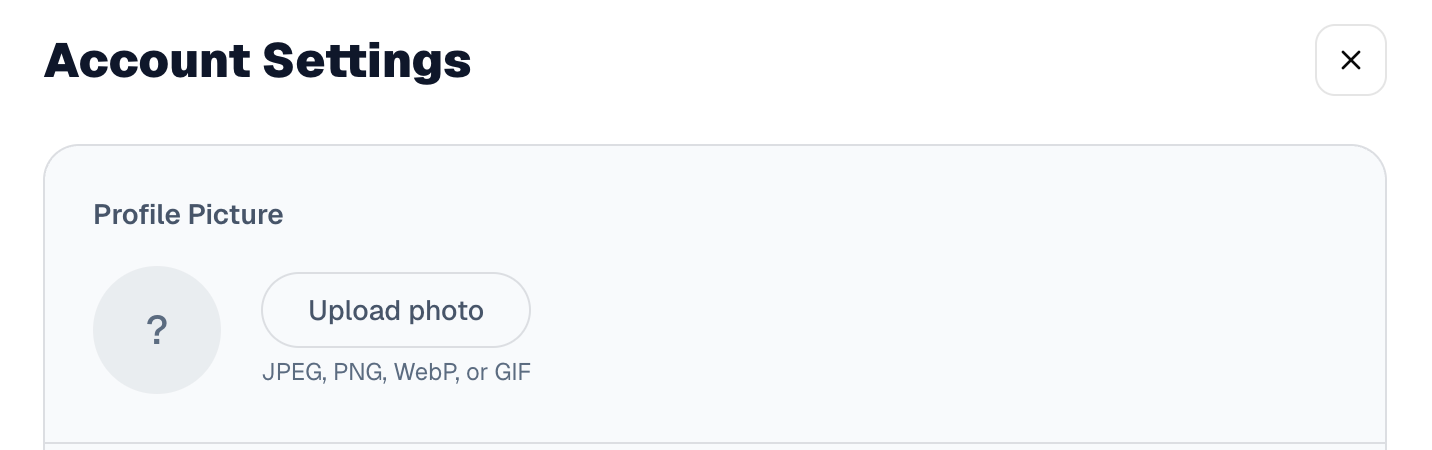
The page opens with the heading Account Settings and a close button (an X in a box) at its top right. The close button takes you back to the page you came from, so if you opened Account Settings from a screenplay, it brings you back to that screenplay. If you came straight to the page (from a bookmark, say), it takes you to your dashboard.
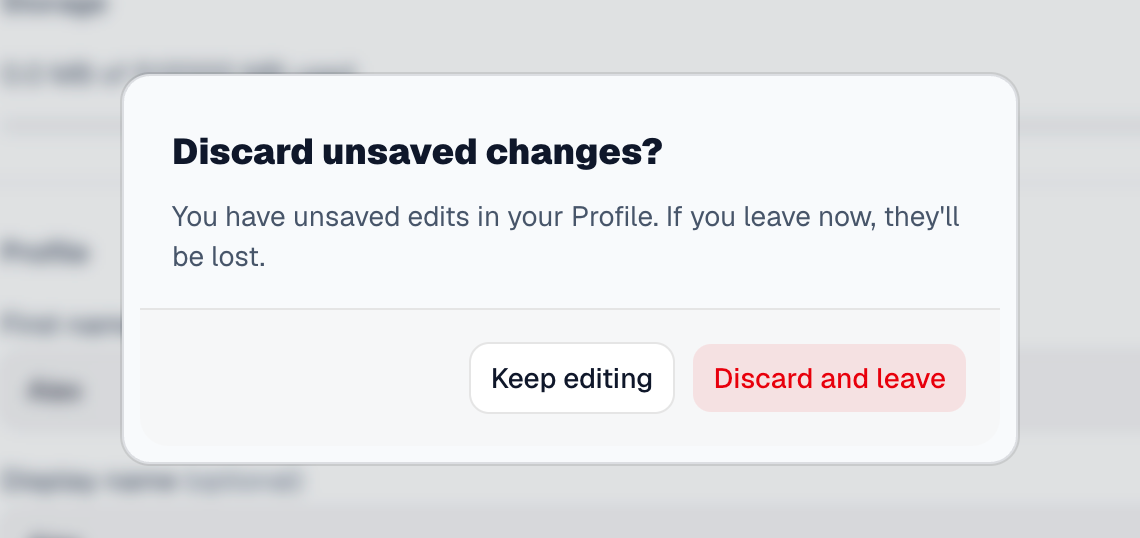
If you've changed something in the Profile section and haven't pressed Save, the close button asks first: Discard unsaved changes? Choose Keep editing to go back and save, or Discard and leave to leave without saving. No other section asks, because they save as you go.
The sections appear in this order, from top to bottom. One of them, Text messages, appears only for some people.
Profile Picture
Your picture appears beside your name across the site, and in the top corner of every page.
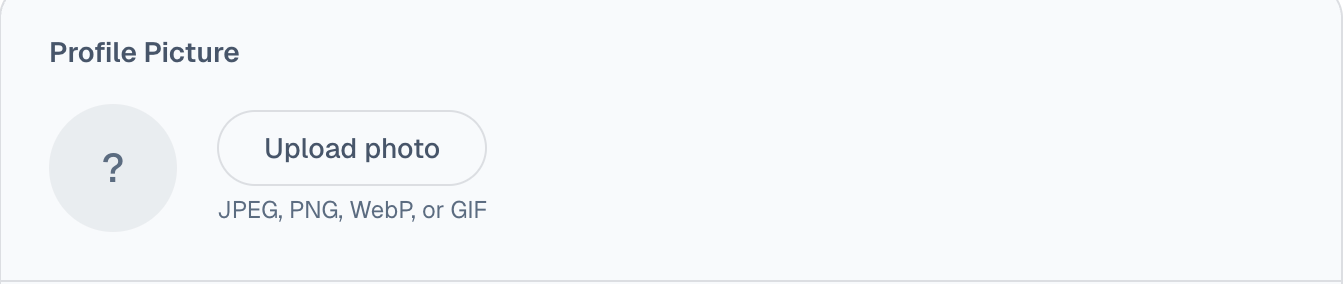
- Click Upload photo.
- Choose a picture. It can be a JPEG, PNG, WebP or GIF file.
While it uploads, the button reads Uploading… and a spinner covers your current picture. When it's done, the new picture appears and you see Profile picture updated. There's no Save button: the picture is saved as soon as it's uploaded.
If you choose another kind of file, you see Only JPEG, PNG, WebP, and GIF files are allowed. and nothing changes. If the upload fails, you see Upload failed. Please try again.
If your account has used all the storage your plan allows, a window opens instead, titled Storage limit reached, with a View plans button that opens the pricing page.
Storage
This section shows how much storage your account is using: the pictures and files you upload.
- On a plan with a storage limit, it reads, for example, 12 MB of 250 MB used, with a bar that fills as you use more.
- On a plan without a limit, it shows only how much you've used, with no bar.

How much storage you get depends on your plan. You can't change anything here. To get more room, change your plan.
If the amount can't be read, the section says Couldn't load storage usage. Reload the page to try again.
Profile
This is the one section with its own Save button. Nothing you type here is kept until you press it, or until you change your language (see Language).
- First name and Last name. Both are required.
- Display name (optional): how you'd like to be addressed. Leave it blank to use your first and last name. It can be up to 50 characters.
- Phone number (US only): a US number, written like +1 (212) 555-1234.
- Job title (optional): for example, Screenwriter.
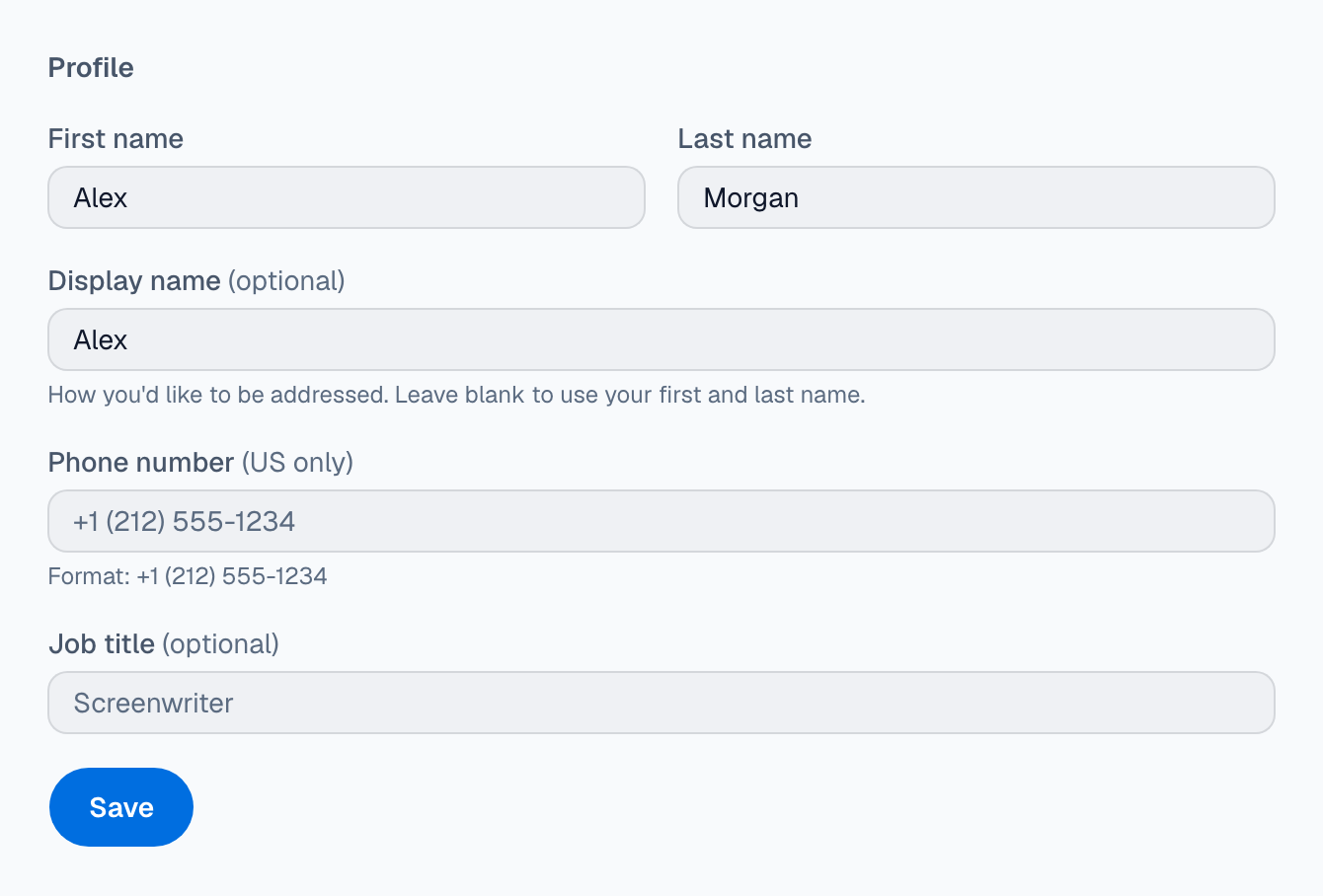
Press Save. The button reads Saving… while it works, then Profile updated. appears under the boxes. If something is wrong (a phone number that isn't a US number, for example), a red message under the boxes says what.
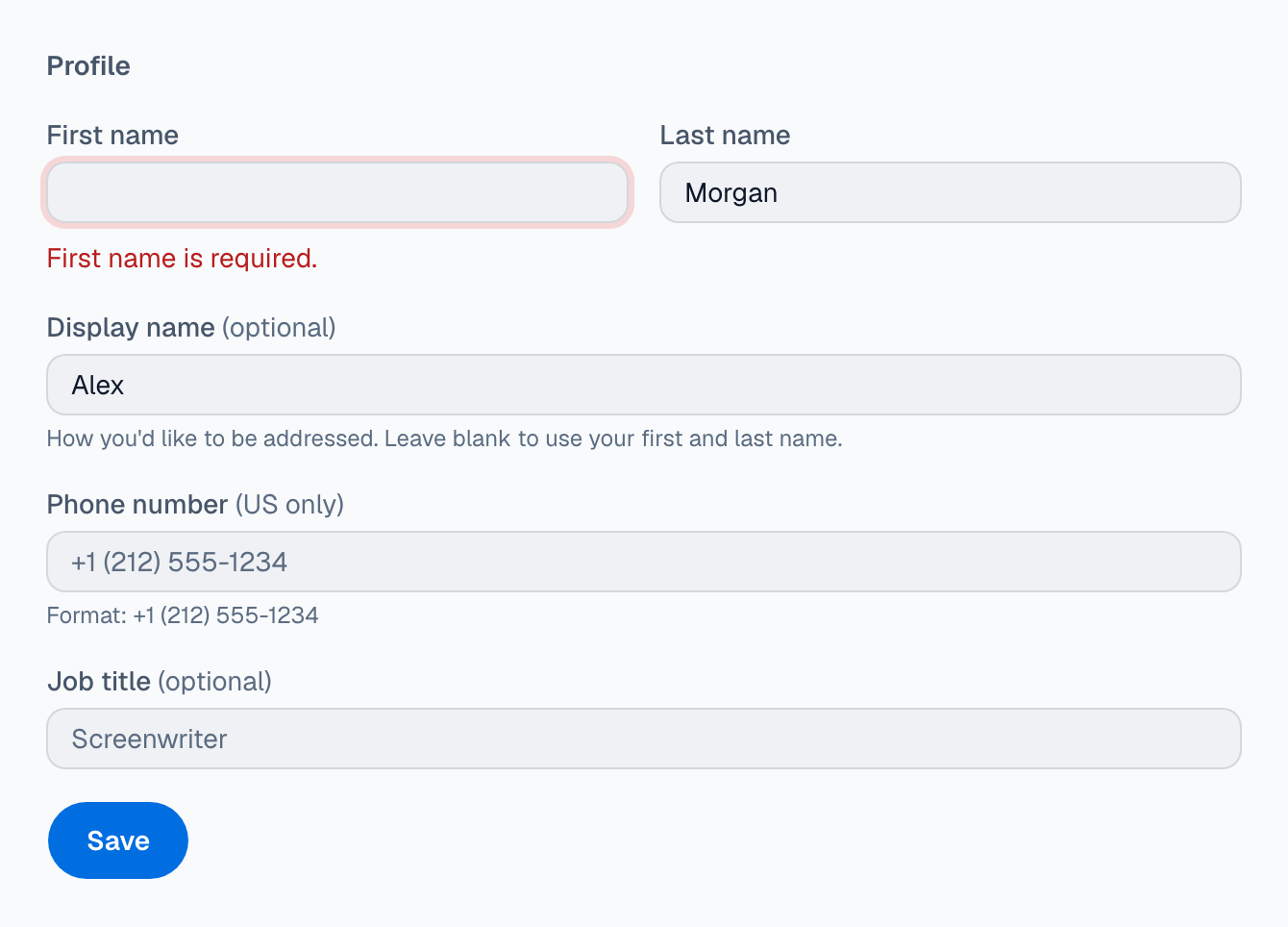
If First name or Last name is empty, or holds only spaces, nothing is saved. That box is outlined in red, with First name is required. or Last name is required. under it. Type a name into the box and the message goes away; then press Save again. Display name and Job title can be left empty.
Profile sharing
When a production adds you as one of its contacts, it can ask to see your profile photo, name and job title, so its call sheets and paperwork can show them. This section is where you decide.
- The switch Share my profile with productions I accept turns sharing on or off for every production at once. When it's off, you see Sharing is off. Productions you have accepted will not see your profile until you turn this back on.
- Under it, once a company or production has asked, you see a Companies list and a Productions list, each with its own switch and its answer, such as Sharing or Not answered yet.
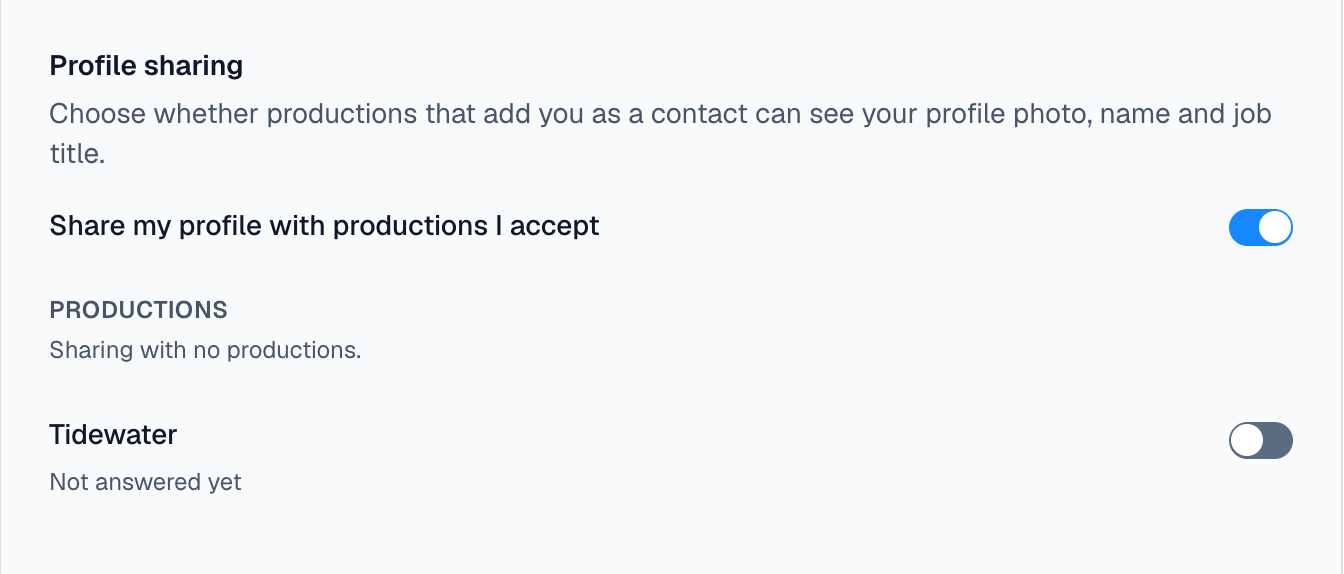
Every switch saves as soon as you flip it. If a change can't be saved, the switch flips back and you see We could not save that. Please try again.
The switch is here even if no production has asked yet, so you can turn sharing off ahead of time. For what exactly is shared, how you're asked, and what happens to paperwork that already went out, see Sharing your profile.
Language
Choose the language Hollywood Disruption uses for you. Your choice is saved to your account, so it follows you to any computer you sign in on.
Open the box and choose one of:
- No preference (use your browser's language)
- English (US)
- Español (México)
- English (UK)
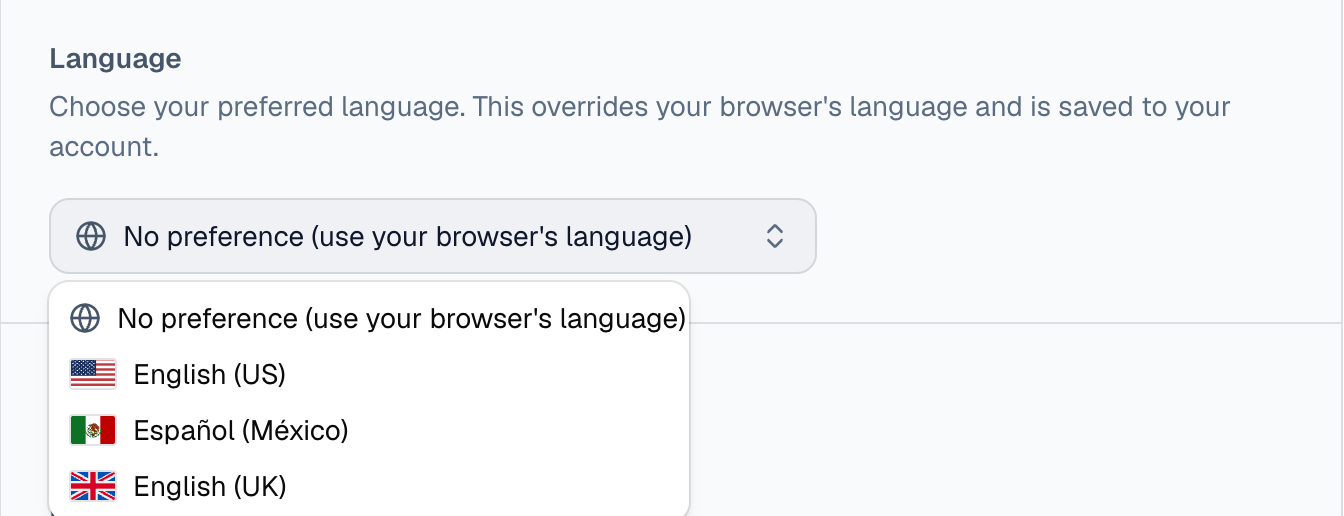
As soon as you choose, the page reloads in the new language and comes back showing the Language section, so you can see your choice. There's no Save button.
No preference means Hollywood Disruption follows the language your web browser asks for. If your browser asks for a language we don't offer, you see English (US).
If the change can't be saved, you see Couldn't update your language. Please try again. and the page doesn't reload.
If you've typed something into Profile and not saved it yet, choosing a language saves your Profile first, then changes the language. Your edits are there when the page comes back. If your Profile can't be saved (an empty First name, for example), the language isn't changed and the page doesn't reload. Profile shows what's wrong, and under the Language box you see Your language wasn't changed because your profile couldn't be saved. Fix the profile and try again.
Email Address
Your current email address is shown at the top of this section. A green check beside it means it's verified (point at it to see Email verified). If it isn't verified yet, it's followed by (unverified).
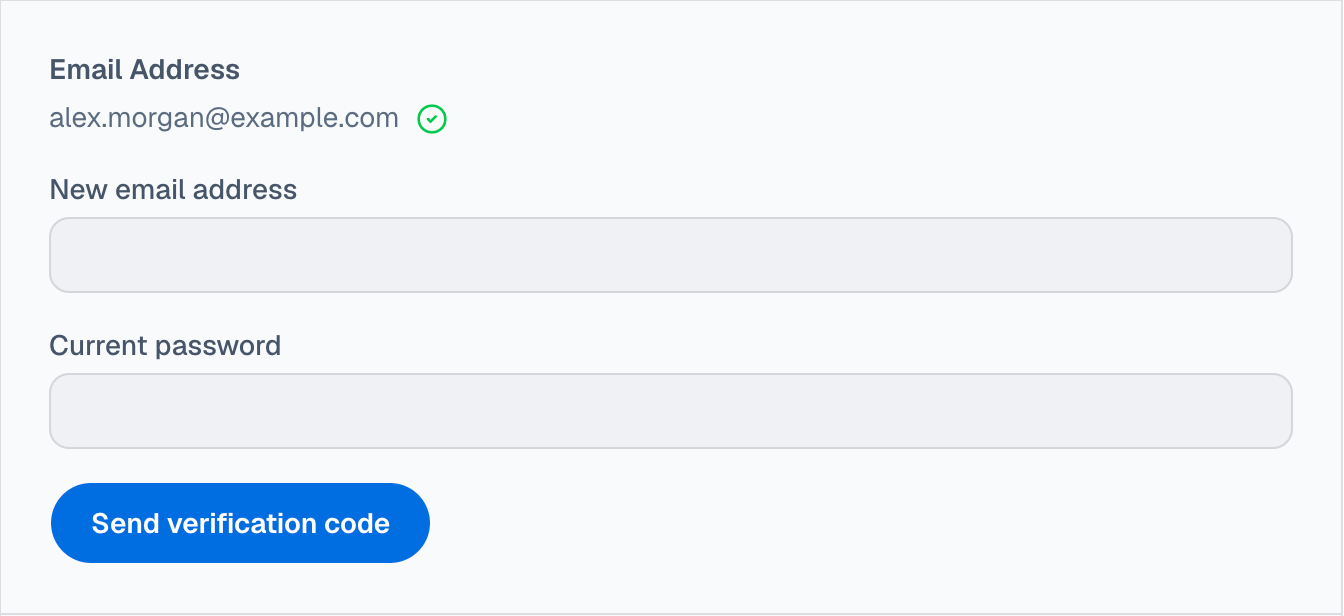
To change it:
- Type your new address in New email address.
- Type your password in Current password. This proves it's really you.
- Press Send verification code.
- We email a code to the new address. The section now reads "Enter the verification code sent to" your new address.
- Type the code in Verification code and press Verify.
When the code is accepted, you see Email address updated successfully. From then on, you sign in with the new address.
Until you enter the code, your old address stays in place. If your password is wrong, the Current password box is outlined in red and a message under it says so. If the code is wrong or has expired, a red message appears under Verification code.
Text messages
You see this section only if a production has added you as a contact and asked to send you text messages about its shoot (call times, schedule changes and so on). Most people never see it.
It lists each production that has asked, and lets you choose which ones can text you. Turning one off stops texts from that production only.
Invitation pending means you haven't finished saying yes. Press Finish setup beside the production to verify your mobile number and agree. Until your number is verified, the section says Verify your mobile number to manage text messages for these productions.
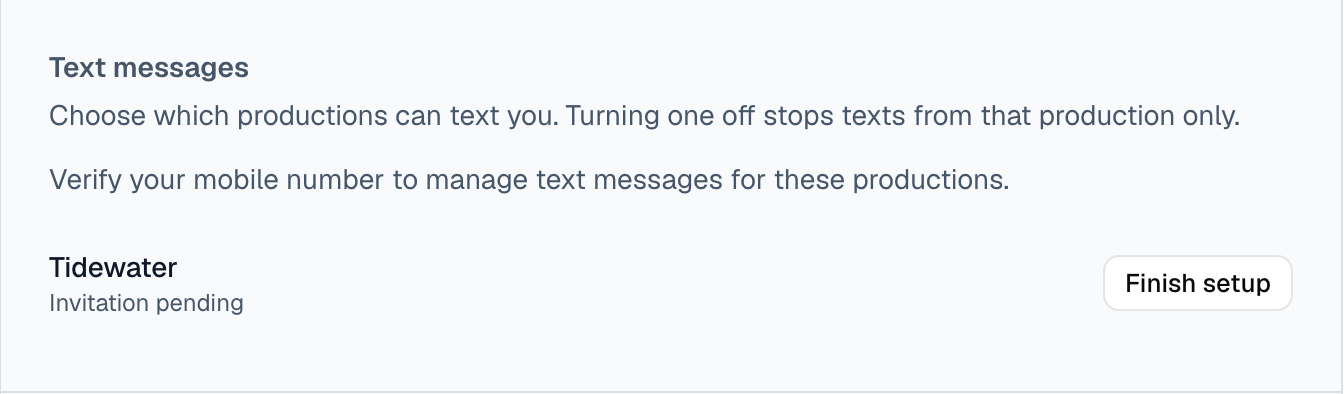
Once your number is verified, each production you agreed to has a switch, with the exact wording you agreed to beneath it. Each switch saves as soon as you flip it.
If you've replied STOP to one of our texts, the section says You have opted out of all text messages, and no switch here can change that. To start receiving texts again, text START to the number shown.
Change Password
- Type your Current password.
- Type a New password. It must be at least 16 characters long. Any characters are allowed, and a short phrase works well.
- Press Update password.
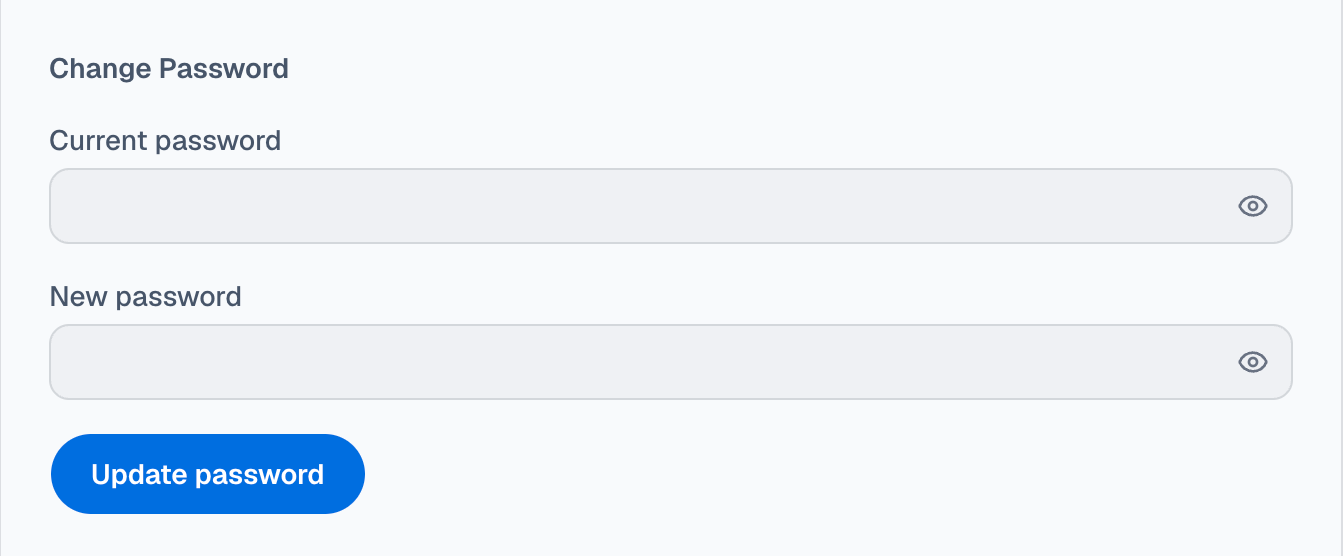
The eye icon at the right of each box shows or hides what you typed. When the change works, you see Your password has been changed. If the current password is wrong, or the new one is refused (too short, or one that has turned up in a public data breach), the box in question is outlined in red and a message under the boxes says why.
Two-Factor Authentication
Two-factor authentication asks for a 6-digit code from an app on your phone each time you sign in, as well as your password. This section shows whether it's on (Status: Enabled or Status: Disabled).
- To turn it on, press Enable MFA and follow the steps.
- To turn it off, press Disable MFA and enter a current code. If your plan requires two-factor authentication, there's no Disable button. Instead you see Your plan requires two-factor authentication, so it stays on.

For the full steps, what an authenticator app is, and what to do if a code doesn't work, see Two-factor authentication.
Active Sessions
This lists every device and browser you're signed in on. Each one shows the device, when it was last active, and roughly where it was (a city and an internet address).
- The one you're using now is marked This device, and its button reads Log out. Pressing it signs you out here, in every tab of this browser.
- Every other device has a Remove button. Pressing it signs that device out. Use it if you see a device you don't recognize, or one you've stopped using.
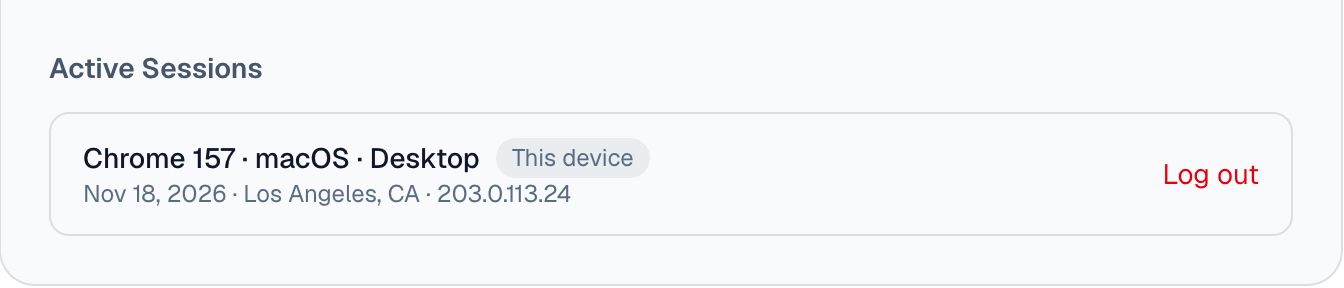
If the list can't be read, the section says We couldn't load your active sessions. Reload the page to try again.
If the page doesn't load
If your account details can't be read, the page shows only We couldn't load your account settings. You're still signed in. Reload the page to try again. You haven't been signed out, and nothing has changed. Reload the page, or close it with the close button.
Things that may surprise you
- Only Profile has a Save button. Your picture, the profile-sharing switches, your language and the text-message switches all save the moment you change them. The close button warns you only about unsaved Profile changes, because nothing else can be left unsaved.
- Your phone number must be a US number. Numbers from other countries aren't accepted here.
- Changing your language also saves your Profile. If you've typed into Profile without pressing Save, choosing a language saves those edits too. To throw them away instead, undo them before you choose.
- Some messages are always in English. Profile updated. and Email address updated successfully. appear in English whatever language you've chosen.
- The profile menu also lists your devices. The menu under your picture shows your other signed-in devices and has Sign out of all devices, which signs you out everywhere at once, this device included. Account Settings signs out one device at a time.
- The storage limit isn't something you set. It comes from your plan, so the only way to raise it is to change plans.