Two-factor authentication adds a second lock to your Hollywood Disruption account. Besides your password, signing in asks for a 6-digit code from an app on your phone. This page explains what you need, where to turn it on, how to set it up in about a minute, and how to turn it off.
What two-factor authentication is
Right now, if someone learns your password, they can open every draft, revision and note in your account. With two-factor authentication on, a password alone isn't enough: signing in also needs a code that only your phone can produce. Someone who steals your password still can't get in.
What an authenticator app is
An authenticator app is a small app on your phone that shows a 6-digit code for each account you add to it. The code changes every 30 seconds, so an old one is no use to anyone.
You don't need to buy anything. A free app is enough: Google Authenticator, Authy, or any other app that supports time-based codes (sometimes called "TOTP"). Install one from your phone's app store before you start.
Where you can turn it on
There are three places, and they all work the same way once you start.
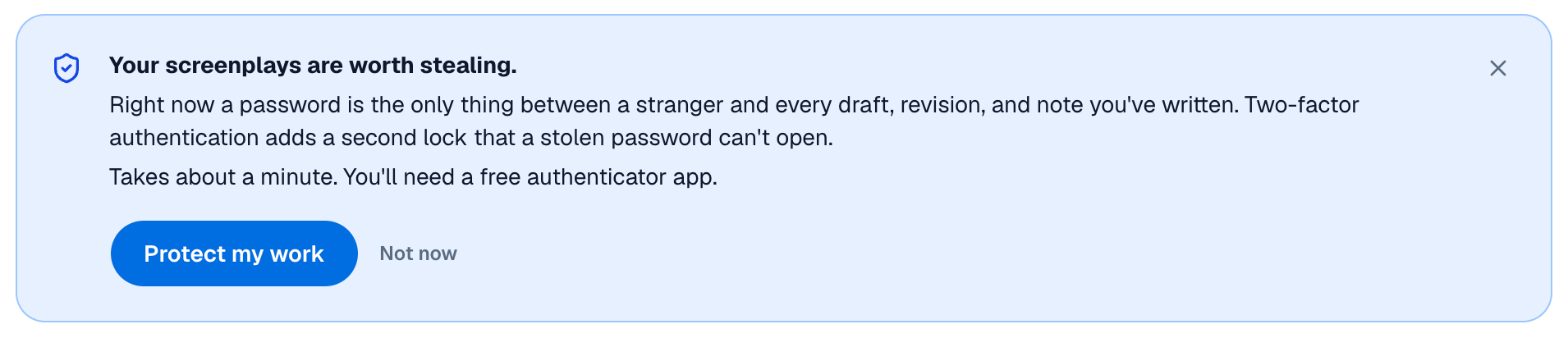
The dashboard. While two-factor authentication is off, your dashboard shows a card titled "Your screenplays are worth stealing." Choose Protect my work to open the Turn on two-factor authentication window. Not now, or the ✕ on the card, hides it for two weeks.
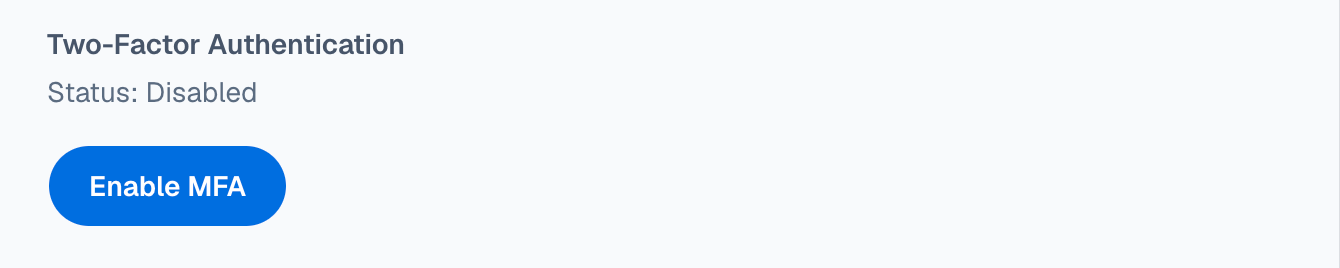
Account Settings. Open the menu under your picture in the top corner and choose Account Settings. Near the bottom, the Two-Factor Authentication section shows its status as Enabled or Disabled. Choose Enable MFA to start.
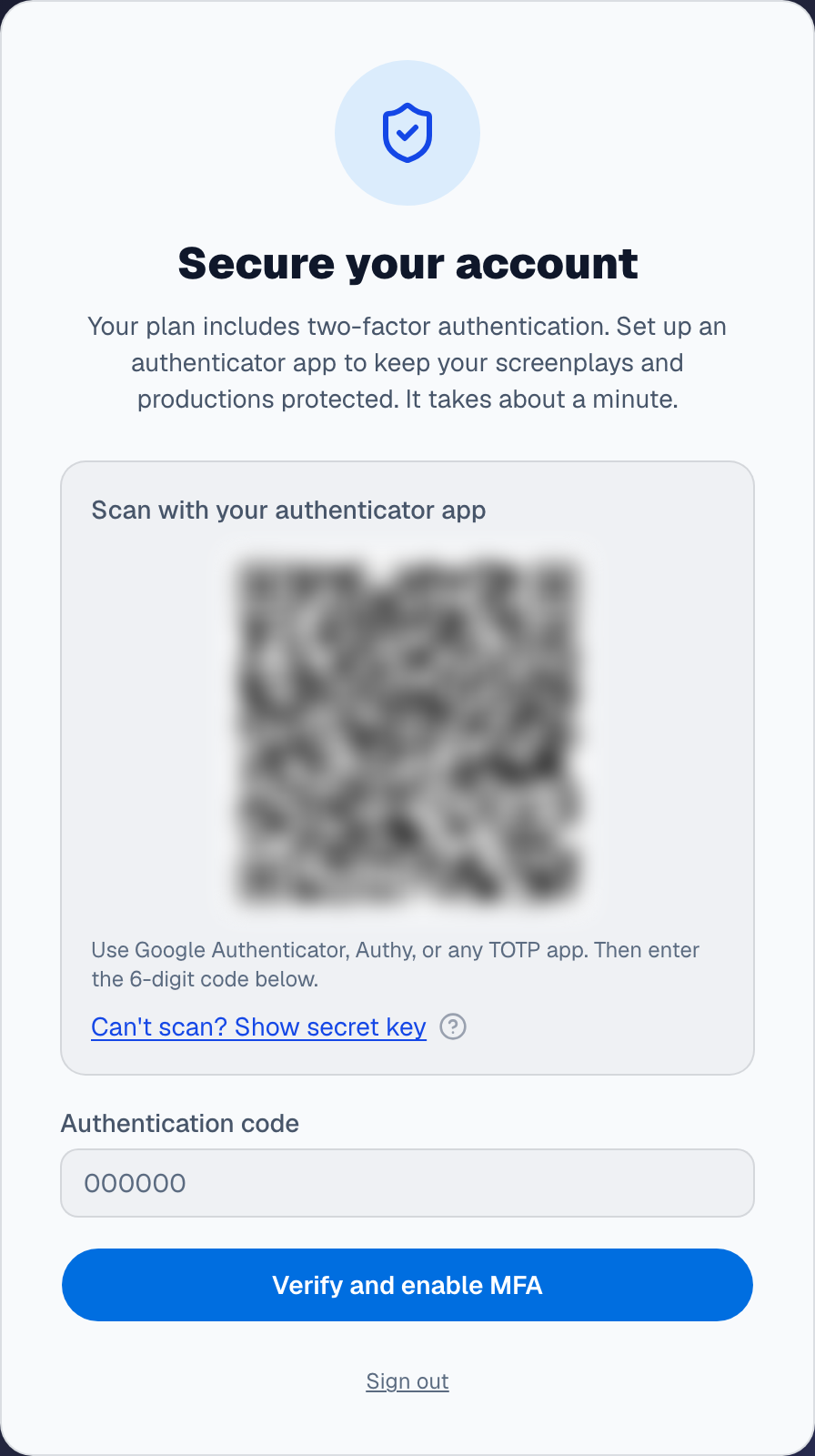
The Secure your account page. Paid plans include two-factor authentication and require it. If you're on a paid plan and haven't set it up yet, you're taken to a page titled Secure your account as soon as you sign in. You need to finish setup there before you can use the rest of Hollywood Disruption. If you'd rather do it later, Sign out at the bottom of the page is the only other way off it.
Setting it up
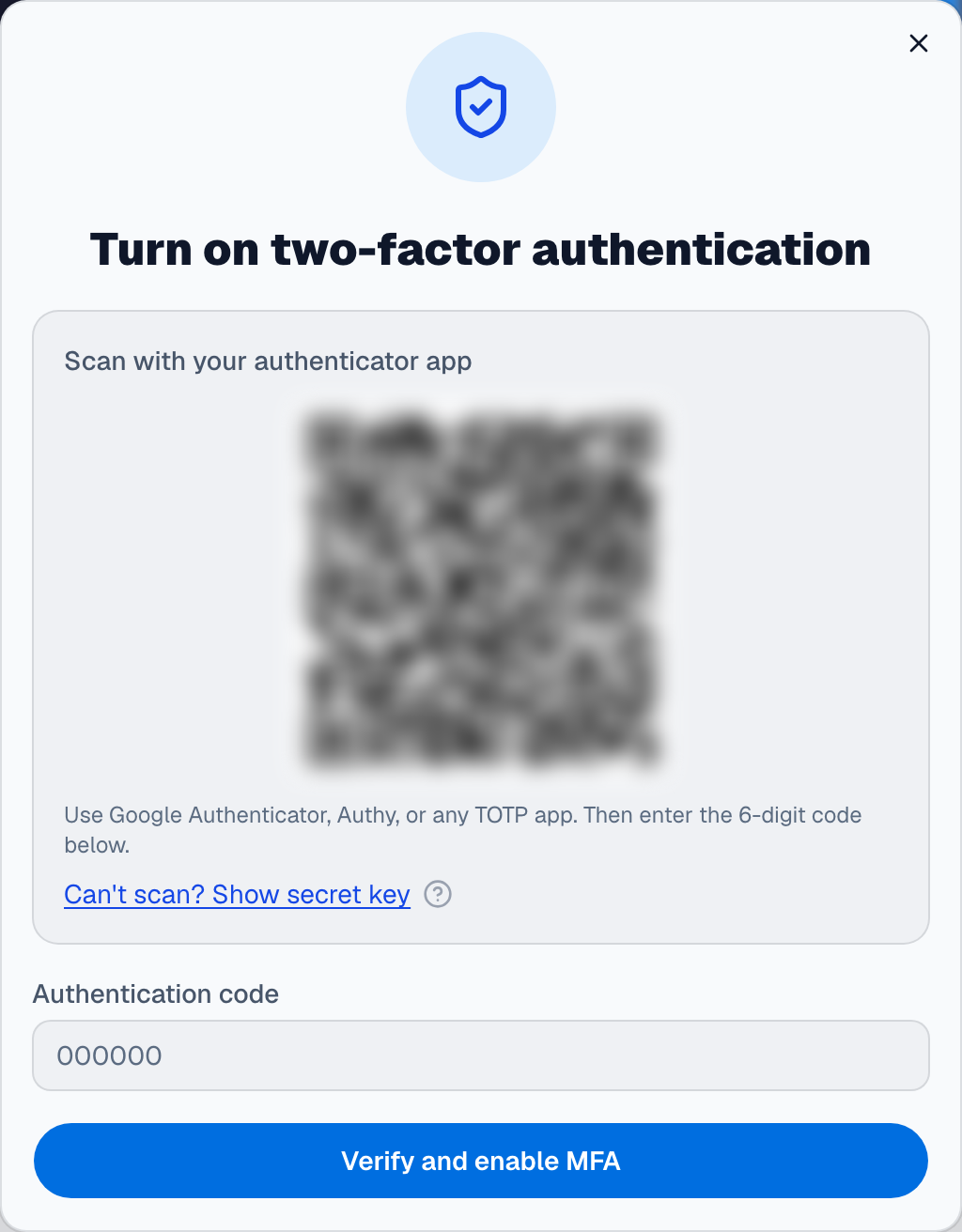
In Account Settings, the same steps appear inside the Two-Factor Authentication section instead of a window:
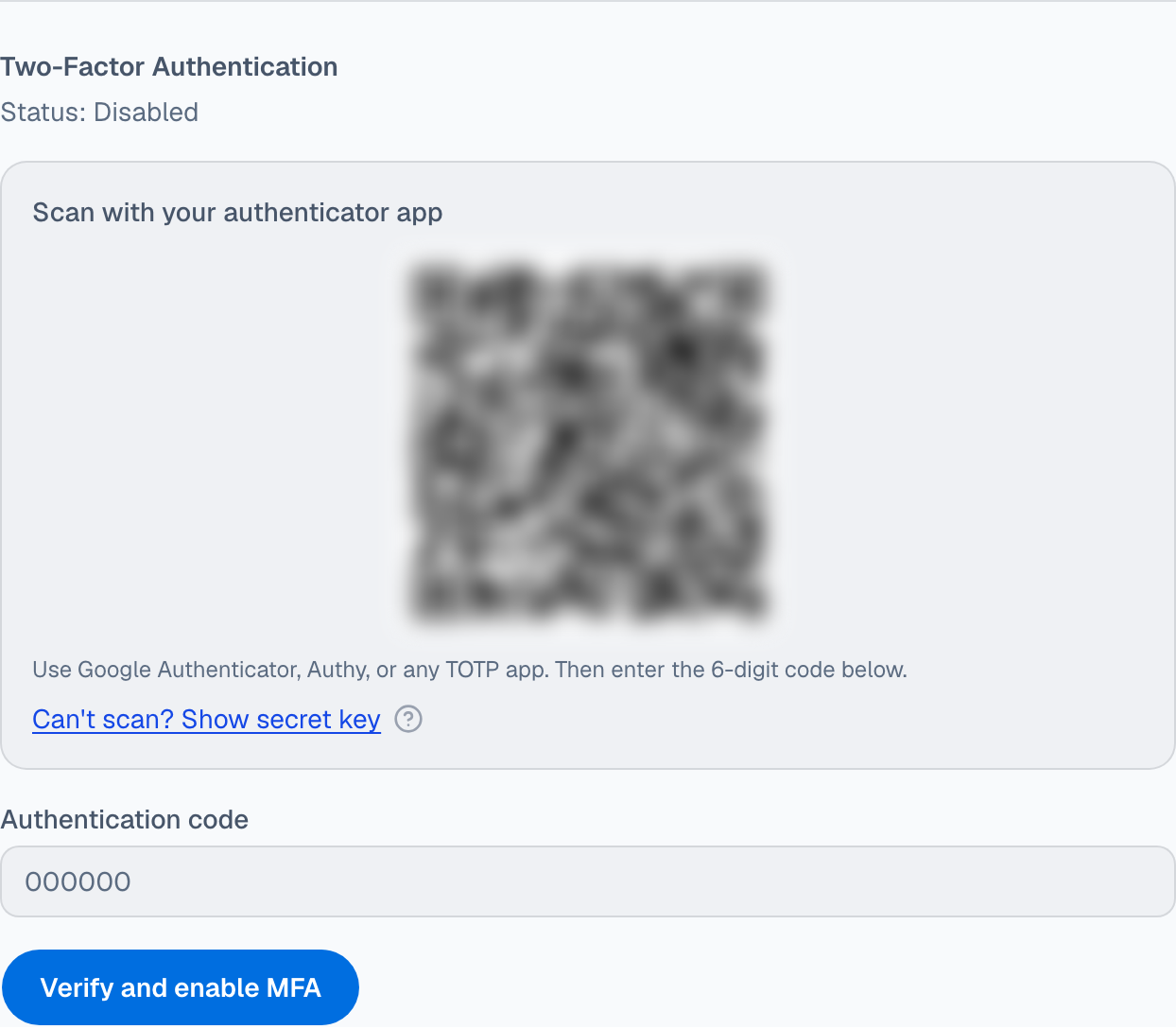
Scan the QR code. Under "Scan with your authenticator app" you'll see a square QR code. Open your authenticator app, choose to add an account, and point your phone's camera at the code. The app adds an entry named Hollywood Disruption with your email address and starts showing codes.
Can't scan it? Choose the Can't scan? Show secret key link. A long string of letters and numbers appears below the QR code. Not sure what a secret key is? Point to the small question-mark icon beside the link, or click it, for a short explanation.
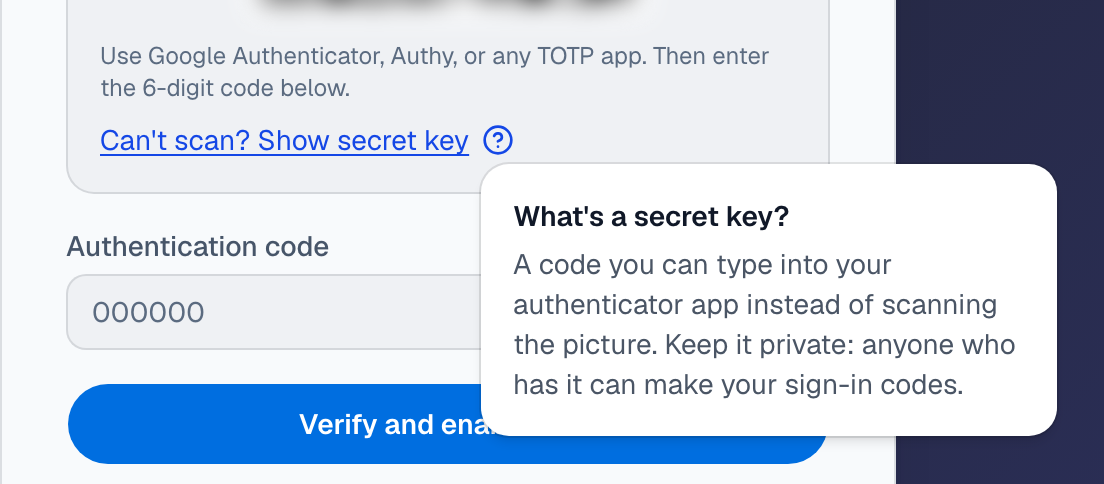 In your authenticator app, choose to enter a setup key by
hand instead of scanning, and type or paste that string. Choose Hide to put it away again.
Keep this key private: anyone who has it can produce your codes.
Enter the code. Type the 6-digit code your app is showing into the Authentication code box and choose Verify and enable MFA.
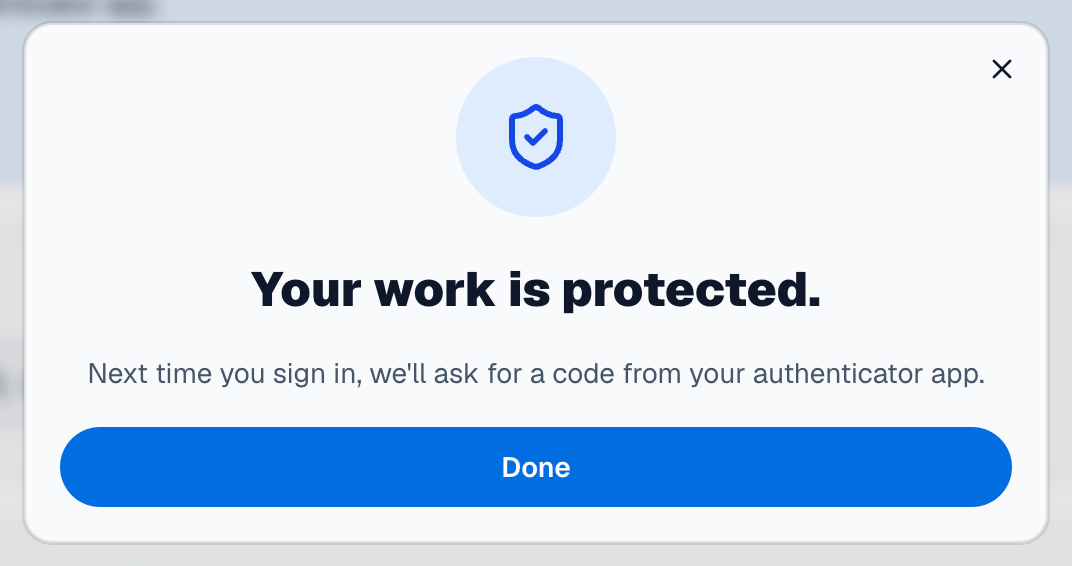
When the code is accepted, you'll see a confirmation:
in the dashboard window, "Your work is protected." Choose Done to close it, and the dashboard card goes away;
in Account Settings, "Two-factor authentication is now on.", and the status changes to Enabled;
on the Secure your account page, Your account is protected. Choose Continue to go on to where you were headed.
If the code doesn't work
- "That code is not correct." Check that you're reading the Hollywood Disruption entry in your app, and enter the code it's showing now. If the code is about to change, wait for the next one.
- "That code was already used." Each code works only once. Wait for your app to show a new code, then enter that one.
- "Too many attempts." Wait a few minutes, then try again.
Signing in afterwards
From now on, after you enter your email and password, you're asked for the code from your authenticator app. Open the app, read the current code for Hollywood Disruption, and enter it.
Keep the app on your phone. If you get a new phone, move your authenticator accounts to it before you erase the old one.
Your authenticator code is also asked for when you unlock a company screenplay that has locked itself after a period without activity. See Locked screenplays.
Turning it off
- Open Account Settings and find the Two-Factor Authentication section.
- Choose Disable MFA. A window asks "Turn off two-factor authentication?"
- Enter the current 6-digit code from your authenticator app and choose Turn off MFA.
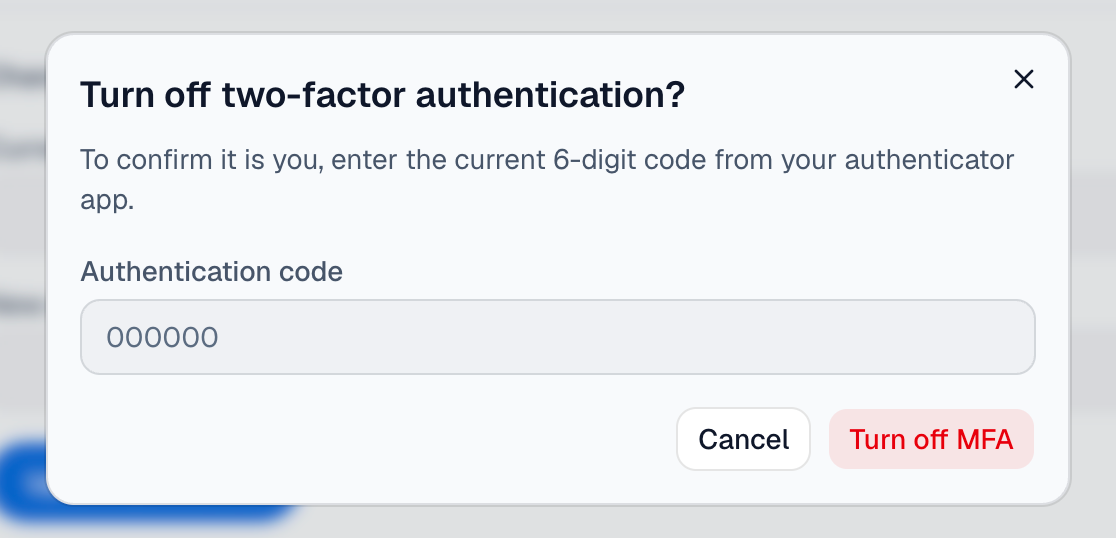
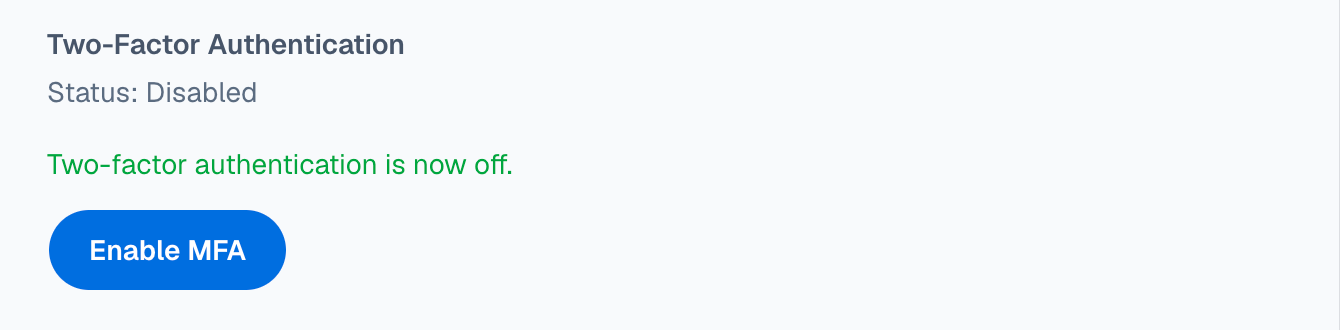
Asking for a code makes sure it's really you: someone who got hold of your signed-in computer can't simply switch the lock off. When it's done, the section says "Two-factor authentication is now off." You can then remove the Hollywood Disruption entry from your authenticator app.
On a paid plan you can't turn it off. Paid plans require two-factor authentication, so the Disable MFA button isn't there. Instead the section says "Your plan requires two-factor authentication, so it stays on."

Things that surprise people
- "Not now" only hides the dashboard card in this browser. It comes back after two weeks, and it shows right away on another computer or browser. You can always turn two-factor authentication on from Account Settings instead.
- Closing the setup window starts over. If you close the Turn on two-factor authentication window before entering a code, the next time you open it there's a new QR code. If you'd already scanned the old one, delete that entry from your authenticator app and scan the new code; codes from the old entry won't work.
- The dashboard card is gone once it's on. The card only appears while two-factor authentication is off.