Your script breakdown is the list of scenes your production plans from: the Scenes page, the stripboard, shot lists, sides and call sheets all work from it. When you change the screenplay, for example by adding a scene, cutting one or moving one, the breakdown doesn't change by itself. Update Script Breakdown brings it in line with the script as it is now.
Run it whenever you've finished a round of changes to the script and want the production to see them. You can run it as often as you like. Running it twice in a row changes nothing the second time.
Where the button is
Open the project and go to its Project Overview. Under Active Screenplay, pick the screenplay from the menu, then click Update Script Breakdown, the button beside it.

- The button is grayed out until a screenplay is picked.
- If the project has no screenplays yet, the row says so and offers Assign existing screenplay instead. Add a screenplay to the project first.
Step 1: Ready to Sync?
The first window, Ready to Sync?, explains what the update does. Below that is a short list, Things to know about syncing:
- the screenplay's content is synced to pages like breakdowns, shot lists and stripboards;
- if your scenes don't have numbers yet, every scene heading gets one;
- you can go back and edit the screenplay at any time, and run the update again when you're done;
- a scene you add to a screenplay that was synced before gets a letter after its number (for example, Scene 2A), so the scenes after it keep their numbers.
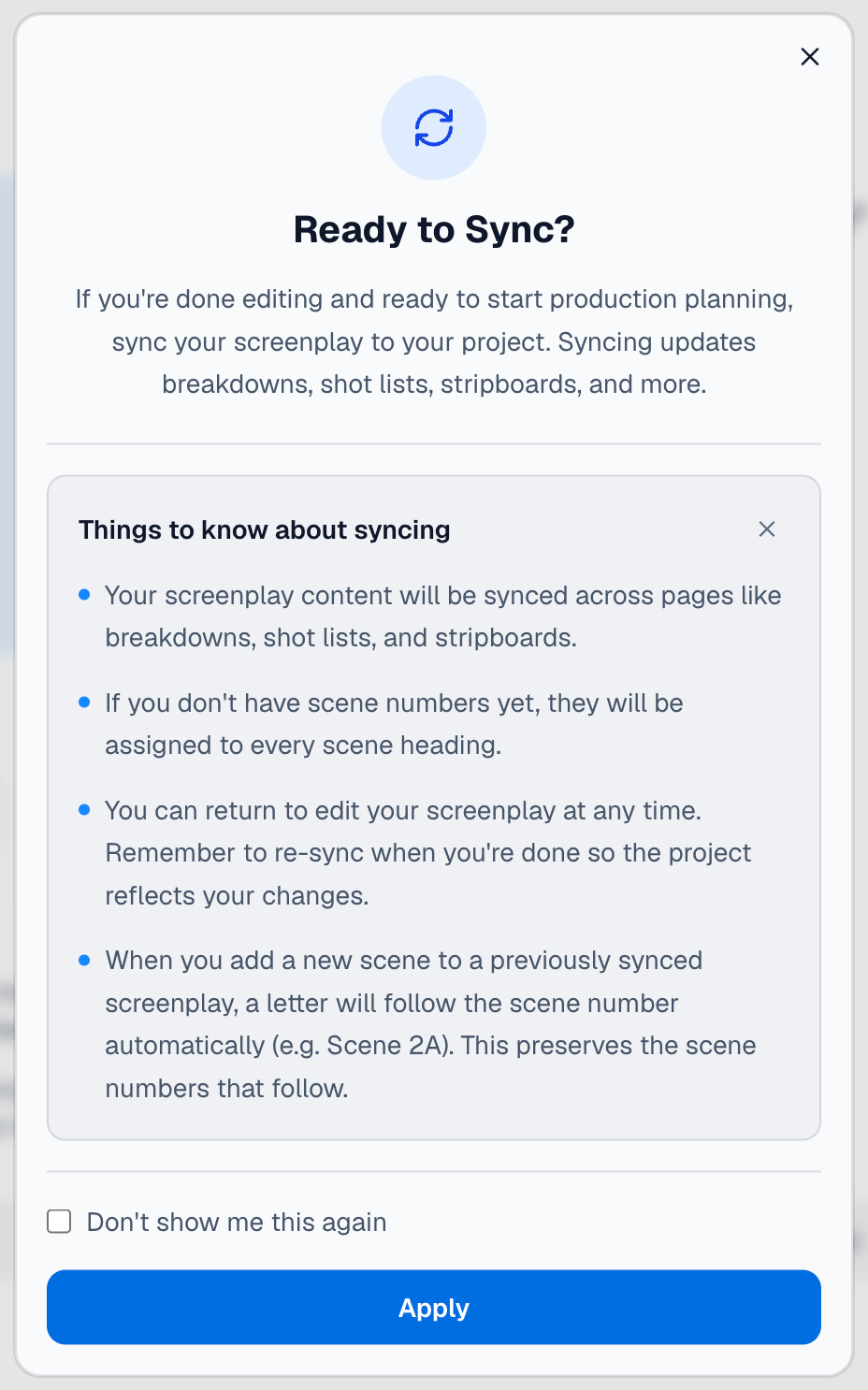
Click Apply to go on, or close the window with its ✕ to stop. Nothing has changed yet at this point.
Hiding the list. The small ✕ at the top right of the list hides it for this time only. Check Don't show me this again before you click Apply and the list stays hidden every time after that, in this browser. The Ready to Sync? window itself still opens each time. To bring the list back, uncheck the box and click Apply.
Step 2: Screenplay Name
The second window, Screenplay Name, holds the screenplay's current title.
The name you leave here becomes the screenplay's title. If you change it, the screenplay is renamed everywhere: in Beachwood, on your screenplays list and in the project. Leave it as it is to keep the current title. The name can't be empty, so Next stays grayed out until there is one.
Click Next to run the update. The button reads Syncing… while it works.
What else the window shows depends on whether the screenplay is locked.
An unlocked screenplay: the breakdown is updated, and no revision is issued
A screenplay is unlocked while it's still being written. For an unlocked screenplay, the window says:
This screenplay is unlocked, so this update will re-sync the breakdown without issuing a revision. Lock it from the Beachwood toolbar to start tracking changes as color-coded revision pages.
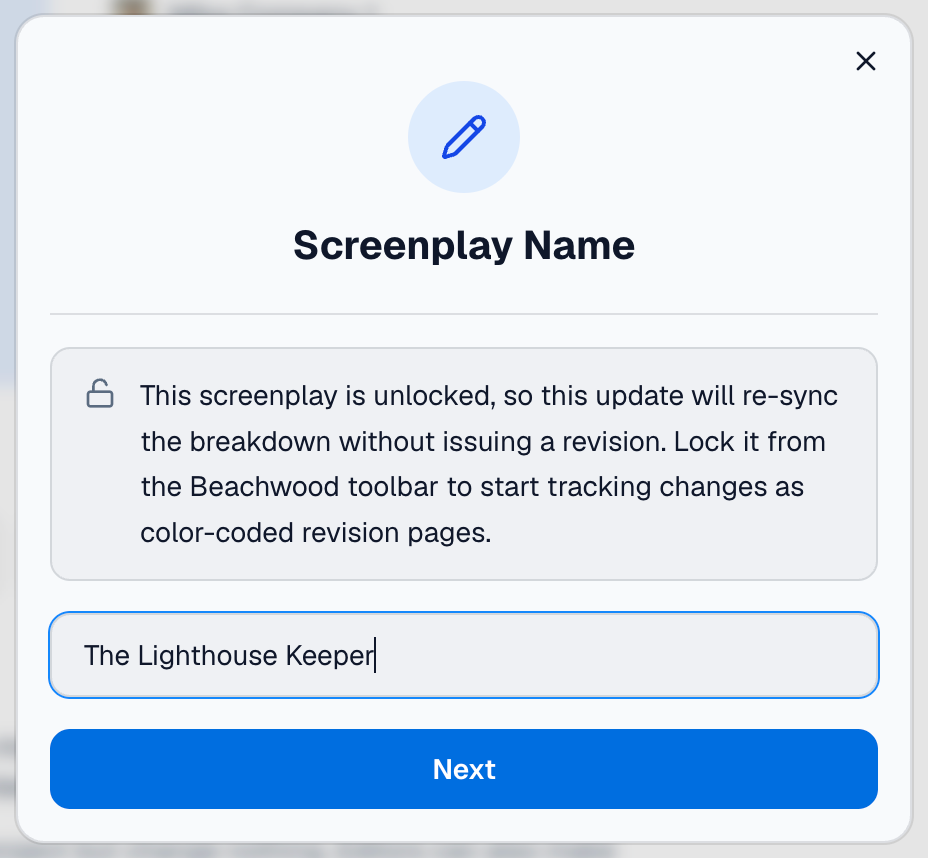
The breakdown is still fully updated. The only difference is that no colored revision is recorded. That's deliberate: revision colors are for pages your cast and crew are holding, and spending them on drafts nobody has locked would put the colors out of step with those pages.
To lock the screenplay, open it in Beachwood and click the padlock in the editor toolbar. It reads Unlocked until you do. A window, Lock this screenplay?, explains what locking means. Click Apply to lock it. Locking doesn't change a word of the script, and you can unlock it again at any time. Only the screenplay's owner or an editor can lock or unlock it, and locking needs the Filmmaker Pro or Industry Pro plan.
A locked screenplay: the update issues the next revision
A locked screenplay has been declared ready for production, so every update records the next revision: one more step on the industry's colored-page sequence (White, Blue, Pink, Yellow, Green and on). The window shows that revision before you click Next: a swatch of its color, its color name, a line such as Revision 1 — Blue, and the version it will be, such as v2. The first update after you lock a screenplay is Revision 0 — White, v1, as in the picture below.
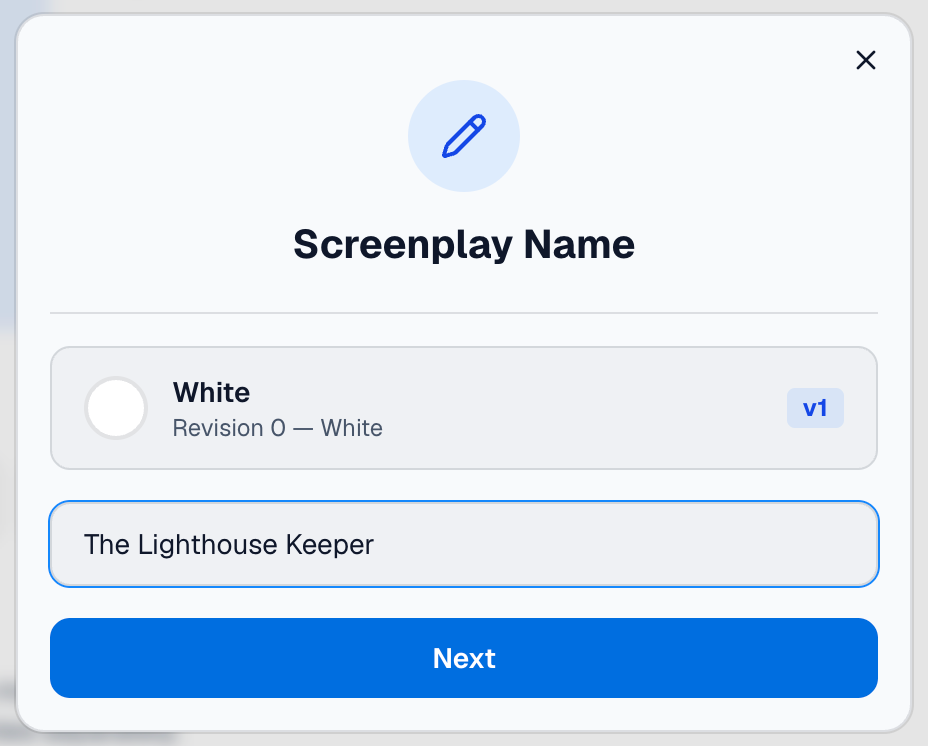
When you click Next, the breakdown is updated and that revision is recorded under the name in the box. You'll find it in Beachwood: click Revisions in the editor toolbar to open the Revision History panel. After eleven revisions the colors start again from the beginning.
What the update changes
The update compares the scene headings in your script with the scenes in the breakdown:
- Scenes you added get a scene number. A scene added between two numbered scenes gets a letter (2A, 2B), and one added after the last scene gets the next number.
- Scenes you deleted are kept as OMITTED. They keep their number and their breakdown, and the script usually keeps an OMITTED line where they were, so you can restore them.
- A scene whose heading comes back is active again, with its number and breakdown.
- Every scene that already had a number keeps it. The update never renumbers.
- What you've already broken down stays: cast, locations and the rest of each scene's breakdown.
How scene numbers work in detail, including lettered and omitted scenes, is in Scene numbers in Beachwood.
When it's done
When the update changes something, a window, Script breakdown updated, says what changed, one sentence for each kind of change. For example:
- 2 new scenes were added to the breakdown and given scene numbers.
- 1 deleted scene was kept as OMITTED. It keeps its scene number and its breakdown, and you can restore it from the script.
- 1 scene whose heading came back is active again, with its scene number and breakdown.
A kind of change that didn't happen isn't listed. Click Done to close it.
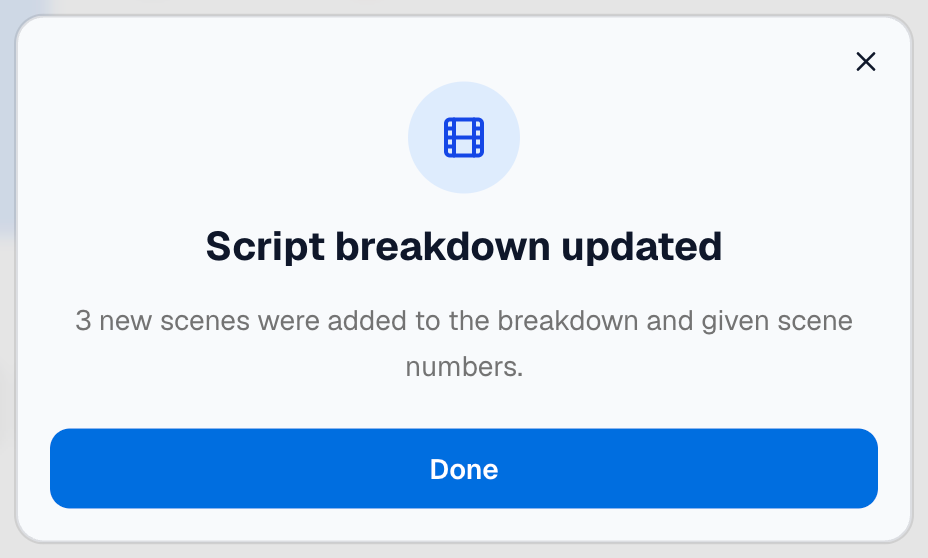
If nothing needed changing, no message appears. The Screenplay Name window simply closes. That means the breakdown already matched the script (and, on a locked screenplay, the revision was still recorded).
If something goes wrong, the Screenplay Name window stays open and says Sync failed. Please try again. Running it again is safe.
Who can run it
You need to be able to edit both the project and the screenplay: a member of the project with edit access, who is also the screenplay's owner or one of its editors.
If your plan doesn't include script revisions
Updating the breakdown comes with the project owner's plan. On a plan without it, the button looks dimmed but you can still click it. A window, Upgrade to unlock this feature, explains that the production suite isn't included in this company's plan. Click View plans to see the plans, or Not now to close it. If the project belongs to someone else, ask its owner about upgrading.