Notes pinned to the exact words they are about — living in the margin, never in the script, and never in anything you hand to a crew.
| Where | Small speech-bubble markers down the right margin of the page, beside the paragraph each note is attached to. |
| Add one | Note This: ⇧⌘K (Ctrl+Shift+K on Windows). The keyboard shortcut is the only way to add a note. |
| Show or hide | Show/Hide → Hide notes. They are shown by default. |
| Who can add one | Anyone who can open the screenplay — viewers included. |
| Does it print? | Never. Not in a print-out, not in a PDF, not in the page count. |
What a note is
A note is a remark about the script that is not part of the script. You select the words you want to argue with — a line of dialogue, a slug that has stopped being true, three adjectives too many — and attach a note to them. A marker appears in the right margin. The words themselves are untouched.
That distinction is the whole feature. Everything you write in a note stays out of the document: it does not reflow a page, does not push a scene onto the next page, does not appear in a PDF, and does not survive into anything you hand to a producer or a line producer's breakdown. It is the writer's private track, running alongside the draft.
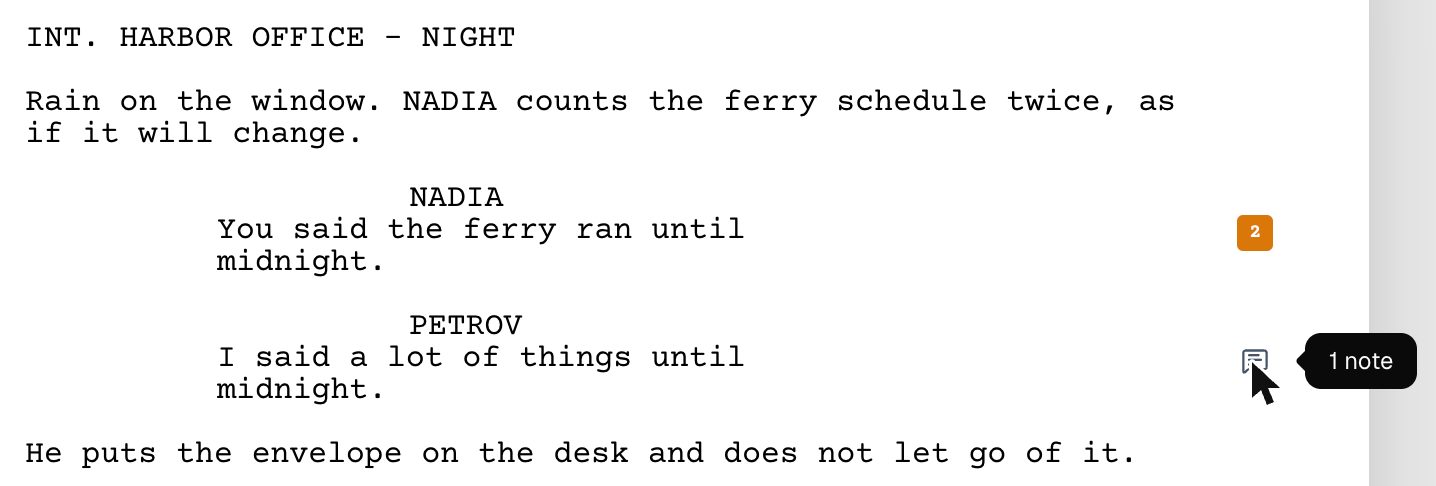
INT. HARBOR OFFICE - NIGHT                                     │
                                                               │
Rain on the window. NADIA counts the ferry schedule twice,     │
as if it will change.                                          │
                                                               │
                    NADIA                                      │
               (not looking up)                                │
         [You said the ferry ran until midnight.]              │  💬
                                                               │
                    PETROV                                     │
         I said a lot of things until midnight.                │  [2]
                                                               │
He puts the envelope on the desk and does not let go of it.    │
A note anchored to a line of dialogue (shown here in brackets — on screen, the words are highlighted in light blue while the note is open). The marker takes the color you gave the note; a paragraph carrying more than one note collapses to a numbered chip instead of a bubble.
Not to be confused with comments, which hang off a whole block and are the conversation you have with collaborators, or with the Story Planner, which is where the plan lives. A note is about a specific run of characters on the page.
Adding one
Select the words the note is about. Drag across them the way you would to delete them. The note goes on the line holding the words you selected, even if you were typing in a different line a moment before. If your selection runs across more than one line, the note goes on the line where it starts. You can also just leave the cursor sitting in a line — the note then attaches to that point rather than to a span of text, which is fine for "this whole speech is wrong."
Insert the note. Press
⇧⌘K(Note This). The note is created immediately, its marker appears in the margin, and the note window opens on it with the cursor in its title. There is no menu item for this: the keyboard shortcut is the only way to add a note.Write the note. The window has two boxes: Note title (optional) and What do you want to say?. Type into either. There is no Save button and no confirmation — the note exists from the moment you inserted it, and what you type is saved when you click away from the box or close the window.
Color and file it, if you want to. The footer of the window carries three small controls: a color swatch, a Category, and a Label. All three are optional, and all three are explained below.
Close it. Click the X in the window's title bar, press
Esc, or click anywhere outside the window. Each of them saves what you typed. The marker stays. Click it again whenever you want the note back.
If
⇧⌘Kdoesn't respond — some browsers keep that combination for themselves (Firefox on Windows opens its console withCtrl+Shift+K) — hold one more key:⌃⇧⌘Kon a Mac,Ctrl+Shift+Alt+Kon Windows. Either does the same thing.
The window
┌──────────────────────────────────────────┐
│ Note                                  ✕  │
├──────────────────────────────────────────┤
│ (N)                    Sep 3, 2026 4:12PM│
├──────────────────────────────────────────┤
│ Note title (optional)                    │
│ Ferry timing contradicts p.12         🗑  │
│ What do you want to say?                 │
│ She can't know this yet — Petrov only    │
│ tells her after the rooftop. Move the    │
│ reveal or cut the line.                  │
│ ─────────────────────────────────────    │
│ (M) 2 days ago                           │
│ Agreed. Moving the reveal is cheaper     │
│ than losing the line.                    │
│                                          │
│ [Reply…                       ] [Reply]  │
├──────────────────────────────────────────┤
│ ▬  Continuity   Mike               ‹  ›  │
└──────────────────────────────────────────┘
The note's author, and the author of each reply, appear as their profile picture (shown here as initials in parentheses). Point at a picture to see who it is.
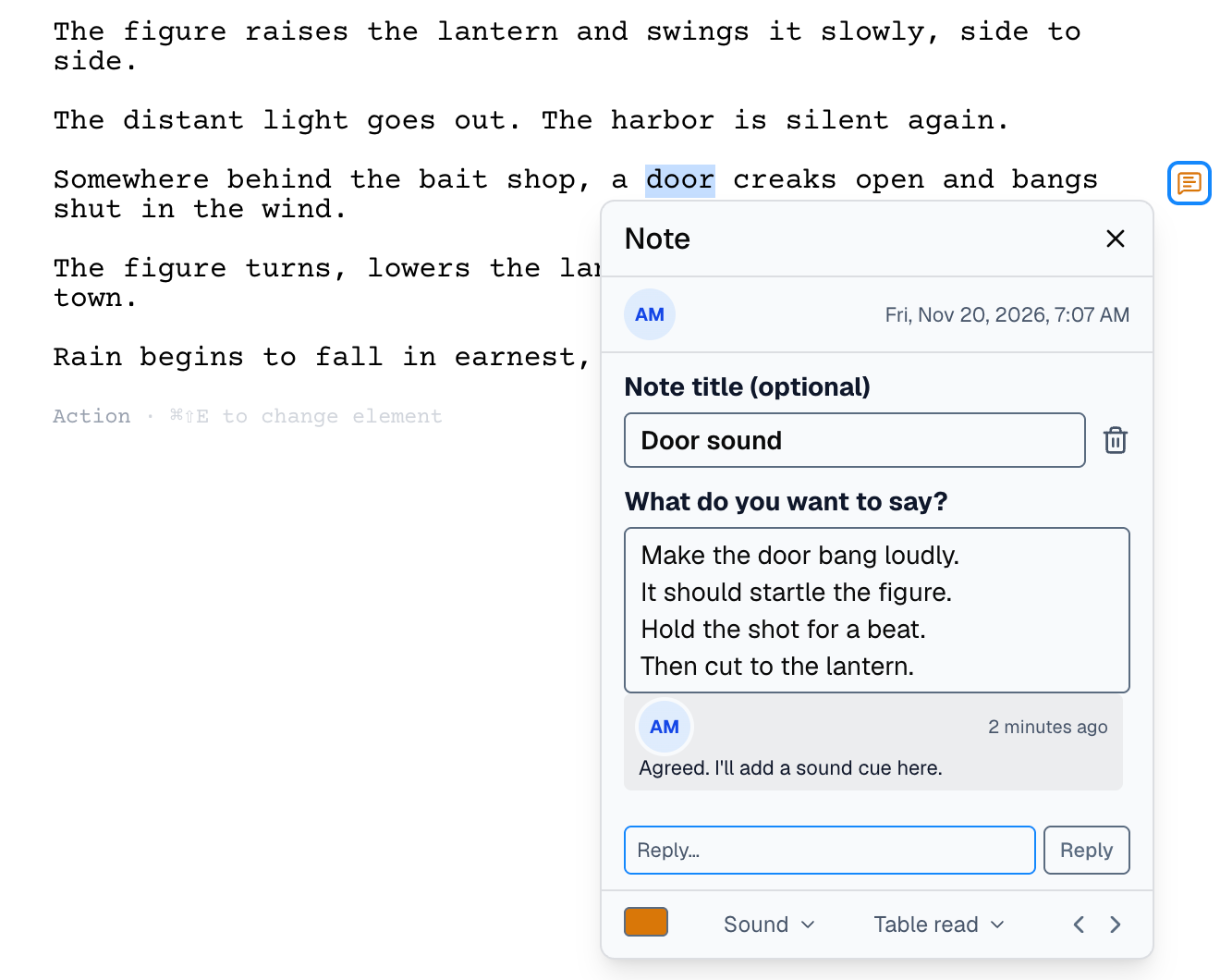
The window is the same size for every note, whether it has twenty replies or none — so the chevrons stay under your pointer while you step through a pass of notes. The note's text box shows four lines; a longer note scrolls inside it.
Color, Category and Label
Three controls, three different jobs. None of them is required, and none of them has a preset list to learn — you invent the terms you need and Beachwood remembers the ones already used in this screenplay.
| Control | What it's for | Where it shows |
|---|---|---|
| Color | Scanning. Give production notes one color and character notes another and the margin becomes readable at arm's length. | Tints the marker in the margin. |
| Category | What kind of note it is — Continuity, Research, Cut this. Choose New category… to add one, and it joins the list for the next note. | In the window's footer. |
| Label | Whose note it is, when several people are passing a draft around — Mike, Studio, Table read. | In the window's footer, beside the category. |
The category carries over. A new note starts in the category of the most recent note in this screenplay, whoever wrote it. That is deliberate: notes arrive in runs — you do one pass for continuity, another for dialogue — and re-picking the same category forty times is worse than clearing it once.
Working through them
Click any marker to open its note. The ‹ and › chevrons in the window's footer then step
to the previous or next note in script order — down the page and through the document, not
in the order they were written. Two notes in one paragraph read left to right; two at the
same spot read oldest first.
When a note is attached to a span of words rather than a point, opening it highlights those words in light blue. Close the note and the highlight goes with it.
A paragraph that has collected several notes shows a single numbered chip instead of a bubble, in the color of its first note. Open it and step forward with the chevrons to read the pile-up.
Replies
Every note has a thread underneath it. Anyone on the screenplay can reply — including viewers, which is the point: a reader who cannot change a word of the script can still answer a question you asked in a note.
- Type in the Reply box and press Enter (or click Reply).
Shift+Enterstarts a new line. - One level deep. You reply to the note, not to another reply. Threads stay readable.
- You can delete your own replies. Point at one of yours and its trash icon appears. Other people's replies have none.
- The thread scrolls inside the window rather than stretching it.
Editing the note itself — its title, body, color, category, label, or deleting it outright — is limited to the person who wrote it and the owner of the screenplay. Everyone else sees the note as written and can reply.
To delete a note, click the trash icon beside its title. There is no confirmation, and its replies go with it.
What happens when you rewrite the line
You will. That is what notes are for. A note follows the words it was attached to as the surrounding text changes, and it is never deleted for you — a note that vanished because you rewrote a paragraph would be the worst possible behavior for a feature you keep your thinking in.
| What you do to the line | What the note does |
|---|---|
| Type before the anchored words | Moves with them. The highlight still covers the same words. |
| Type after them | Nothing changes. |
| Type in the middle of them | Grows to cover what you added, because you were writing inside the thing the note is about. |
| Rewrite half of them | Shrinks to the half that survived. |
| Replace all of them | Keeps the note, drops the highlight. |
| Delete the whole paragraph | The note is kept, but it has no marker any more. Step past the last note with › to reach it. |
A highlight that isn't sure of itself doesn't paint. Beachwood only draws the highlight when the text under it still matches what the note was made on. Restore an old version, switch a line of alternate dialogue, accept a collaborator's change over yours — the note stays, and the highlight simply stops appearing until its own words are back. A silent highlight is a much smaller problem than one confidently drawn around the wrong sentence.
Hiding them, printing, exporting
Show/Hide in the toolbar toggles between Hide notes and Show notes. Notes are shown by default — they are somebody's words, and words are not hidden unless you ask. The choice is yours rather than the screenplay's: it follows you into every script you open in this browser, and it is still there next week. Another browser or computer has its own setting.
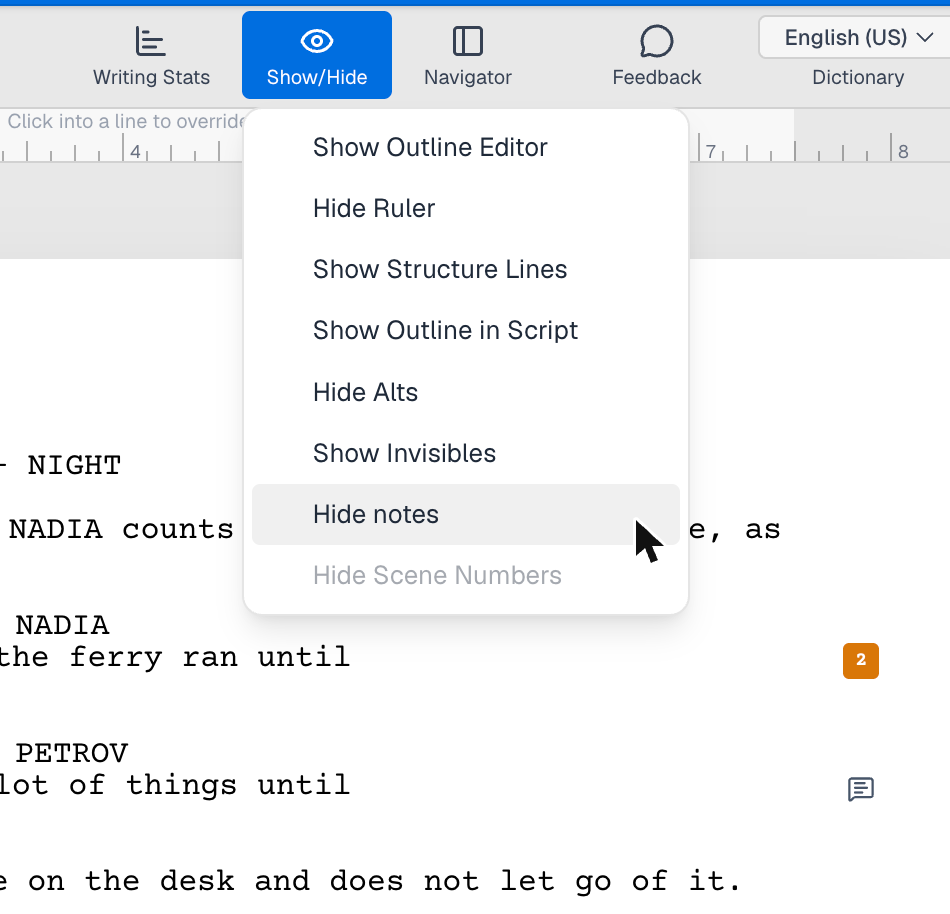
Hiding notes hides only the markers. ⇧⌘K still adds a note and opens it; its marker appears
once you show notes again.
| Where the script goes | Do the notes come along? |
|---|---|
Print (⌘P) | No. Markers and highlights are stripped from the printed page. |
| PDF export | No, by design. The PDF is the document you hand to other people. |
Final Draft .fdx export | Yes — your notes go out to Final Draft as notes, anchored to the same words. Replies and labels can't be expressed in the format, so Beachwood tells you how many you'd leave behind before you save. |
Importing an .fdx | Notes made in Final Draft come in as notes, with the script. A note whose paragraph the import drops is dropped with it, rather than being re-homed onto a line it was never about. |
| Update from Final Draft | The file's notes replace the screenplay's notes and their replies. The version Beachwood saves just before the update keeps the old ones. |
Collaborators and versions
- Notes belong to the screenplay. Everyone with access sees the same margin, and a note you add appears for anyone else in the script within moments — no refresh.
- Versions remember them. A saved version freezes the notes and their replies exactly as they stood.
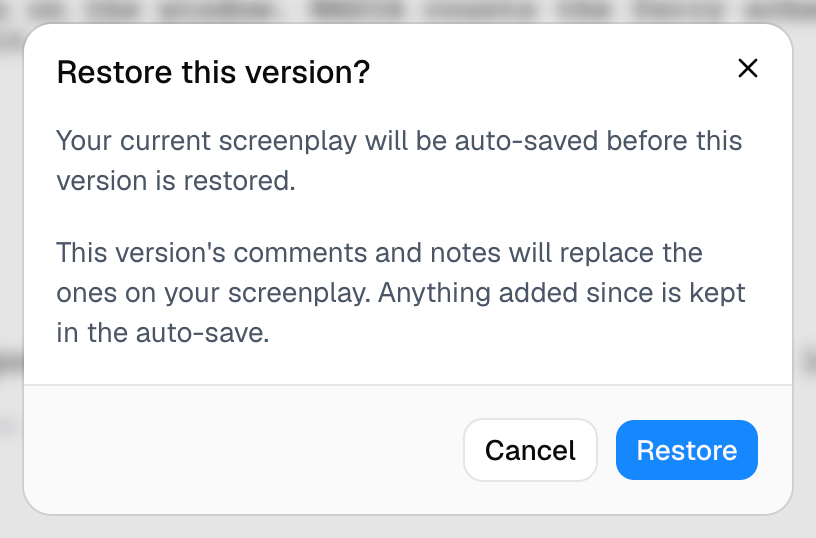
- Restoring a version restores its notes too, replacing what is currently on the screenplay — Beachwood says so before you confirm, and takes an auto-save first, so anything added since is recoverable.
Where you won't find them
Notes are an editing surface, so a few screens deliberately have none. On these screens
Note This (⇧⌘K) does nothing.
- Reader Mode. A reader is looking at a frozen version and leaves reader comments instead.
- The version preview. A record of an old draft, not a place to write on.
- The small script previews inside the breakdown screens.
- A shared scene, opened from a scene-share link.
- The New Scene window.
Offline, the notes you already have stay in the margin and still open, but you can't add a note, change one or reply: the shortcut does nothing and the note window is read-only. Beachwood would rather refuse a note than take one and lose it. The script itself keeps saving offline as usual.
Questions that come up
I pressed ⇧⌘K and nothing happened.
Beachwood needs to know which line you mean, so click into the script first. The shortcut also
does nothing while another window or menu is open. If you are offline, or on one of the
screens above, it is switched off.
My margin is empty but I know there are notes. Check Show/Hide — it will read Show notes if they're currently hidden. The setting follows you between screenplays in this browser, so it may have been turned off in another script entirely.
The highlight disappeared but the note is still there. The words it was attached to have been rewritten. The note's title and text are untouched, so open it to see what you meant. Re-anchor it by making a new note on the new line.
Can a note make my script longer? No. Nothing about a note is in the document — page count, scene lengths and the breakdown are all untouched.
Can I delete someone else's note? Only if you own the screenplay. Otherwise you can reply to it, and the trash icon isn't offered.
Why did my new note arrive already filed under "Continuity"? It inherited the category of the most recent note in the screenplay. Set it to None in the window's footer.
Hollywood Disruption · Beachwood · Note This