A comment is a note pinned to one line of your screenplay: a scene heading, an action paragraph, a line of dialogue. Everyone working on the screenplay with you can read it, reply to it and, once it's dealt with, mark it resolved. Comments live in the Comments panel on the right of the editor, beside the script rather than in it.
Opening the Comments panel
There are three ways in.
From a line with no comments. Point at the line. A small speech bubble appears just to its left. Pointing at the bubble shows Leave comment. Click it, and the panel opens with the cursor already in the comment box for that line, so you can start typing.

The bubble doesn't appear on a line while you're typing in it. Click somewhere else first.
From a line that already has comments. That line shows a speech bubble and a number to its left, in orange, all the time. Click it to open the panel scrolled to that line's comments, with the cursor in the comment box at the top. See The count beside a line below.
From the toolbar. Click Comments in the editor's toolbar. The panel opens showing every line's comments. The comment box at the top is grayed out, with Click the speech bubble beside a line to comment on it. above it, because no line is chosen yet. Click a line's bubble and the box is ready to use.

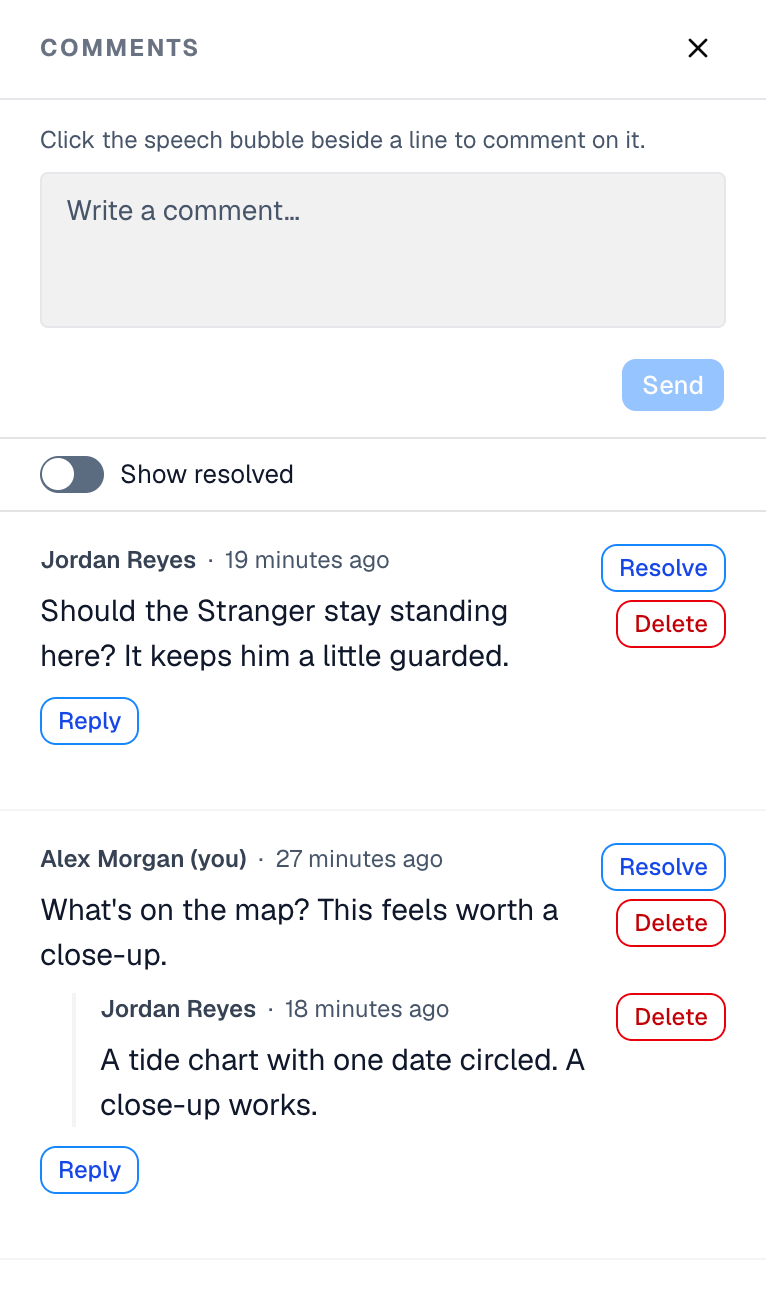
Clicking Comments again, or the panel's ✕, closes it.
Leaving a comment
- Click the line's bubble. The cursor lands in the Write a comment… box.
- Type your comment.
- Click Send.
Send stays grayed out until you've typed something other than spaces.
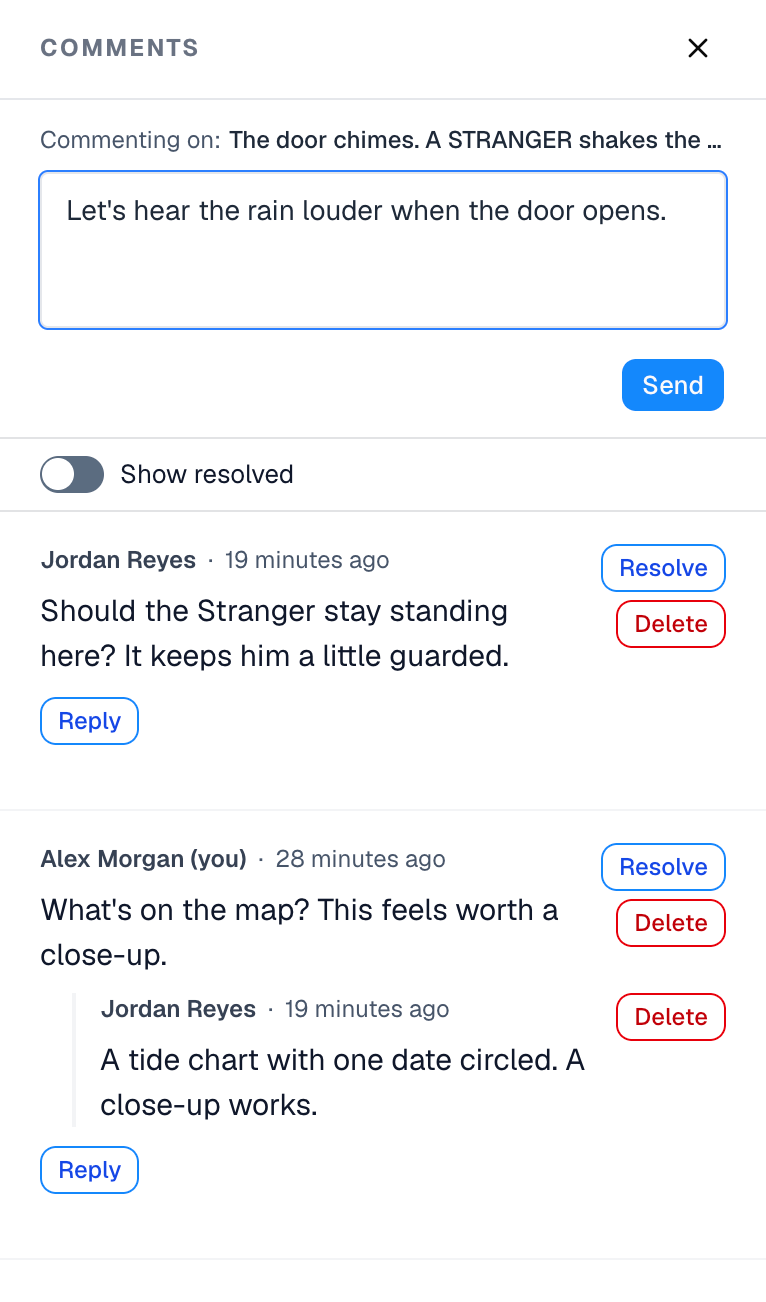
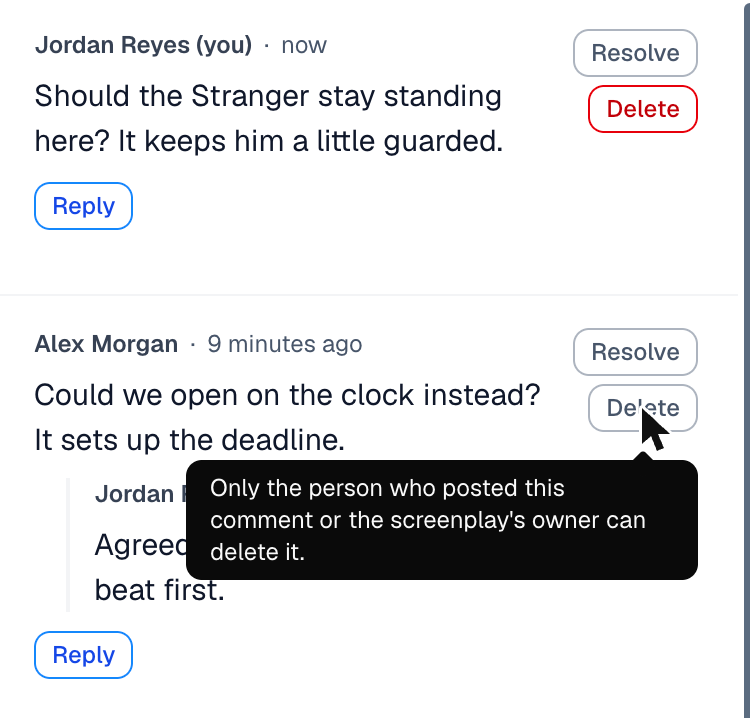
Your comment appears in the panel. Its top line is small: your name, followed by (you), then a dot and, in gray, when you posted it: now, then minutes (5 minutes ago), then hours (3 hours ago). After a day it shows the date instead, such as Nov 10. The time and the date are in the language you use Hollywood Disruption in: in Spanish, ahora, hace 5 minutos and 10 nov. The comment itself is below, in larger text, so it's what stands out. Replies are laid out the same way.
The order of comments
The newest conversation is at the top.
- Lines: the line with the newest comment comes first. A comment on page 40 can sit above one on page 2. Resolved comments count only while they're shown, so once you turn on Show resolved a line whose newest comment is resolved can move up.
- Comments on one line: newest first.
- Replies: oldest first, under the comment they answer, so a conversation reads top to bottom.
The comment box and the highlighted line
The comment box stays at the top of the panel, however many comments the panel holds. Above it, Commenting on: names the line your comment will go to, shortened with "…" if it's long. A line with no text reads an empty line.
While the panel is open, that same line is tinted light blue in the script, so you can see where your comment will land. Closing the panel removes the tint. The tint is only color: no line or page moves.
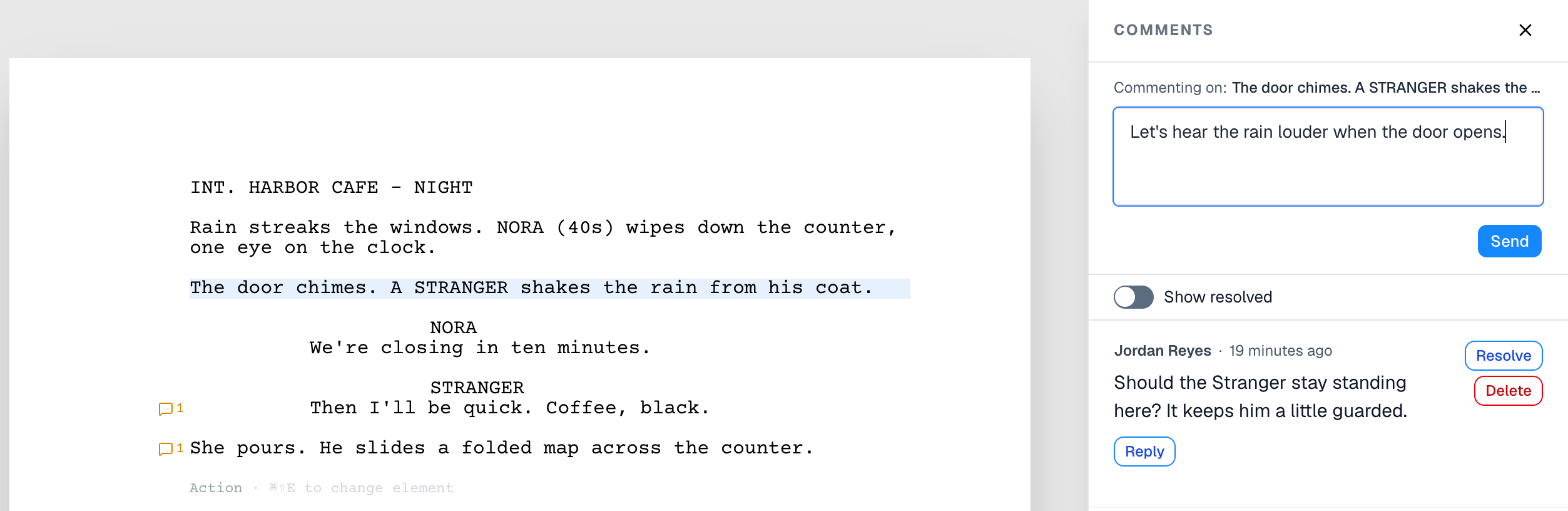
The box always comments on the line whose bubble you clicked last. While the panel is open, clicking another line's bubble switches the label, the tint and the cursor to that line. To add a second or third comment to a line, click its bubble again.
For a dual-dialogue pair, the two speeches side by side, the bubble and the tint cover the pair as a whole. For a line that's split across two pages, both parts are tinted.
If you were typing in the script when you clicked a bubble, what you typed is saved as usual, the same as clicking anywhere else.
Point at a name in the panel to see that person's collaborator card. If someone is no longer a collaborator on the screenplay, their comments show Unknown user instead of a name.
The count beside a line
A line with comments still open shows an orange speech bubble and a number to its left. The number is how many unresolved comments the line has. Point at it (or reach it with the Tab key) and a tooltip to its left reads View or add comments on this line. Click it to open the Comments panel at that line's comments, with the cursor in the comment box.

- Replies aren't counted. A comment with three replies still counts as one.
- Resolved comments aren't counted. When every comment on a line is resolved, the number goes away and the line goes back to showing the faint bubble only when you point at it.
Replying
Click Reply under a comment. The Write a reply… box fades in under that comment, with the cursor in it. Type your reply and click Send. Cancel fades the box out without posting.
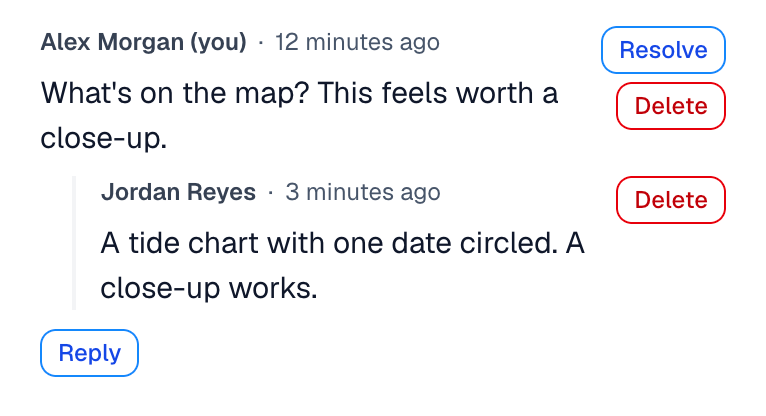
Replies sit indented under the comment they answer, oldest first. You can reply to a comment, but not to a reply: every reply in a thread answers the comment at the top.
The buttons on a comment are small outlined buttons: Reply, Resolve and Unresolve are blue, and Delete is red.
Resolving and unresolving
When a comment has been dealt with, click Resolve on its right. The comment and its replies disappear from the panel, and the line's count drops by one.
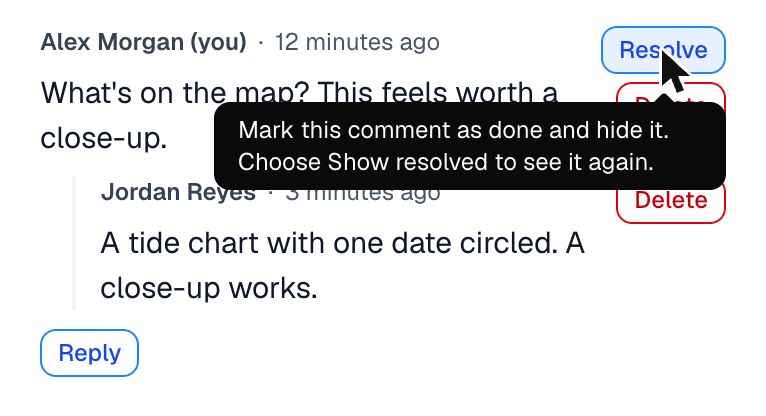
Not sure what a button does? Point at it. Resolve, Unresolve and Delete each show a short note saying what they do: Resolve's reads "Mark this comment as done and hide it. Choose Show resolved to see it again."
A resolved comment isn't deleted. To bring it back into the open, turn on Show resolved (below) and click Unresolve. The comment loses its green background and goes back to counting beside its line.
You resolve a comment as a whole, along with its replies. A reply has no Resolve of its own. A resolved comment has no Reply; unresolve it first if the conversation needs to go on.
Showing resolved comments
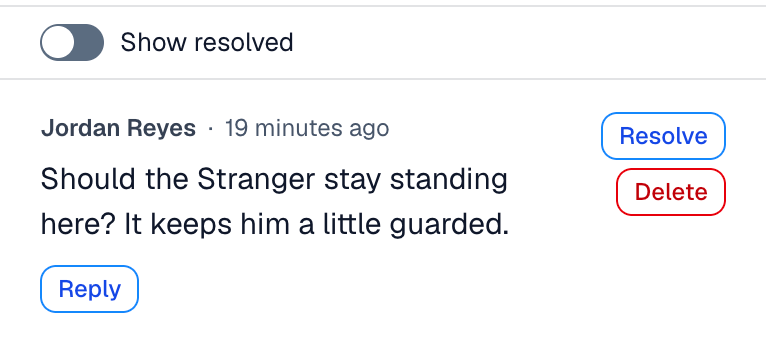
Show resolved is an on/off switch at the top of the panel, just below the comment box. Turn it on to bring resolved comments back into view. Click the switch or the words Show resolved beside it; either one works. You can also reach the switch with the Tab key and press Space.
The words always read Show resolved. The switch itself shows which way it's set: slid to the right and filled in when resolved comments are showing, slid to the left when they're hidden.
A resolved comment sits on a light green background, and so do its replies. Open comments have no background. Its button reads Unresolve, where Resolve was.
Turn the switch off to put them away again.
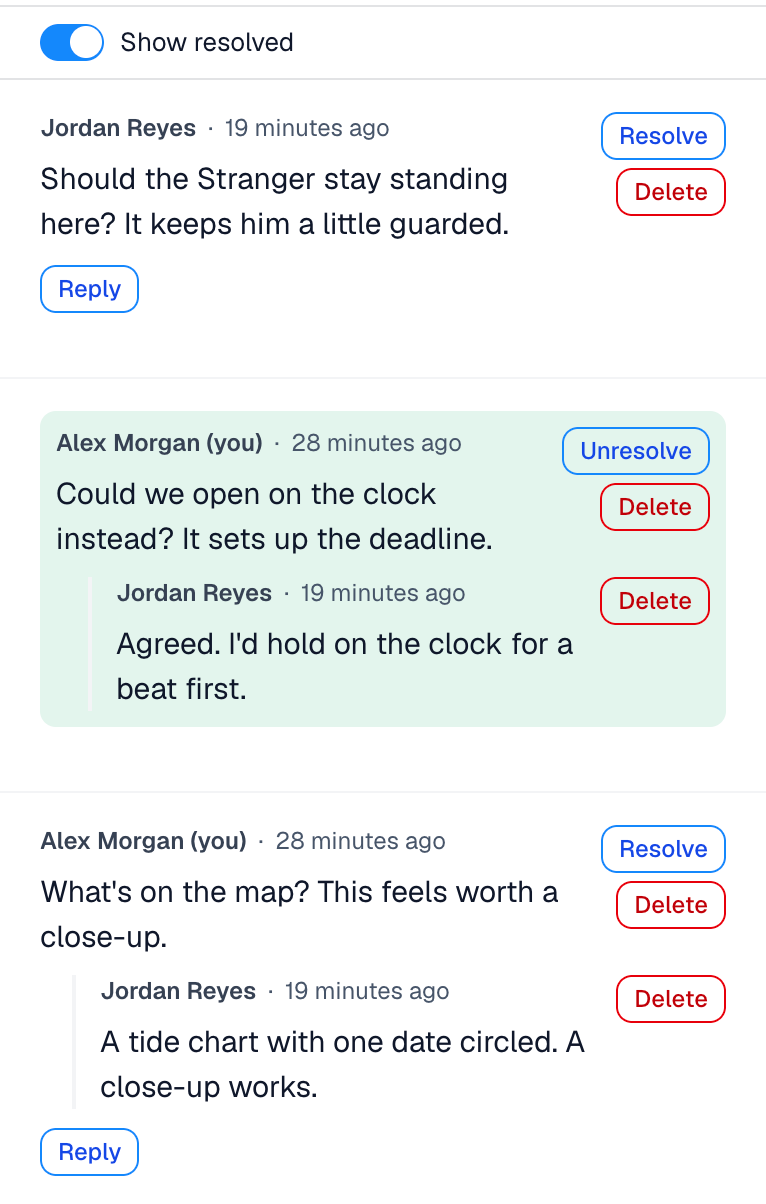
The panel always opens with the switch off and resolved comments hidden. Closing the panel puts them away again.
Deleting a comment or reply
Click Delete beside a comment or a reply. Beachwood asks first:
- For a comment: Delete this comment? "This comment and any replies will be permanently deleted. This can't be undone."
- For a reply: Delete this reply? "This reply will be permanently deleted. This can't be undone."
Click Delete in that window to delete it, or Cancel (or press Esc) to keep it. Nothing is deleted until you confirm.
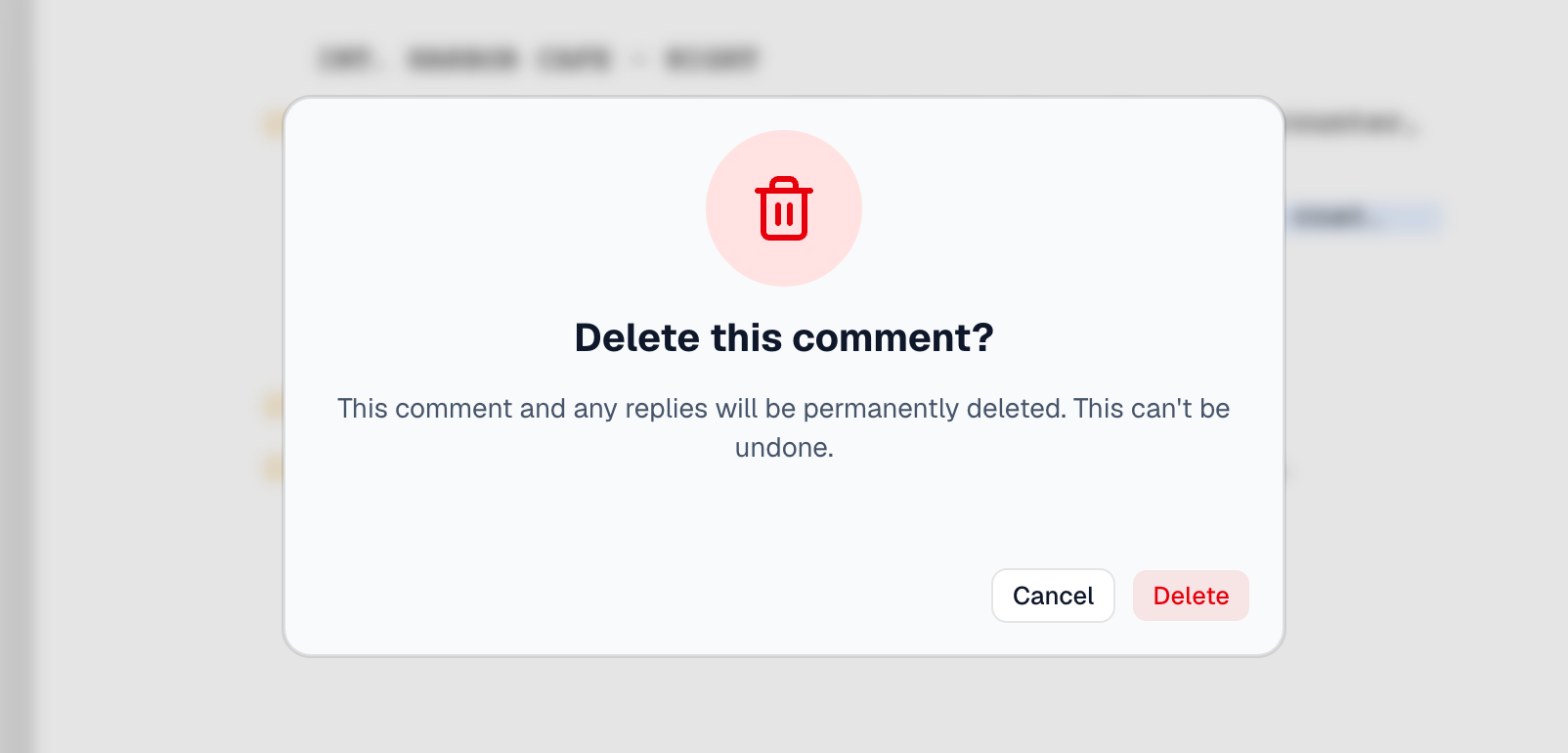
Deleting a comment also deletes every reply under it. Deleting a reply removes only that reply.
If the deletion doesn't go through, the window stays open and says "This couldn't be deleted. Reload the page and try again." The comment stays as it was.
Who can do what
What you can do with comments depends on your role on the screenplay.
| Owner | Editor | Viewer | |
|---|---|---|---|
| Read comments | Yes | Yes | Yes |
| Leave a comment or reply | Yes | Yes | Yes |
| Resolve or unresolve | Yes | Yes | No |
| Delete your own comment or reply | Yes | Yes | Yes |
| Delete someone else's comment or reply | Yes | No | No |
Someone who has been invited but hasn't accepted yet can't see the screenplay or its comments.
Every button shows for everyone, but the ones you can't use are grayed out: drawn with a gray outline and gray text instead of blue or red. A viewer sees Resolve grayed out on every comment, and Delete is grayed out on any comment or reply you aren't allowed to delete. Point at a grayed-out button to see why:
- Resolve or Unresolve: "Only the screenplay's owner and editors can resolve or reopen comments."
- Delete on a comment: "Only the person who posted this comment or the screenplay's owner can delete it."
- Delete on a reply: "Only the person who posted this reply or the screenplay's owner can delete it."
Clicking a grayed-out button does nothing. Ask the screenplay's owner or an editor to do it.
Readers you've invited through Reader Mode leave comments too. Theirs appear in your panel marked FROM READER (see Reader Mode in Beachwood).
Comments and Update from Final Draft
Update from Final Draft replaces your script with a newer Final Draft file. Only the screenplay's owner can do it. Afterwards, Beachwood says how many of your comments it kept.
- A comment on a line that is unchanged in the new draft stays, still on that line.
- A comment on a line that changed or was cut is removed.
Nothing is lost for good: Beachwood saves a version of the screenplay, comments included, just before the update. Restore it from Version history to get the removed comments back. The details are in Scene numbers in Beachwood and Version History in Beachwood.
Comments and Version history
Every saved version keeps the comments the screenplay had when it was saved. Previewing a version shows its comments as they were, read-only. Restoring a version brings back that version's comments and removes the ones added since; the auto-save made just before the restore keeps them. See Version History in Beachwood.
Things that may surprise you
The panel says "No comments yet." when every comment is resolved. The comments are still there. Turn on Show resolved to see them.
Opening the panel from the toolbar gives you a grayed-out comment box. A comment always belongs to a line, so the box works only after you click a line's bubble.
The panel lists the newest conversation first, not in script order. A comment on page 40 can sit above one on page 2. See The order of comments above.
Reader Mode shows no tinted line. A reader comments through Reader Mode's own panel.
A deletion can't be undone from the panel. Once you confirm, the comment and its replies are gone. Restoring an earlier version from Version history is the only way to get them back.