Beachwood can show each scene's number in the margins of your script — once in the left margin and once in the right, level with the scene heading, the way a production draft is printed.
 1   INT. TRAIN - AFTERNOON                                    1

     The Eurail rolls along. Inside passengers sleep and read.
Turning them on
In the editor toolbar, open Show/Hide and choose Show Scene Numbers. The same row reads Hide Scene Numbers while they are on.
They are off by default, and the setting is remembered per browser — turn them on once and they stay on for every screenplay you open on that computer.
Where the numbers come from
Scene numbers come from your script breakdown. They are not something Beachwood works out from the script on its own.
Running a breakdown is what assigns them, and there are two ways to do it:
Scenes page → Import scenes — the first breakdown, or a full re-import. This numbers every scene 1, 2, 3… from the top of the script.
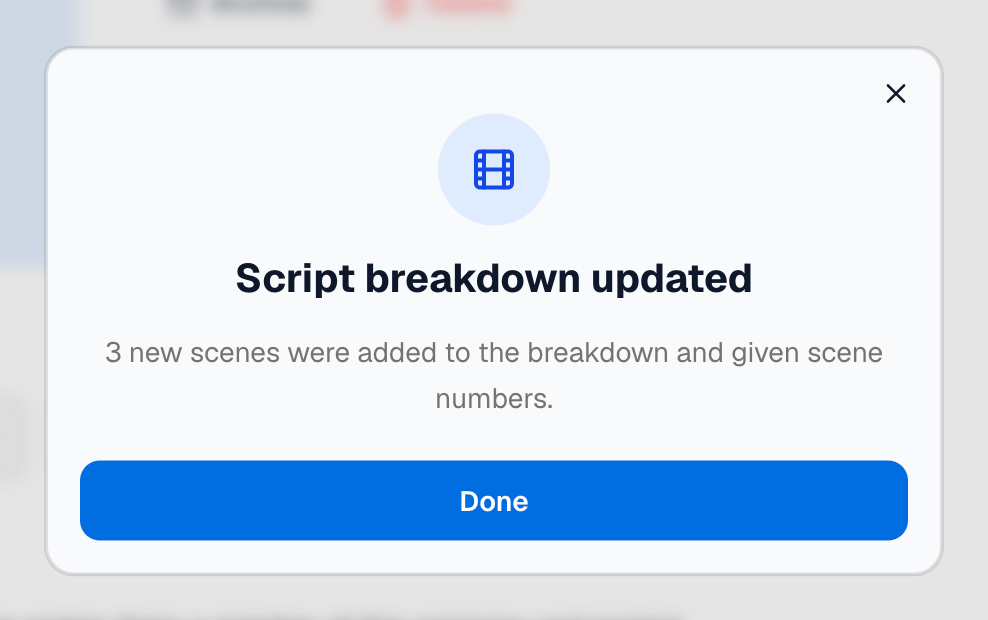
Project Overview → Update Script Breakdown — adds new scenes and marks the ones you deleted OMITTED, to match the current script. It never renumbers a scene that already has a number. When it finishes, the Script breakdown updated window says what changed, one sentence for each kind of change, for example:
- 2 new scenes were added to the breakdown and given scene numbers.
- 1 deleted scene was kept as OMITTED. It keeps its scene number and its breakdown, and you can restore it from the script.
A kind of change that didn't happen isn't listed. The whole update, step by step, is in Updating your script breakdown.
This is deliberate, and it is the whole point of the feature: the number you see in the margin is the same number on your Scenes list, your stripboard, your sides, your schedule and your call sheets. Everyone is looking at the same scene 47.
What you'll see if the numbers don't appear
The Show Scene Numbers row greys out and tells you why:
| The row says | What it means | What to do |
|---|---|---|
| Run a script breakdown to number your scenes | The script is in a project, but no breakdown has been run yet. | Run Update Script Breakdown, or import scenes from the Scenes page. |
| Add this screenplay to a project to number its scenes | The screenplay isn't part of a project, so there's no production behind it to number. | Move it into a project first. |
| Scene numbers need a plan that includes the production suite | Your plan doesn't include breakdowns. | See plans — or, if you're working on someone else's project, ask the project owner. |
A blank margin means that scene isn't in the breakdown yet
If you add a new scene while the numbers are showing, its margins stay empty. That is correct — the scene genuinely doesn't have a number yet, because your breakdown hasn't seen it. Run Update Script Breakdown and it gets one:
- Written between two numbered scenes — it takes a letter after the scene above it, so a scene between 12 and 13 becomes 12A, the next one 12B. Scene 13 stays 13.
- Written after the last scene — it takes the next number.
- Written above your first scene — it takes a letter in front: A1, then B1.
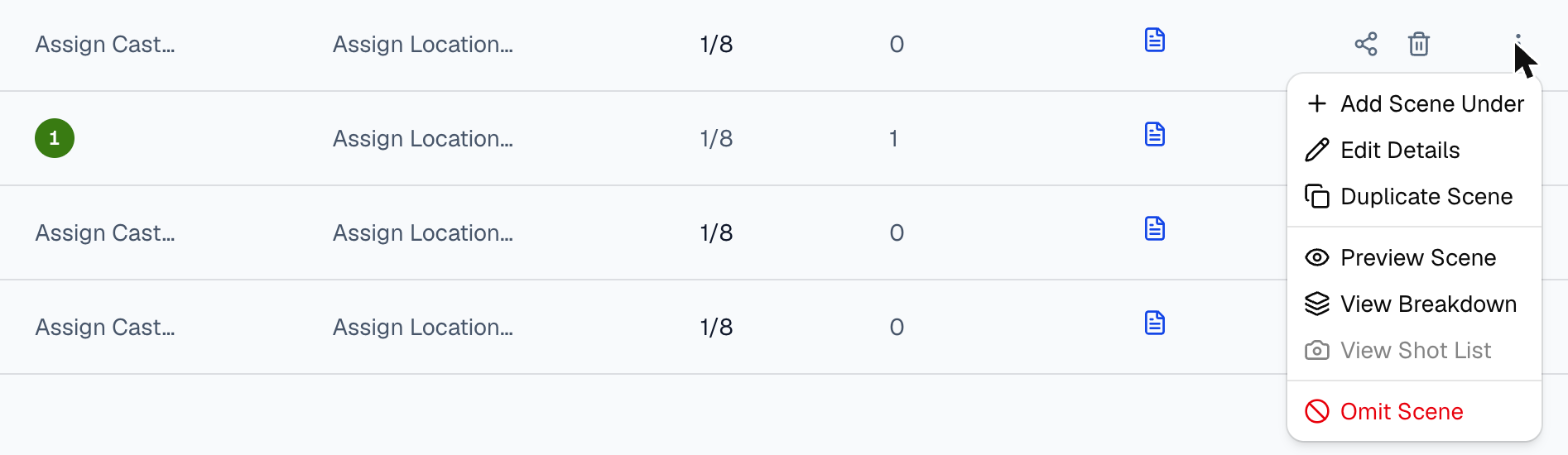
You can also add a scene straight from the Scenes page: open the ⋮ menu on a scene's row and choose Add Scene Under. The new scene is lettered the same way.
Duplicate Scene, in the same menu, works the same way but starts you with a copy of that scene — its script, its tagged elements, its cast, shoot locations, estimated time and notes. Edit the copy if you like, then choose whether to add it to the screenplay. Duplicating scene 5 gives you 5A; duplicating it again gives 5B. The original scene is never changed.
Beachwood will never invent a number for a scene. A number in the margin always means a real number your crew can rely on.
Numbers don't have to run 1, 2, 3
Once a production is underway, gaps, letters and out-of-order numbers are normal. A deleted scene leaves its number unused (see below), a scene you move keeps its number, and scenes added later get letters. That is on purpose: your stripboard, sides and call sheets already say "scene 47", and a number that shifted underneath them would send the crew to the wrong page. Beachwood shows exactly what the breakdown says rather than renumbering anything on screen.
If you want a clean 1, 2, 3 again, re-import scenes from the Scenes page — that renumbers everything from the top.
When you delete a scene
Delete a scene heading and run Update Script Breakdown, and the scene stays in your breakdown marked OMITTED. It keeps its number, and its breakdown work (cast, elements, stripboard place, shot list) stays with it. Its number is never given to another scene.
The script shows it the way Final Draft does: a single line reading OMITTED, with the scene's number in both margins, where the scene used to be. The line isn't editable. Beachwood keeps the scene's text behind it, taken from the newest saved version that had the scene. If no saved version had it (you added and deleted it between saves), there's no line, and the scene is OMITTED on the Scenes page only.
Not sure what the line means? Hover the word OMITTED. A note explains that the scene was cut, that it keeps its number and its breakdown, and that the number is never given to another scene. Everyone who can open the screenplay sees it, viewers included. If you can bring the scene back, the note also tells you to click Restore scene, and shows its icon so you know which button that is.
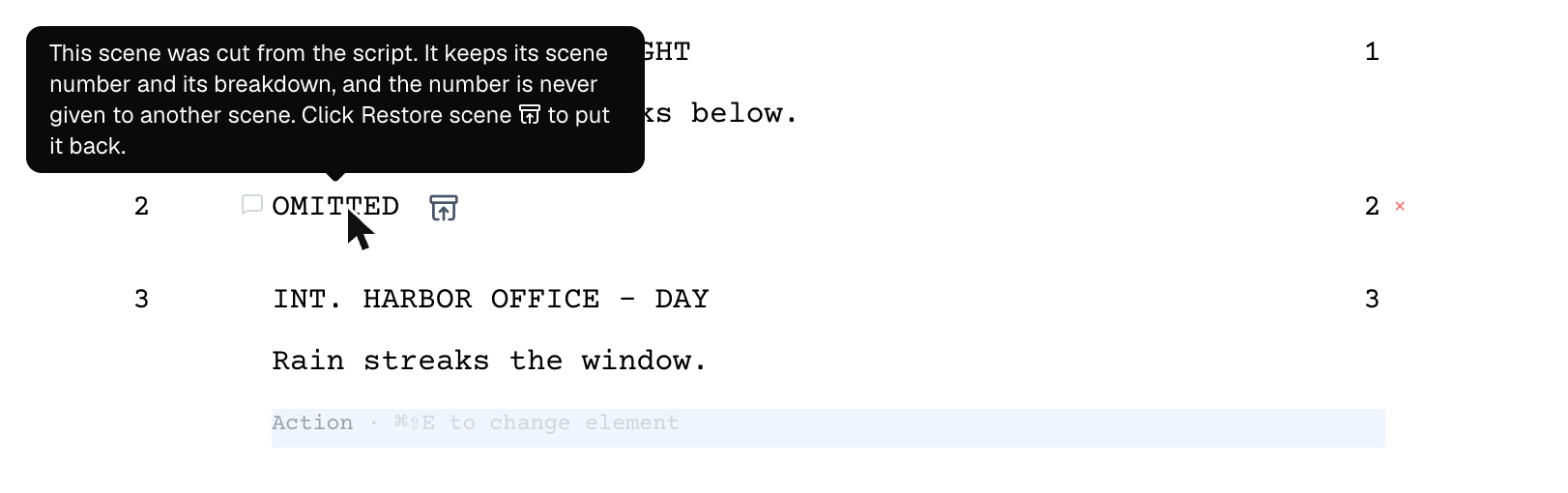
To bring it back, hover the OMITTED line and click Restore scene (the icon just after the word), as you would Unomit in Final Draft. The scene's heading and text come back in place, fading in with a brief highlight so you can see which lines returned, and the next Update Script Breakdown makes the scene active again with its number and everything attached to it. Restore scene is one step of Undo. Only the screenplay's owner and editors see it; a viewer sees the OMITTED line and its note, but no Restore scene.
Undoing the deletion, or restoring an earlier version from Version history, brings the scene back too: run Update Script Breakdown again and the window tells you the scene is active again, for example "1 scene whose heading came back is active again, with its scene number and breakdown."
You can also delete the OMITTED line itself. The scene then stays OMITTED on the Scenes page, with no line in the script.
Omitting a scene from the Scenes page
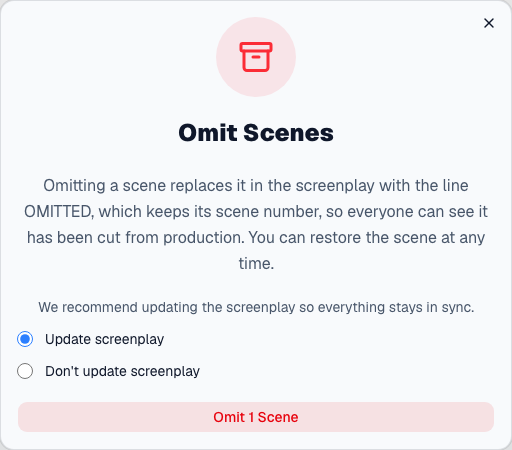
On the Scenes page, tick the scenes and click Omit, the red box icon in the toolbar. In the Omit Scenes window, Update screenplay collapses each selected scene in the script to the same OMITTED line, keeping its text behind it. Don't update screenplay omits it on the Scenes page only. Update screenplay is unavailable when no screenplay is linked to the project, or when you can't edit the screenplay; the window says which. A scene typed on the Scenes page, with no heading in the script, is omitted on the Scenes page only.
To omit just one scene, open the ⋮ menu at the end of its row and choose Omit Scene, the last item. It opens the same Omit Scenes window for that one scene, with the same two choices. The rows you've ticked stay ticked. Omit Scene is grayed out for anyone with view-only access to the project.
To bring omitted scenes back, tick them and click Reactivate, the last button in the toolbar, right after Omit (a box with an upward arrow). It works at once, with no confirmation window. For the screenplay's owner and editors it also restores the OMITTED line in the script. A scene you omitted yourself this way stays OMITTED even when its heading is in the script, until you reactivate it; it doesn't come back by itself the way a deleted scene does. Like the other toolbar buttons, Reactivate is grayed out until you tick at least one scene, and for anyone with view-only access to the project.

On an omitted scene's row, the last item in the ⋮ menu reads Reactivate Scene instead. It brings back that one scene the same way, with no confirmation, and leaves your ticked rows alone.
Why Reactivate can be grayed out with scenes ticked. If you can't edit the screenplay and a selected scene's OMITTED line is still in the script, the next Update Script Breakdown would omit the scene again. So Reactivate (and a row's Reactivate Scene) is grayed out. Point at the Reactivate button, or move to it with Tab, to see why: ask the screenplay's owner or an editor to click Restore scene. The other four buttons still work. It's grayed out the same way if you can't open the screenplay at all. If Reactivate works on the Scenes page but the script can't be updated, a message tells you, and you can click Restore scene on each OMITTED line yourself.
Printing and exporting
- PDF — the export includes scene numbers when they're switched on in the editor, and leaves them out when they're off, the same way Final Draft prints what it shows. (A watermarked free-plan export never includes them.)
- Final Draft (.fdx) — the export always includes the numbers when your script has a breakdown, whether or not they're showing on your screen, so the file opens in Final Draft with your numbering intact.
- An OMITTED scene prints as the line OMITTED with its number, in the PDF as on screen. In the
.fdxit's written the way Final Draft writes an omitted scene, so Final Draft opens it omitted and Unomit there brings the scene's text back.
Importing from Final Draft
If you import a .fdx that already has scene numbers, Beachwood keeps them. The first time
you run a script breakdown, every scene gets the number it had in Final Draft, including
locked numbers such as 2A, numbers with gaps, and numbers out of order.
A scene the file leaves unnumbered (for example one you added in Final Draft while the numbers
were locked) is numbered around the kept ones, the same way as a scene you add in Beachwood.
After a locked 4, it becomes 4A.
A few numbers can't be used. If two scenes carry the same number, the first one keeps it.
A number with a leading zero, like 007, would print as 7, so Beachwood doesn't use it.
The import summary tells you how many scenes this affected. Those scenes still import
perfectly and are numbered around the others.
This applies only to the first breakdown. Once a screenplay has a breakdown, its numbers come from the breakdown, and importing a file doesn't change them.
Updating a project screenplay from a new Final Draft draft
Update from Final Draft (the upload icon on your screenplay's row in Beachwood) works on a screenplay that belongs to a project, too. You need to own the screenplay and be able to edit the project. Beachwood matches each scene in the new draft to a scene already in the breakdown, by the scene's Final Draft identity, its number and its heading, and then:
- A scene it matches keeps its number and everything attached to it: cast, elements, schedule and notes.
- A new scene gets the number Final Draft gave it, if your numbers are locked in Final Draft and no other scene already has that number. Otherwise it's numbered the same way as a scene you add in Beachwood.
- A scene the new draft no longer has is marked OMITTED. It keeps its number and its breakdown work, and its number is never given to another scene. If a later draft brings it back (Unomit in Final Draft, which keeps the scene's identity), it comes back active with its number and work. A new scene that merely has the same heading as a cut one is treated as a new scene.
When the update finishes, Beachwood tells you, one sentence each, how many scenes kept their numbers, how many new scenes were added, and how many were kept as OMITTED, and then how many of your comments it kept. A comment stays when the line it's on is unchanged in the new draft. Comments on lines that changed are removed, but the version saved just before the update still has them. Restore it from Version history to get them back (see Version History in Beachwood).
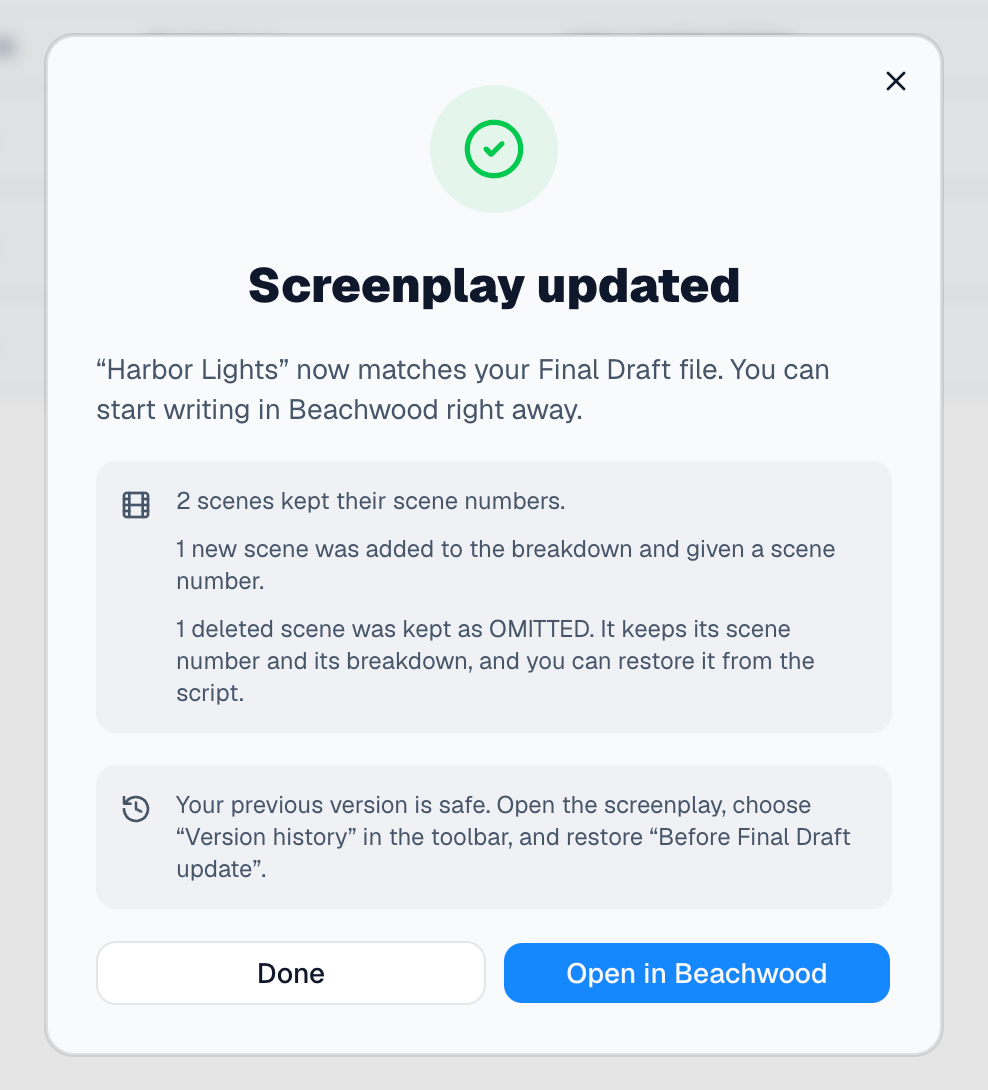
A scene marked OMITTED in Final Draft comes in OMITTED, as the OMITTED line with its number, and you can Restore scene it in Beachwood to get its text back. A scene the new draft simply doesn't have also leaves an OMITTED line where it was, holding its old text.
Update from Final Draft also works on a screenplay you own that's nested directly under a company. And if you took a screenplay out of a project, updating it keeps its parked breakdown in step, so putting it back in the project brings back the work that still matches.
Where the numbers sit on the page
Beachwood places them exactly where Final Draft does: the left number a little way out into the left margin, the right number tucked just inside the right edge of the text.
Because the right-hand number sits close to the text, a very long scene heading can run into it. Final Draft behaves the same way, and Beachwood matches it rather than moving the number somewhere non-standard.