The screenplays list is where every screenplay you own or work on lives in Beachwood. From it you open a screenplay, start a new one, import one from Final Draft or a PDF, lock it for a breakdown, share it to read, move it into a project, rename it or delete it. You can also open the same list without leaving the editor, from the title bar at the top of the script.
Getting to the list
There are three ways in.
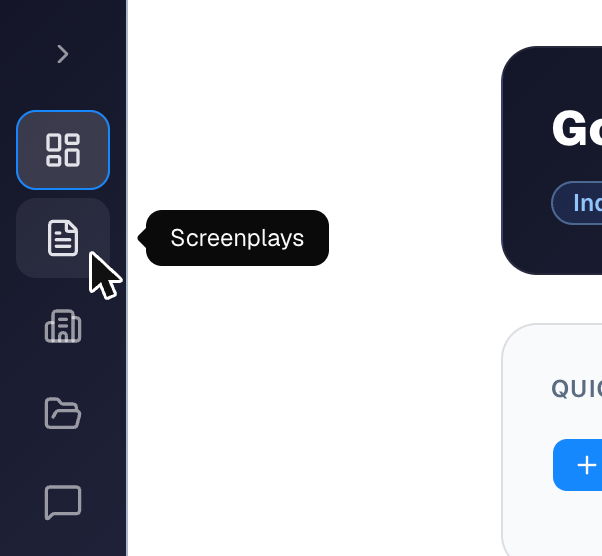
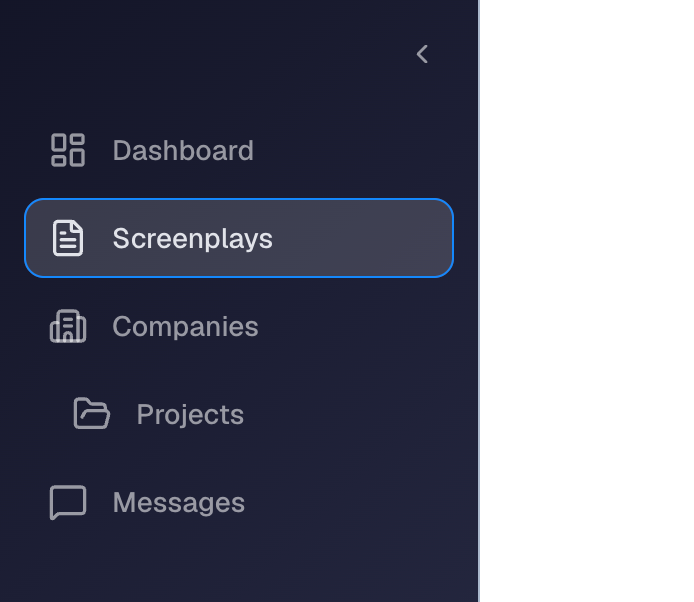
From the sidebar. Click the page icon in the sidebar. When the sidebar is collapsed, hover over the icon and it says Screenplays; when it's expanded, the word sits beside the icon. The icon stays highlighted while you're on the list, and while you're writing in one of your own screenplays.
From the Dashboard's Quick Actions. Choose Open Beachwood.

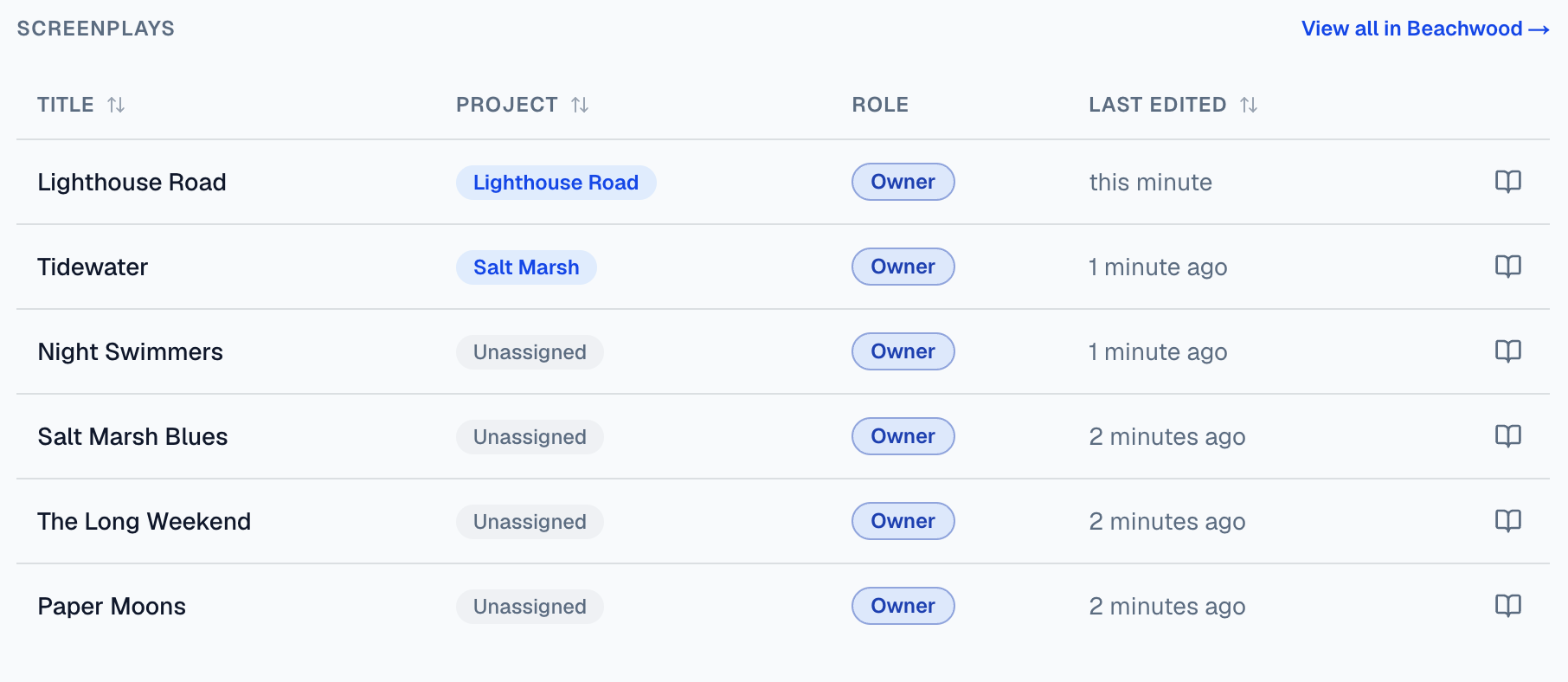
From the Dashboard's Screenplays card. Choose View all in Beachwood → at its top right. The card itself shows only your most recent screenplays, with a Role column the list doesn't have.
What's on the page
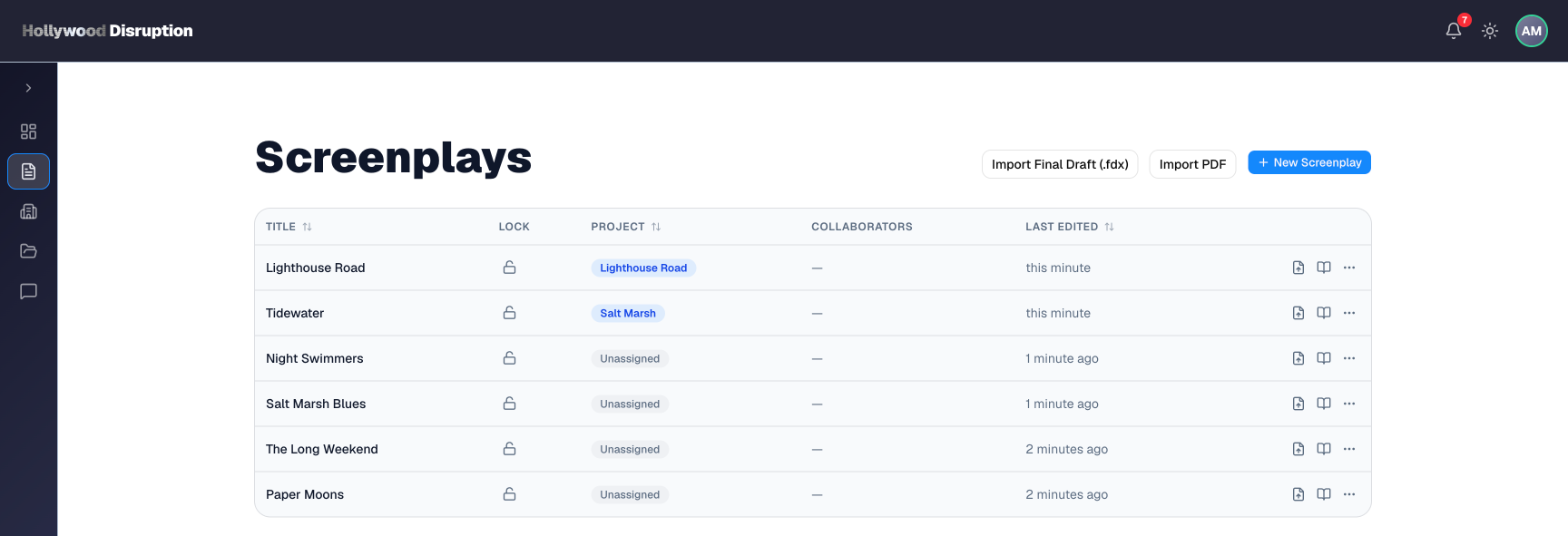
The page is headed Screenplays. At the top right are three buttons: Import Final Draft (.fdx), Import PDF and + New Screenplay. On a phone, they sit just below the heading instead. Below them, a table lists your screenplays, the most recently edited first.
The columns are:
- Title. Click a title, or anywhere on its row, to open the screenplay.
- Lock. A padlock showing whether the screenplay is locked. See Locking a screenplay below.
- Project. A blue pill with the project's name when the screenplay belongs to a project, or a gray Unassigned pill when it doesn't.
- Collaborators. The pictures of the people you share the screenplay with, or a dash when there's no one. Point at a picture to see that person's card; see A collaborator's card.
- Last edited. How long ago the screenplay last changed.
At the right end of each row are its buttons; see The buttons on a row below.
Sorting. Click the Title, Project or Last edited heading to sort by that column. Click it again to reverse the order. The sort lasts only while you're on the page: when you come back, the list is in last-edited order again.
Load more. If you have a lot of screenplays, the list shows the first batch and a Load more button under the table. Choose it to show the next batch.
Opening a screenplay
Click the screenplay's title or row. A screenplay of your own opens in the Beachwood editor. A screenplay that belongs to a project opens inside that project, with the project's sidebar on the left.
Starting a new screenplay
Choose + New Screenplay. A window asks you to Name your screenplay. Type a title; the Create button becomes available once there's something to create. Choose Create, or press Enter, and the new screenplay opens in the editor, ready to write.
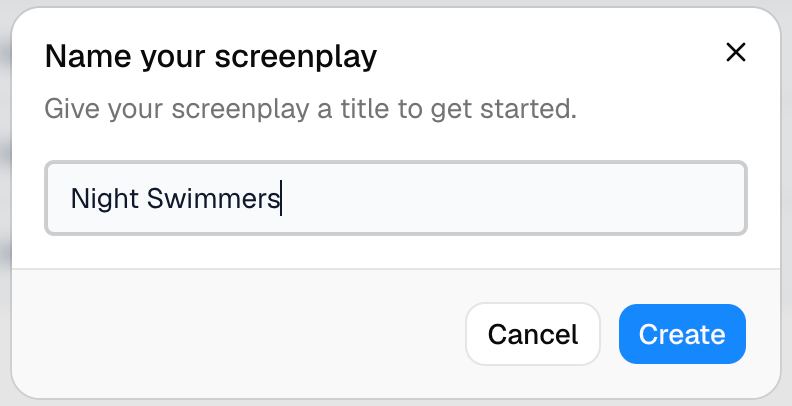
If the screenplay can't be created, a message says "We couldn't create your screenplay. Please try again." and the window stays open.
Importing from Final Draft or a PDF
Choose Import Final Draft (.fdx) or Import PDF, then pick the file on your computer. A new screenplay is made from it and opens in the editor.
- If part of the file couldn't be brought across, an Import finished window opens first. It says how many lines were imported and lists what was left out, such as Final Draft elements Beachwood doesn't support yet, or scene numbers it couldn't use. Choose Open screenplay to carry on.
- If the file is the wrong kind, a message asks you to choose a Final Draft (.fdx) file or a PDF (.pdf) file.
- If the import fails, a message under the buttons says "We couldn't import that file." Try again, or try a different file.
Locking a screenplay
The Lock column shows an open padlock for an unlocked screenplay. Hover over it to see what it means.

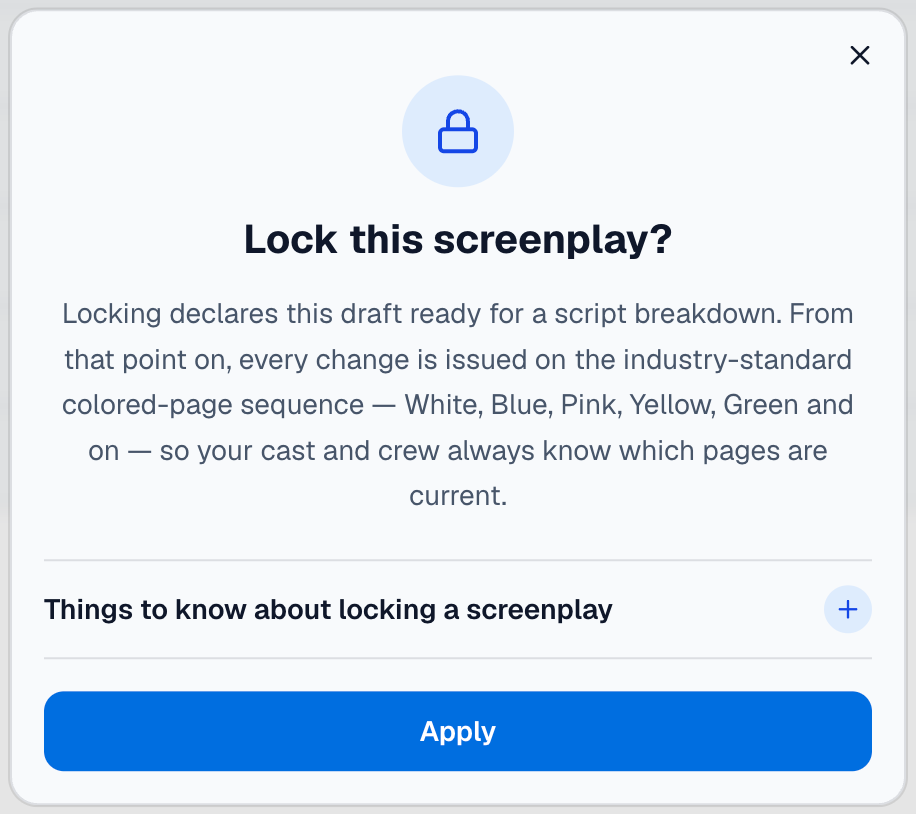
Lock a screenplay when the script is ready for a production breakdown. Click the open padlock, and a Lock this screenplay? window explains what locking does. Open Things to know about locking a screenplay to read more:
- Locking doesn't change a word of the script.
- From then on, each Update Script Breakdown issues the next colored revision. See Update Script Breakdown.
- You can unlock it at any time. Only the owner or an editor can lock or unlock it.
Choose Apply to lock it. The padlock closes, and its tooltip reads "Locked — changes are issued as colored revision pages".
The buttons on a row
If you own the screenplay, its row has three buttons at the right end. Hover over one to see its name.
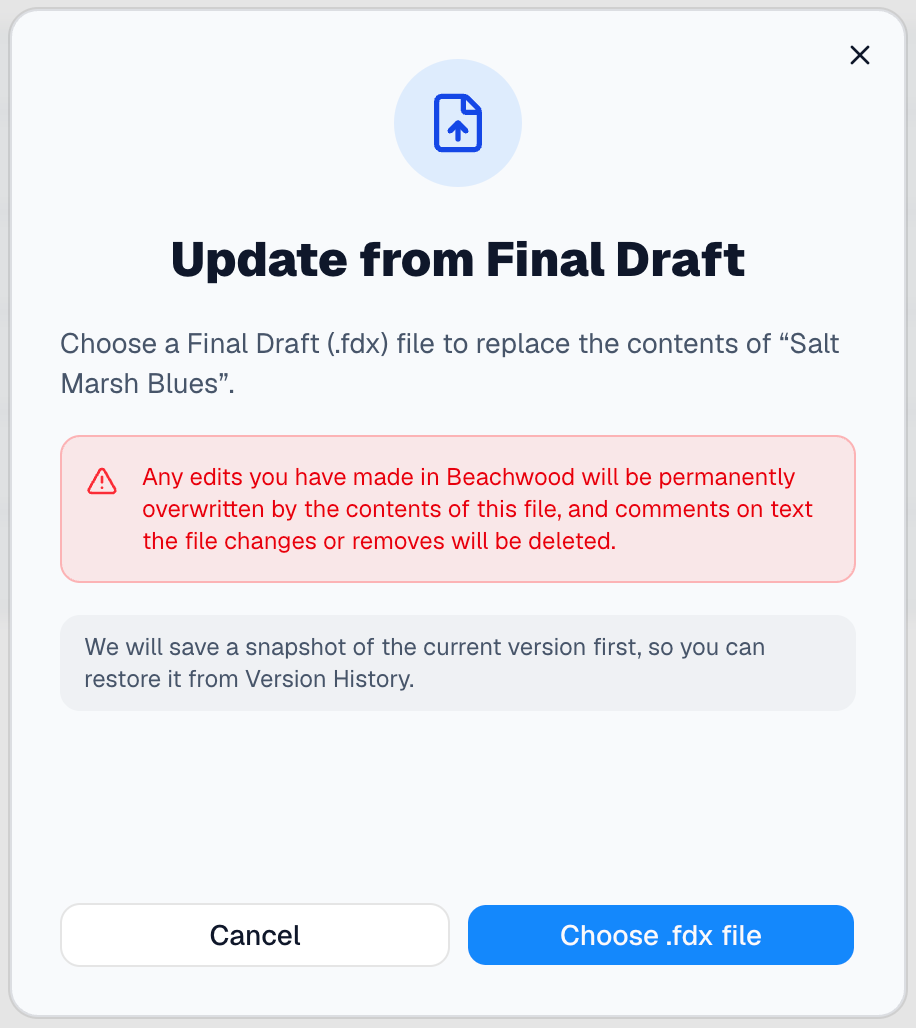
Update from Final Draft (a page with an up arrow). Replaces the screenplay's contents with a Final Draft file. The window that opens warns that your edits in Beachwood will be overwritten, and that comments on text the file changes or removes will be deleted. Beachwood saves a copy of the current version first, so you can get it back from Version History. Choose Choose .fdx file to go ahead, or Cancel.
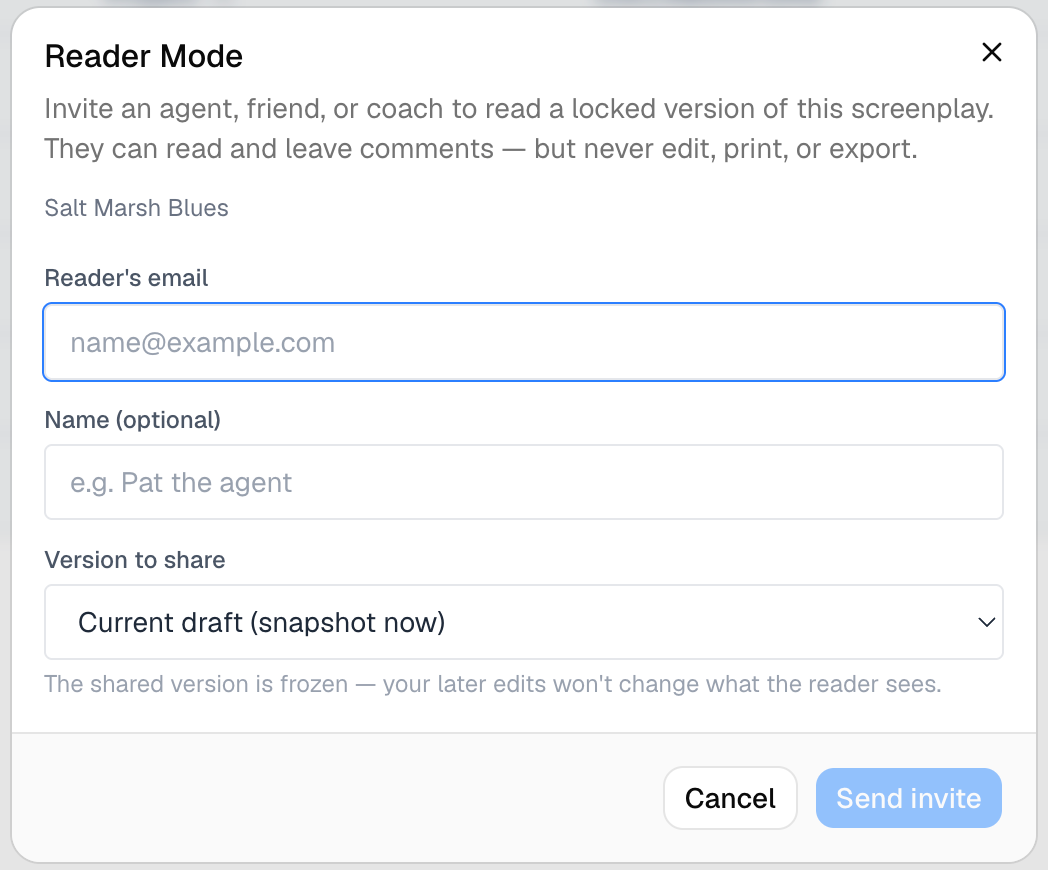
Share to read (an open book). Opens the Reader Mode window, where you invite someone to read the screenplay and comment on it. See Reader Mode.
Actions (⋯). Opens a menu; see the next section.
The Actions menu
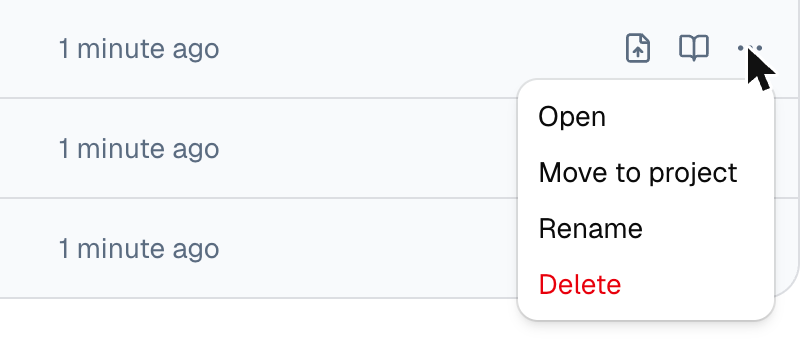
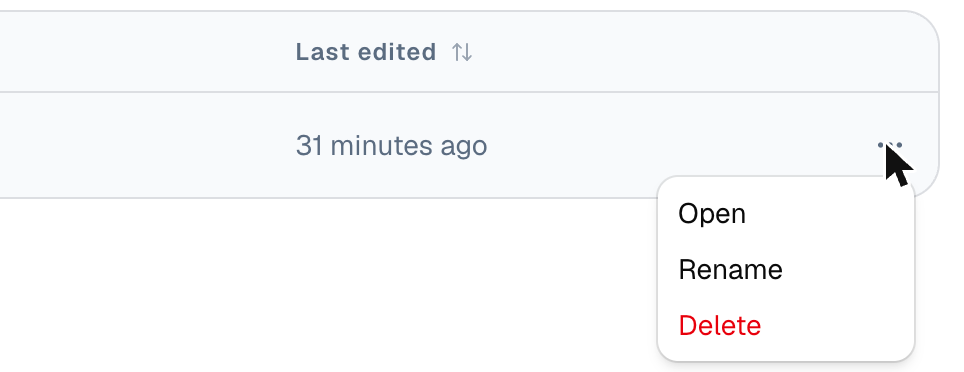
Choose ⋯ on a row for these choices:
- Open. The same as clicking the row.
- Move to project. Only for a screenplay that isn't in a project yet.
- Rename.
- Delete, in red.
Move to project
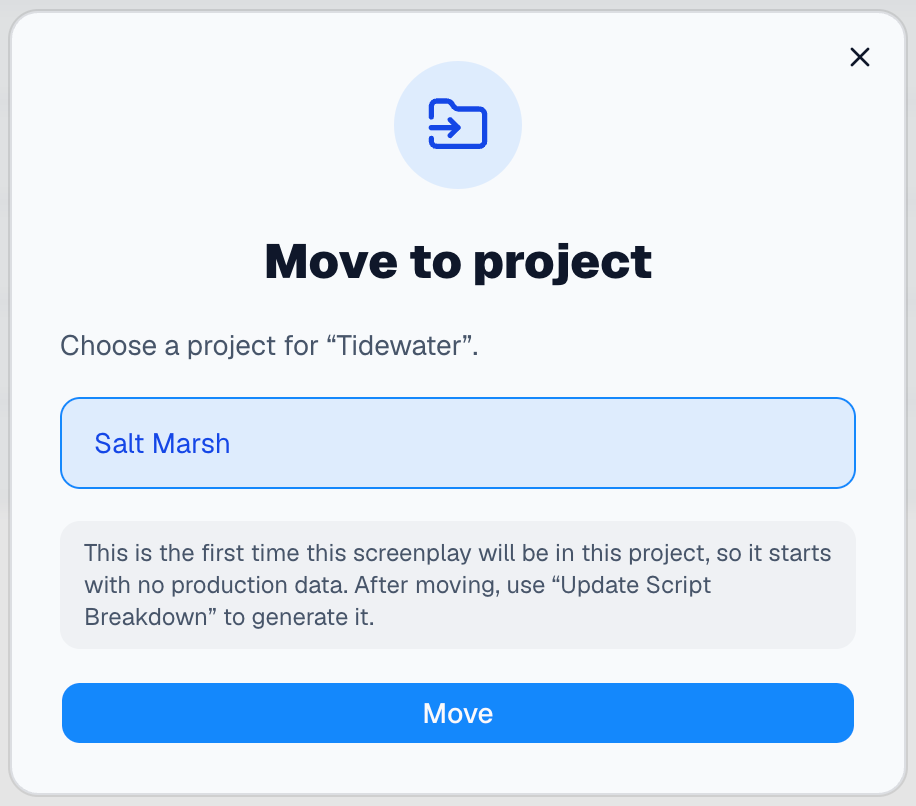
Choose a project from the list in the window, then Move. The row then shows the project's pill. A screenplay moved into a project starts with no production data: run Update Script Breakdown from the project to build its scenes and breakdown.
Rename
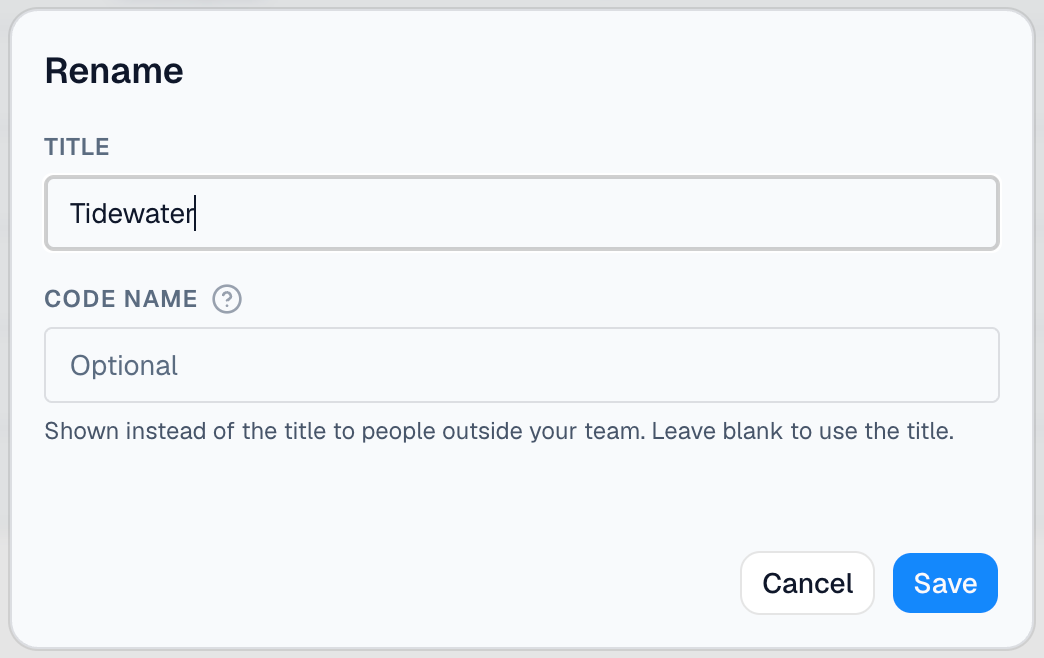
The Rename window has two boxes:
- Title, the screenplay's name.
- Code name, optional. It's shown instead of the title to people outside your team. Leave it blank to use the title. See Code names.
Choose Save to keep the change, or Cancel.
Delete
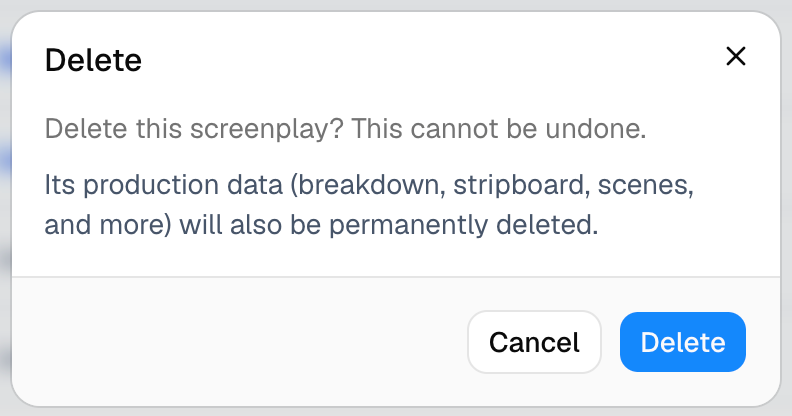
A window asks "Delete this screenplay? This cannot be undone." If the screenplay belongs to a project, it adds that the screenplay's production data (breakdown, stripboard, scenes, and more) will be permanently deleted too. Choose Delete to delete it, or Cancel.
The list inside the editor
While you're writing, you don't have to leave the screenplay to reach the list. The blue bar at the top of the editor shows TITLE: and the screenplay's name. Click it to open a My Screenplays window holding the same list: the same three buttons, the same columns and the same row buttons.

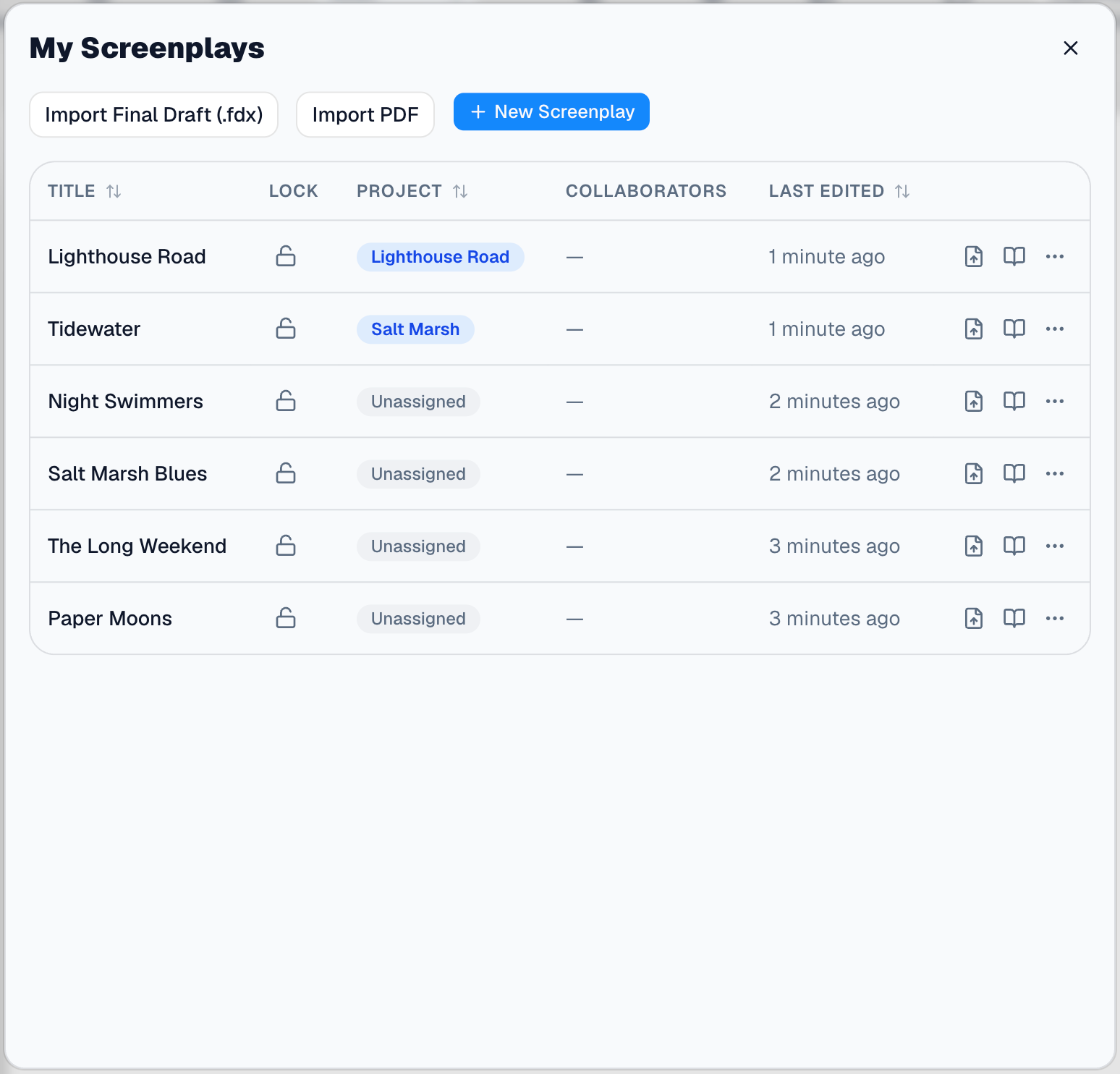
Click a screenplay to open it; the window closes. To close the window without opening anything, choose the X at its top right, press Esc, or click outside it.
If the list can't load, the window says "We couldn't load your screenplays." with a Try again button.
What collaborators and readers see
An invite waiting for you shows as an amber banner above the table, one for each invite. An invite to work on a screenplay says "You have a pending invite to collaborate on…"; an invite to read one says "You have a pending invite to read…". Each has Accept and Decline. See Accepting or declining an invite to a screenplay.
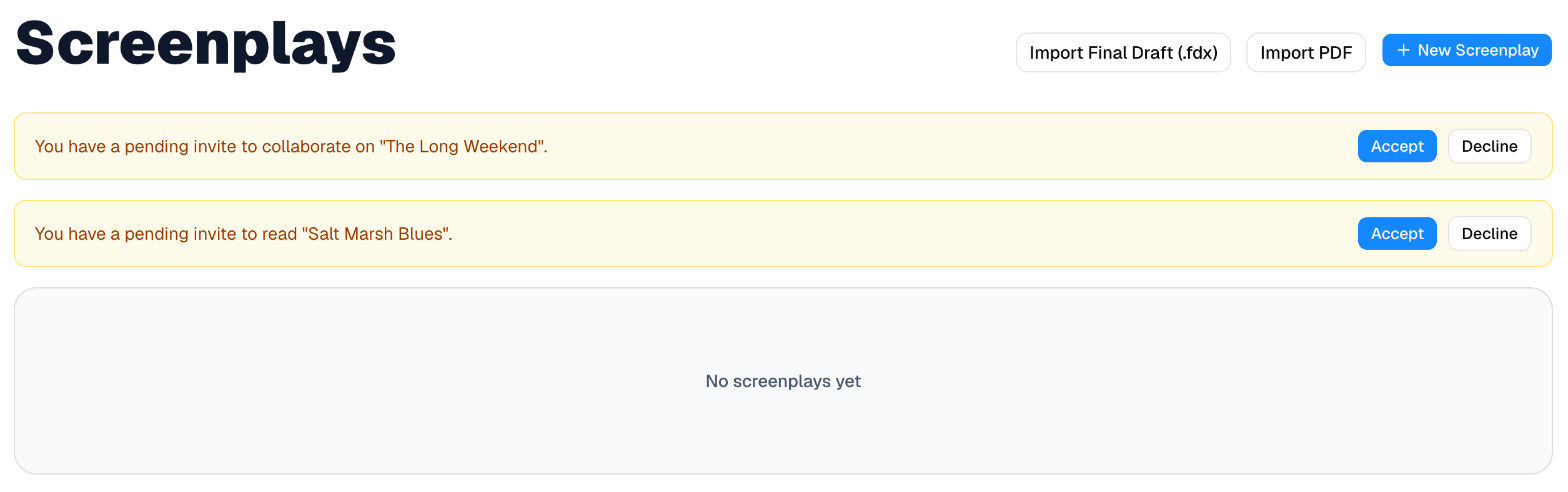
If you're a viewer on a screenplay, its row is simpler:
- The padlock is grayed out. Hovering over it says "Only the owner or an editor can change this", and clicking it does nothing.
- There's no Update from Final Draft or Share to read button, only ⋯.
- The ⋯ menu has Open, Rename and Delete, but no Move to project.


Once you've accepted an invite to read, two tabs appear above the table: All screenplays and To read, with a count of the screenplays waiting for you. To read lists them with their Version, your Progress and when you Last read them. Click one to open it in Reader Mode. See Reader Mode.

Things that may surprise you
The list has no Role column. To see whether you're the owner, an editor or a viewer on a screenplay, look at the Role column of the Dashboard's Screenplays card.
The sort arrow doesn't show the direction. The icon beside a sortable heading looks the same whichever way the column is sorted, so look at the rows to tell.
Sorting only reorders what's shown. If the list has a Load more button, sorting arranges the screenplays already loaded, not every screenplay you have.
A viewer can't rename or delete the screenplay, even though Rename and Delete are in their menu. Saving a rename shows the message "Forbidden" and the window stays open.
Last read can show a time for a screenplay you haven't opened. On the To read tab, it counts from when you accepted the invite.
The list doesn't remember the tab. Coming back to the list always opens All screenplays.
You may be asked to upgrade. If your plan's screenplay limit is reached, + New Screenplay and the import buttons open a Screenplay limit reached window with a View plans button instead. Deleting a screenplay frees a place.