Reader Mode lets you invite someone (your agent, a friend, a screenwriting coach) to read a screenplay inside Beachwood. They read a locked version of it, in a clean, distraction-free reader, and they can leave comments. You can see when they accept, how far they've read, when they finish, and every comment they leave.
A reader can't edit, print, export or save a copy of the screenplay, and never sees your live draft.
Inviting a reader
Sharing a screenplay with a reader is part of the Screenwriter Pro plan and above. What counts is the plan of the screenplay's owner: the owner can invite readers, and so can a collaborator the owner has allowed to invite people. Readers themselves only need a free account.
You can open the Reader Mode panel from two places:
- in the editor, the Reader Mode button on the toolbar (in a narrow window, it's under More);
- on your screenplay list, the Share to read button on the screenplay's row.
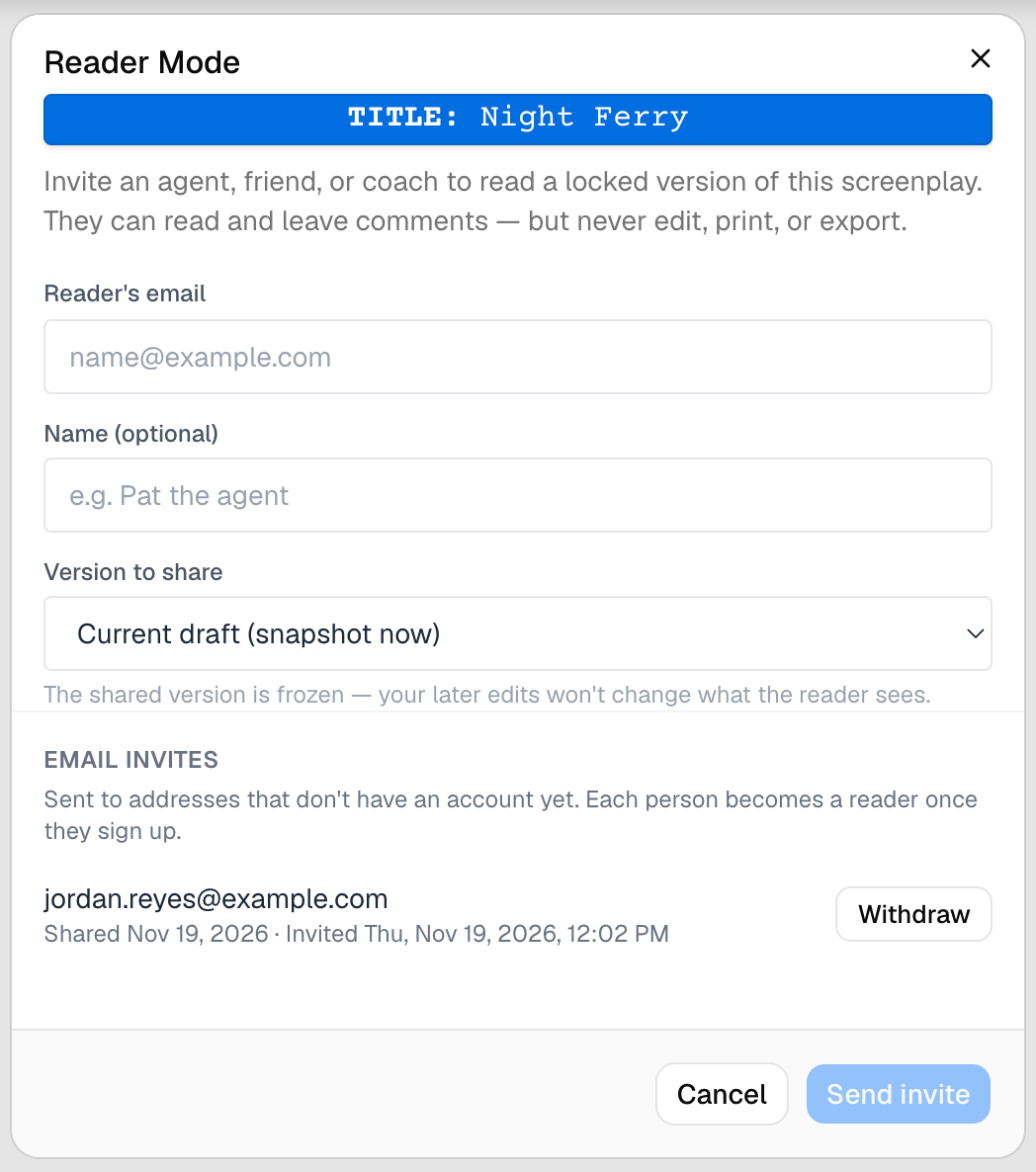
At the top of the panel, under its heading, a title bar shows TITLE: and the screenplay's title, drawn the same way as the title bar above the editor, so you can see at a glance which screenplay you're sharing. In the panel it only shows the title: clicking it does nothing, and you can't rename the screenplay from it.
The panel opens on the invite form. Fill in:
- Reader's email: the address they'll sign in with.
- Name (optional): a label such as "Pat the agent". Your list of readers shows it only while the reader has no name on their own account; once they do, it shows their name instead.
- Version to share: Current draft (snapshot now) saves a copy of the screenplay as it is right now, or pick a version you saved earlier.
Click Send invite. Your reader gets an email and, if they already have an account, a notification in Hollywood Disruption.
The shared version is frozen. Keep writing, try an alternate ending: what your reader sees doesn't change. To show them a newer draft, invite them again and pick the newer version. A reader is bound to one version of a screenplay at a time.
Following your readers
The same panel lists everyone you've invited, with their status:
- Invited: they haven't accepted yet.
- Reading: they accepted. You see how far they've read ("Page 12 of 110") and how many comments they've left.
- Finished: they reached the end.
- Declined: they turned the invite down. You can invite them again.
You're notified when a reader accepts, first opens the screenplay, moves well ahead in it, finishes it, and leaves a comment. Their comments show up in your Comments panel, marked as coming from a reader.
To stop sharing with someone, click Remove next to their name.
Invites to people who don't have an account yet
If you invite an address that has no Hollywood Disruption account, that person isn't in your list of readers yet. The invite waits until they sign up with that address, and then they become a reader, shown as Invited.
While it waits, the invite is listed under Email invites, below your readers. Each row shows the address, the version you shared and when you sent it. A copy saved as you shared it reads Shared and the day you shared it, such as Shared Nov 18, 2026, in your own time zone and language; any other version saved without a name reads Unnamed version. You see this section if you can invite readers to the screenplay, and only when there's at least one such invite.
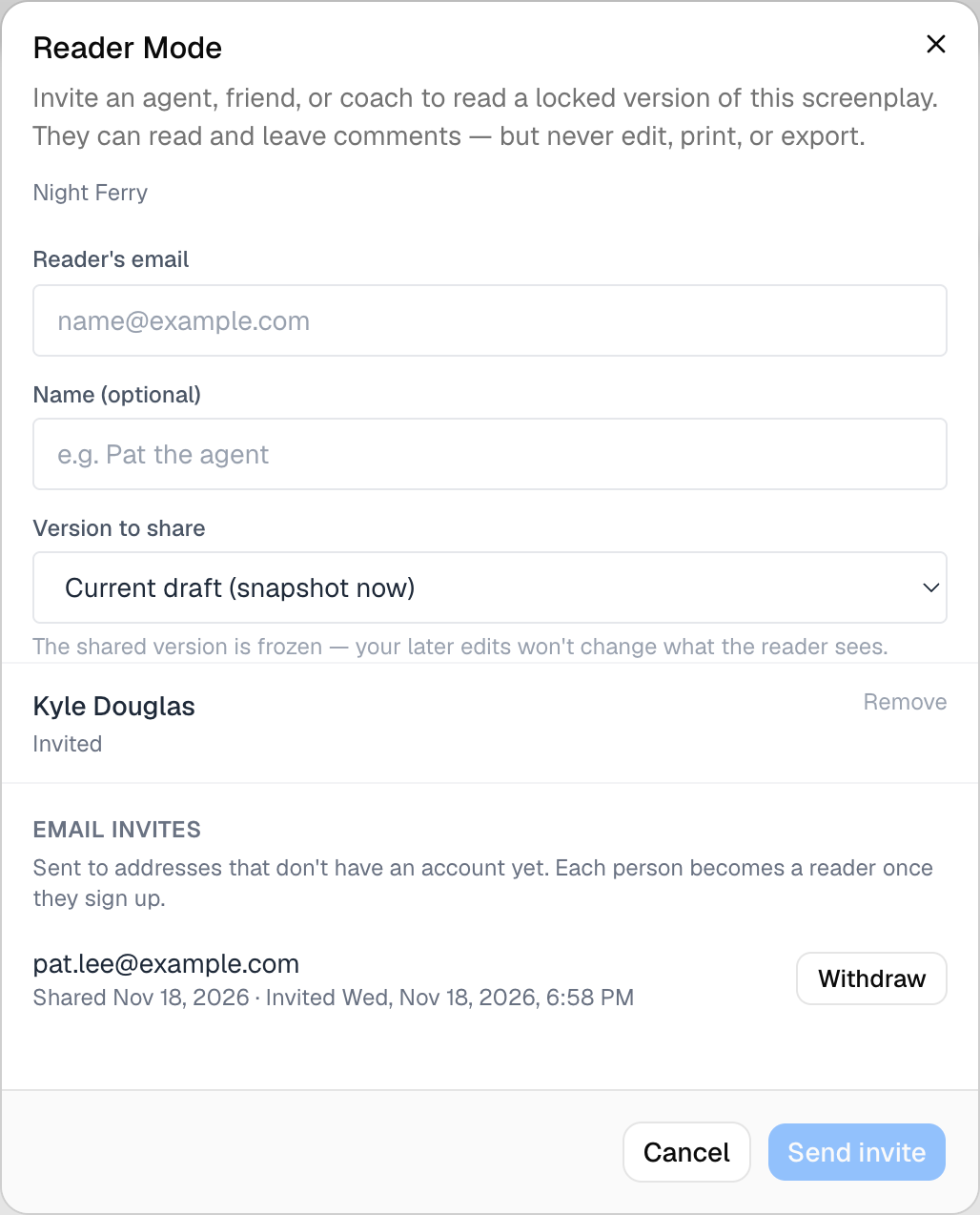
To take an invite back:
- Click Withdraw on its row. A Withdraw this invite? window opens.
- Click Withdraw in the window.
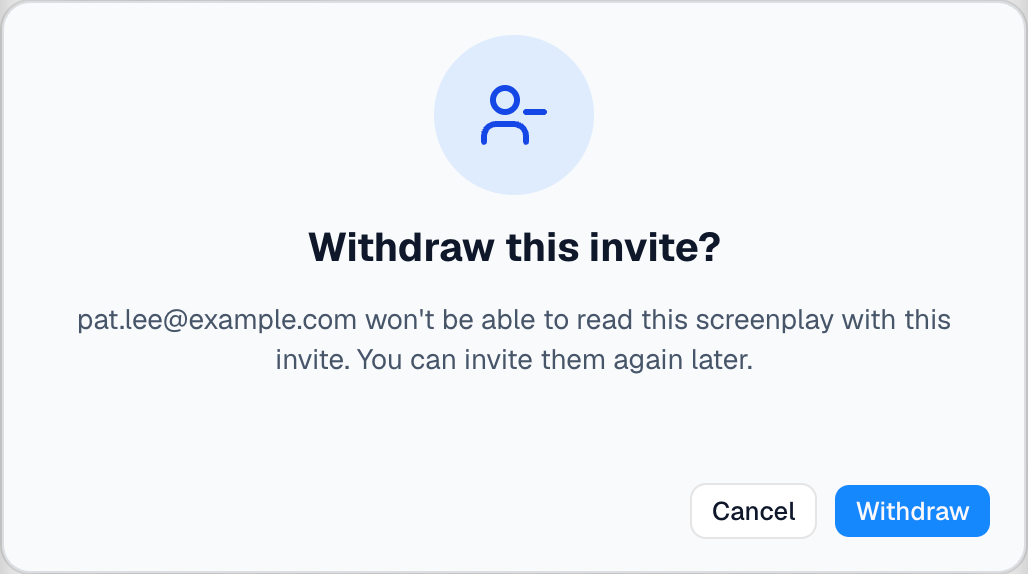
The row goes away, and the address can no longer use that invite to read the screenplay. You can invite them again later. If it fails, Couldn't withdraw the invite. Please try again. appears in the window. If the person signed up just before you clicked, the row simply disappears: they're now in your list of readers, where Remove stops sharing with them.
Deleting a screenplay also deletes every reader invite still waiting on it.
Being invited to read
You need a free account
A reader needs a Hollywood Disruption account, and it must use the same email address the invite was sent to. If you don't have one yet, the invite email's link takes you to sign up. The invite is waiting for you once you've signed up.
Accepting the invite
Open your screenplays list (the page icon, Screenplays, in the sidebar). At the top, an amber banner says:
You have a pending invite to read "the screenplay's title".

Click Accept to start reading, or Decline to turn it down. Either way the banner closes. If something goes wrong, the banner stays and tells you to try again.
A screenplay you've declined doesn't come back on its own. If you change your mind, ask the writer to invite you again.
Finding the screenplays you read
Once you've accepted, two tabs appear at the top of your screenplay list: All screenplays (your own screenplays and the ones you work on) and To read, with the number of screenplays you've been given to read beside it. Click To read to see them, in a table with four columns:
- Title: the screenplay's title;
- Version: the version the writer shared, such as "Draft 3". A copy the writer saved as they shared it reads "Shared" and the day they shared it, such as "Shared Nov 18, 2026", with the date written in your own time zone and language;
- Progress: how far you've got: Not started, Read to page 12 of 110, or Finished;
- Last read: when you last read it, or when you accepted the invite if you haven't opened it yet.

The screenplay you read (or accepted) most recently is at the top. Click anywhere on a row to open it in Reader Mode. When you go back from Reader Mode, the list opens on To read again.
The tabs only appear when you have something to read. Until then, your screenplay list looks exactly as it always has.
Reading
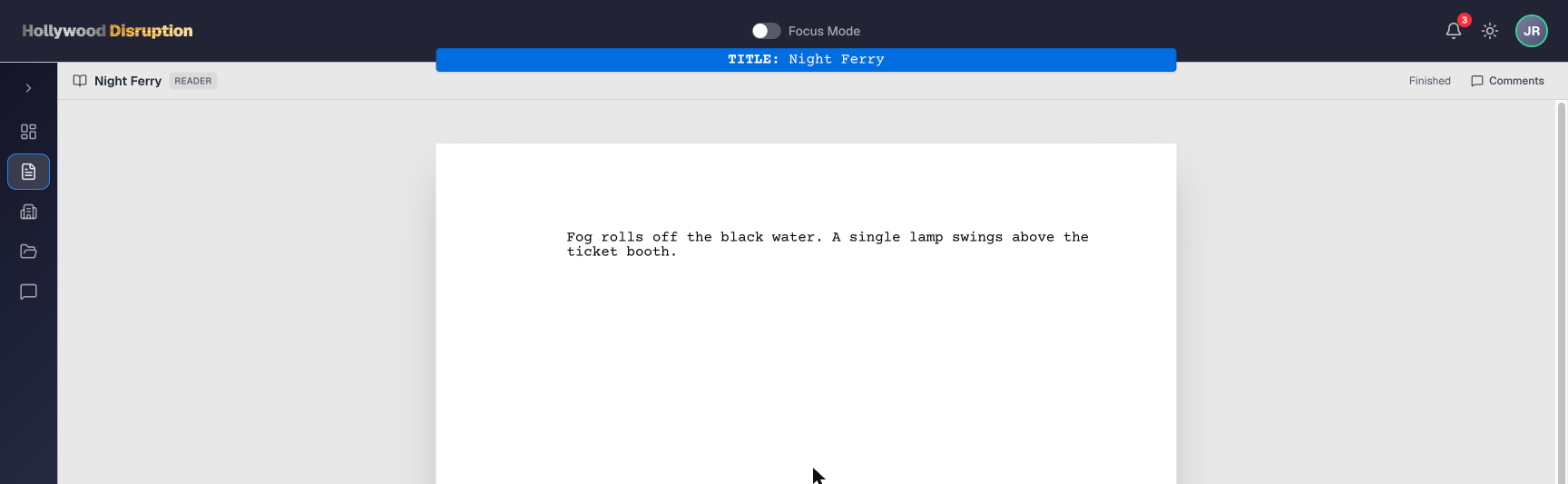
The reader shows the screenplay paginated exactly as it prints, with a slim toolbar on top: the title, a Reader badge, and how far you've read. Your place is saved as you scroll, so the writer can see your progress, and the To read tab shows where you got to. Reaching the last page marks it Finished.
Leaving comments
Click Comments on the toolbar to open the comments sidebar, then click a line in the script and type your thoughts. Click Add comment to post it. The writer sees it in their own Comments panel.
Things that might surprise you
- Accept doesn't open the screenplay. It adds it to the To read tab; click it there to start.
- You might see a screenplay twice. If the writer also made you a collaborator on it, it's under All screenplays (the live draft, with whatever access they gave you) and under To read (the locked version they shared with you). They're two separate copies on purpose.
- There's no print or export. Reader Mode is for reading and commenting only.
- A link to a screenplay you haven't accepted yet takes you to your screenplay list, where the invite's banner is waiting.