When you're signed in, Hollywood Disruption shows which plan you're on in a small rounded badge. The badge shows the plan's name, and its color tells you the plan at a glance.
Where the badge appears
You'll find it in two places:
On your dashboard, in the welcome banner at the top of the page, just under the greeting with your name.

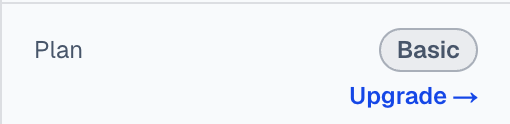
In your profile menu. Click your profile picture at the top right of the page. The Plan row near the top of the menu shows the badge on the right.

What each color means
| Badge | Plan |
|---|---|
| Gray | Basic, the free plan |
| Orange | Screenwriter Pro |
| Green | Filmmaker Pro |
| Blue | Industry Pro |

Upgrading from Basic
If you're on Basic, the profile menu shows an Upgrade → link just below the badge.
- Click your profile picture at the top right of the page.
- Click Upgrade → under the Basic badge.
- The pricing page opens and lists each plan. Choose the plan you want there.
The link appears only on Basic. On a paid plan the menu shows the badge without it.
Plan names in other languages
Plan names are product names, so they read the same in every language: Basic, Screenwriter Pro, Filmmaker Pro and Industry Pro. The rest of the profile menu is translated, including the upgrade link, which reads Mejorar → in Spanish.
Light and dark mode
The welcome banner on the dashboard is dark navy in both light and dark mode, so the badge on it looks the same in either mode. The badge in the profile menu follows your theme: it has a light background in light mode and a dark one in dark mode, in the same color for your plan.
Things that may surprise you
- A plan change shows after you sign in again. The badge shows the plan your account had when you signed in. If your plan changes, sign out and sign back in to see the new badge.
- The badge doesn't say what your plan includes. To compare plans and prices, open the pricing page from the Pricing link on Hollywood Disruption's website.