Everyone you share a screenplay with has a small card. It tells you who they are, what they can do on the screenplay and when they were invited. It also has a Message button, so you can write to them without leaving the page you're on.
Opening a collaborator's card
The card opens in two places.
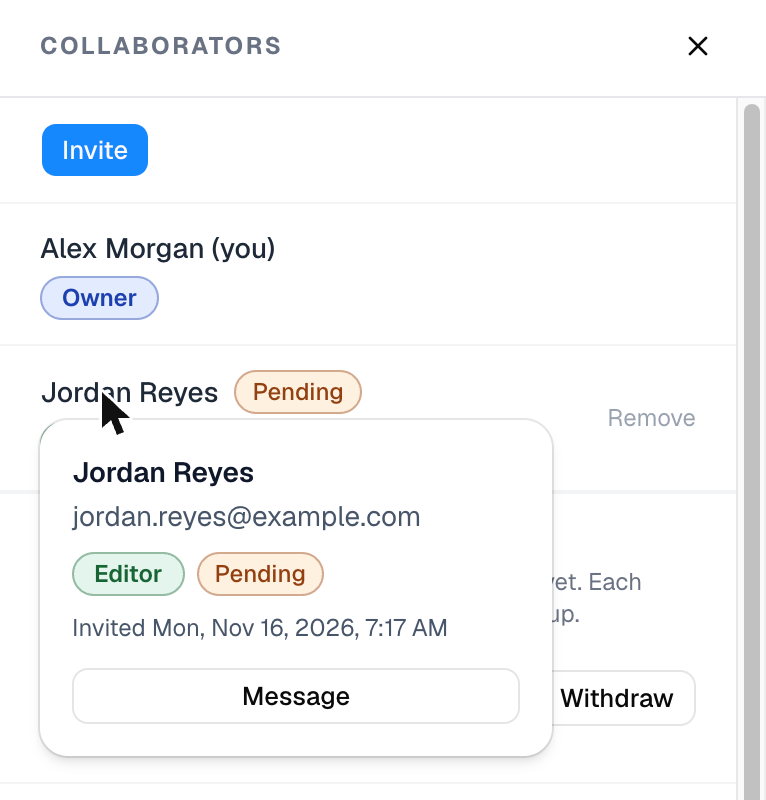
In the Collaborators panel. In the editor, click Collaboration in the toolbar. The Collaborators panel opens on the right, with everyone on the screenplay. Point at a person's name and their card opens beside it.
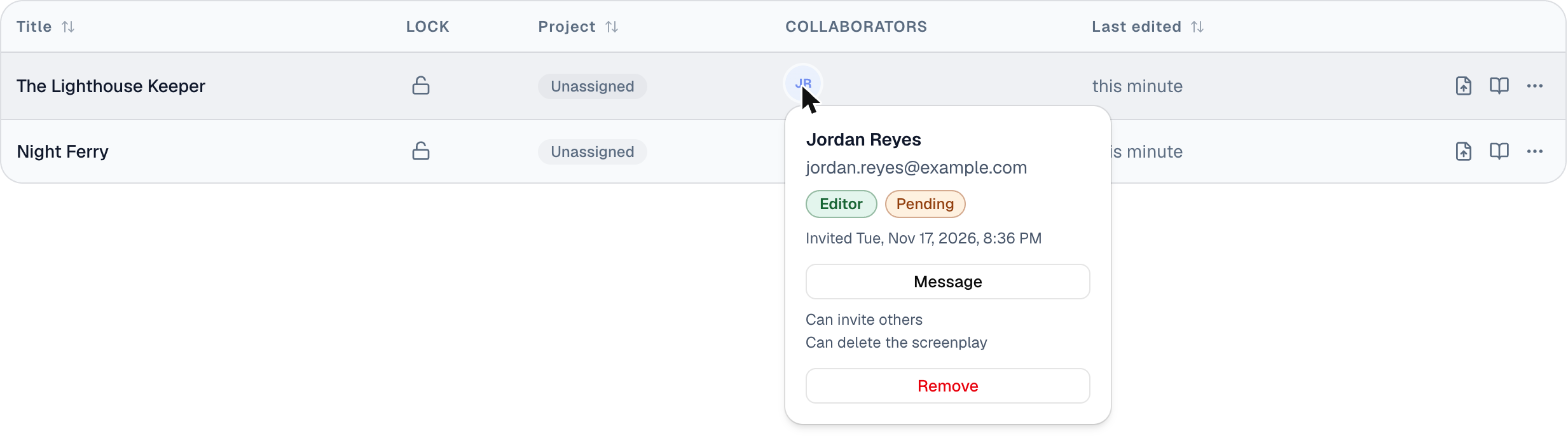
On the screenplays list. Click the page icon (Screenplays) in the sidebar. Each screenplay shows its collaborators as a row of small round pictures (or initials, for someone without a picture) in the Collaborators column. Point at one and that person's card opens.
With the keyboard. Press Tab until a name in the panel, or a picture on the list, is highlighted. The card opens just as if you had pointed at it.
Move the mouse away, or Tab on, and the card closes.
What the card shows
From the top:
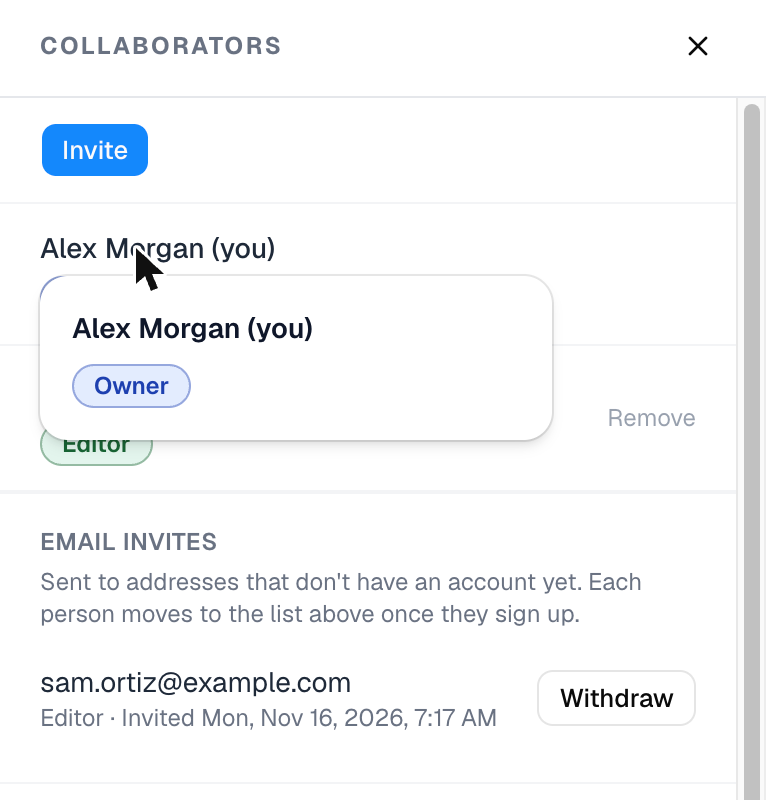
- The person's name. On your own card, it's followed by (you).
- Their email address, on most cards. See Cards without an email below.
- Their role, as a colored pill: Owner in blue, Editor in green, Viewer in gray. The same pill, in the same color, shows on the person's row in the Collaborators panel, in the Role column of the Dashboard's Screenplays card, and on the dashboard's Projects and Companies cards (where Member is purple).
- Pending, if they've been invited but haven't accepted yet.
- When they were invited, for example Invited Fri, Nov 13, 2026, 6:49 AM. The date and time are shown in your own time zone and your language, so two people in different cities see different times for the same invite.
- Message, on everyone's card but your own.
The owner's card has no Invited line, because nobody invited the owner. They created the screenplay.
Messaging a collaborator
- Open the person's card.
- Click Message. A Message window opens over the page, titled with their name.
- Write your message. The cursor is already in the Write a message… box, so you can start typing straight away. You can add an emoji or attach a file, the same as anywhere else in Messages.
- Click Send.
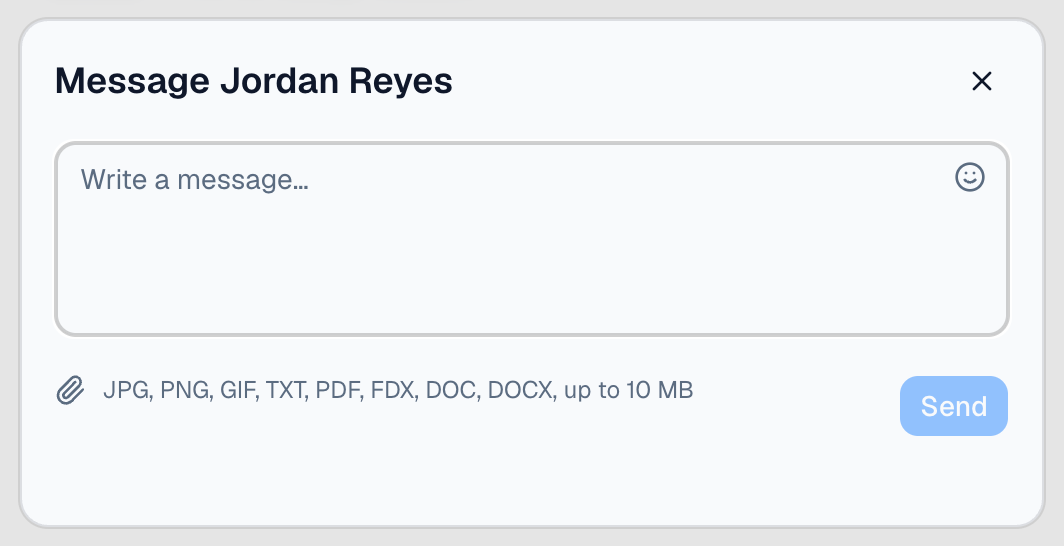
The note beside the paper clip lists the file types you can attach: JPG, PNG, GIF, TXT, PDF, FDX (Final Draft), DOC and DOCX. It also gives the largest file size allowed. Any other kind of file is turned away with "That file type isn't supported." and isn't attached. These are the same types Contact Support accepts.
The window closes when the message is sent, and you stay where you were: in the editor, or on the screenplays list. The conversation is in Messages whenever you want to carry on there.
To close the window without sending, click ✕ or press Esc.
You can message anyone on the screenplay, including someone whose invite is still Pending.
Removing a collaborator from the screenplays list
The card on the screenplays list has two extras that the card in the Collaborators panel doesn't:
- What else they can do. An editor allowed to invite other people shows Can invite others. An editor allowed to delete the screenplay shows Can delete the screenplay.
- Remove, in red. Click it to take the person off the screenplay. It shows when you own the screenplay, or when you're an editor allowed to invite others. It never shows on your own card or on the owner's.
While it works, the button reads Removing…. If it fails, Couldn't remove. Try again. appears under it.
In the editor, the Collaborators panel has its own controls on each person's row, next to the name rather than on the card. These include the role (the same pill the card shows), Remove (or Leave, on your own row), and, when the owner looks at an editor who has accepted, that editor's privileges.
Invites to people who don't have an account yet
When you invite an email address that has no Hollywood Disruption account, that person can't be listed as a collaborator yet: there's no one to show. The invite waits until they sign up with that address, and then they appear in the list as Pending, with a card like everyone else.
While it waits, the invite is listed under Email invites, in the Collaborators panel just below the list of collaborators. Each row shows the address, the role you offered (Editor or Viewer) and when you sent it. You see this section if you own the screenplay, or if you're an editor allowed to invite others. It only appears when there's at least one such invite.
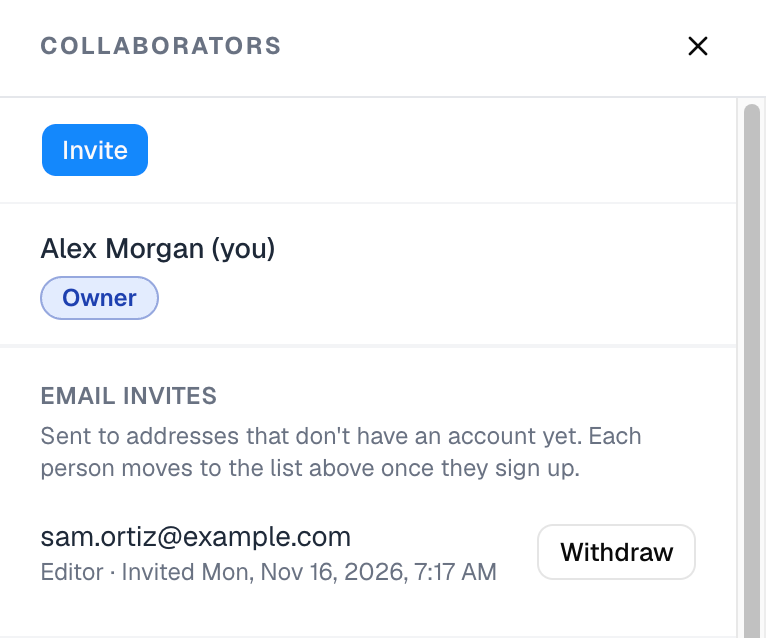
To take an invite back:
- Click Withdraw on its row. A Withdraw this invite? window opens.
- Click Withdraw in the window.
The row goes away, and the address can no longer use that invite to join the screenplay. You can invite the same address again later. If it fails, Couldn't withdraw the invite. Please try again. appears in the window.
If the person signs up just before you click, the invite has already become a Pending collaborator. The row disappears without a message, and you'll find them in the list above, where Remove takes them off.
Deleting a screenplay also deletes every invite still waiting on it, so nobody can sign up later and find an invite to a screenplay that's gone.
Things that might surprise you
- Cards without an email. The owner's card shows no email. Now and then another card has none either, when the invite was made without recording an address. The rest of the card works as usual, Message included.
- You don't see yourself on your own screenplays. On the screenplays list, the pictures beside a screenplay you own are the people you've shared it with. On a screenplay someone shared with you, the owner comes first.
- Someone you invited by email who has no account yet has no card. They're listed under Email invites instead (see above), with no card and no Message button, because there's no one to message yet. They appear in the list, with a card, once they sign up.
- A Pending person's picture is faded on the screenplays list.
- Only the first four pictures open a card. If more people are on a screenplay, a circle such as +3 follows the pictures. It has no card. Open the screenplay and use the Collaborators panel to see everyone.
- Someone who declined isn't listed, so they have no card.
- After ownership is handed over, the new owner's card has no Invited line. The previous owner, now an editor, shows the date they were first added.